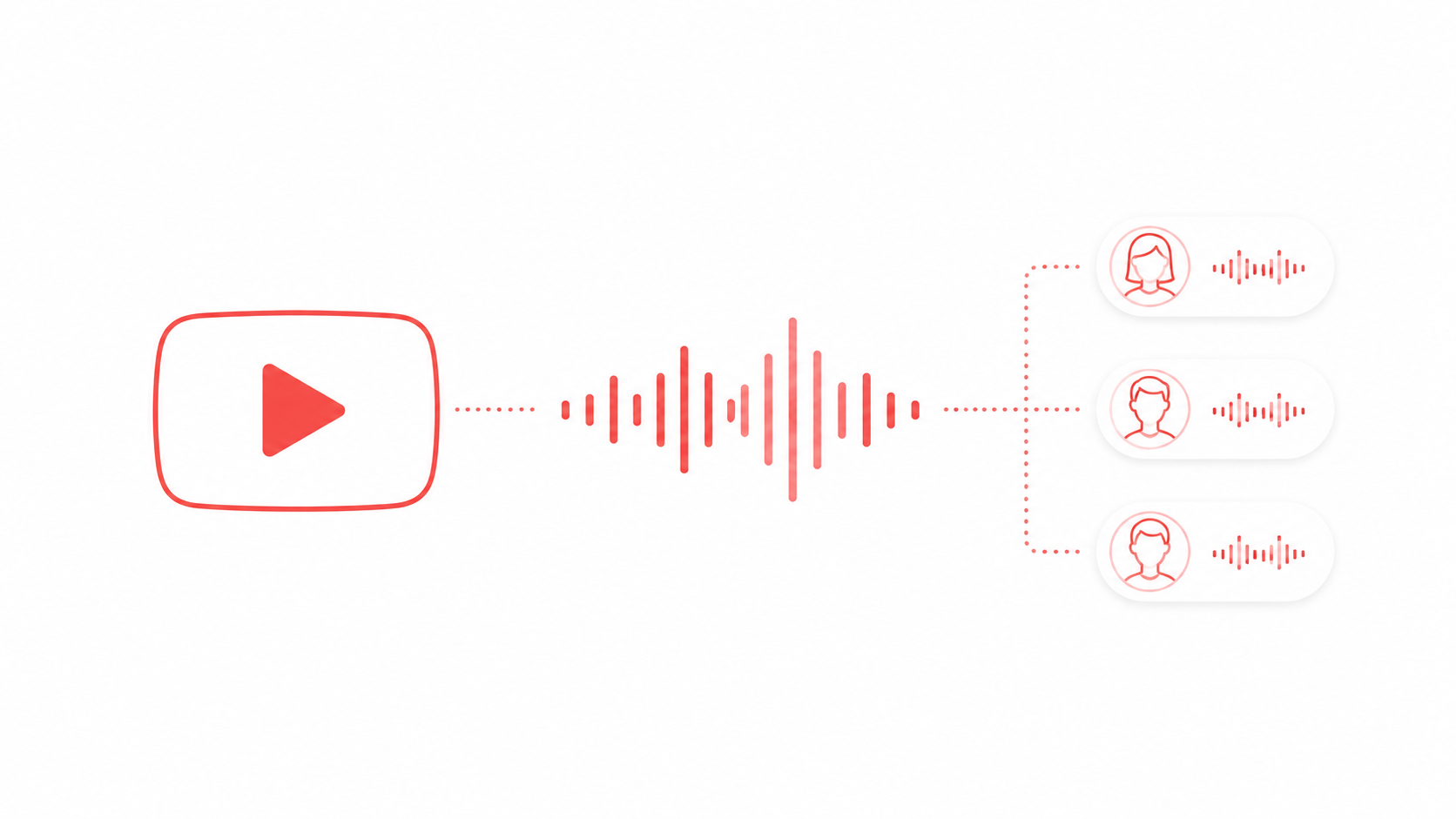
Short answer: write a script that fits the Reel's length, generate the narration in FreeTextoSpeech, and bring the file into Instagram or your editor as your own audio. Use Instagram's built-in text-to-speech for a quick caption read, and an uploaded voiceover when you want a voice that isn't the one every other Reel uses. The audio is yours to use commercially, with no attribution.
I built FreeTextoSpeech after watching friends who post Reels get stuck on narration. The clips were filmed and the caption was drafted, but the voice part meant a quiet room and a pile of retakes. Instagram already offers a text-to-speech option in the Reels editor, which is great for a line or two. For a full narrated Reel, a separate voiceover gives you more voices, control over pacing, and a file you can reuse. Here is how I'd set it up, specifically for Instagram.
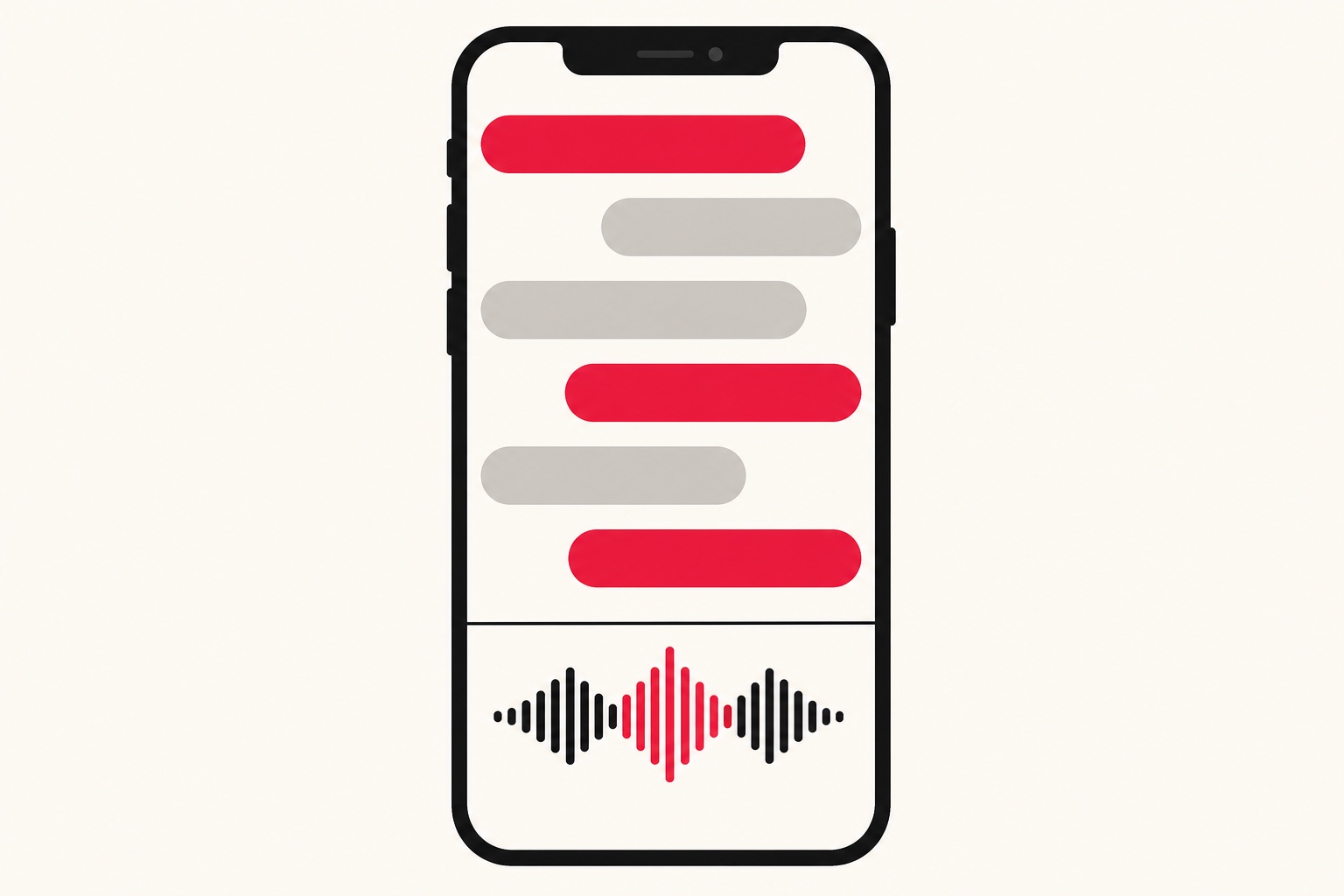
Why use a generated voiceover on Reels
Instagram's own text-to-speech sits inside the text tool: you add a text sticker and have it read aloud. It's fine for short on-screen lines. An uploaded voiceover is a different job, and it wins in a few places.
- Narration longer than a caption. In-app text-to-speech reads the text you put on screen. A generated voiceover can narrate a whole minute while the on-screen text stays short.
- A voice your followers learn. Picking one narrator from 54 voices, and keeping it, makes your Reels sound like your account rather than the app's default.
- A file outside Instagram. The download lives on your phone or laptop, so the same narration can go in a Story, a carousel teaser, or a recut next month.
- Faceless accounts. If you run a page where you never appear on camera, the voiceover carries the whole Reel without your own voice in it.
Generated speech used to sound flat. With a good script and a sensible speed it no longer does, and the rest of this guide is about getting both right.
The full workflow, start to finish
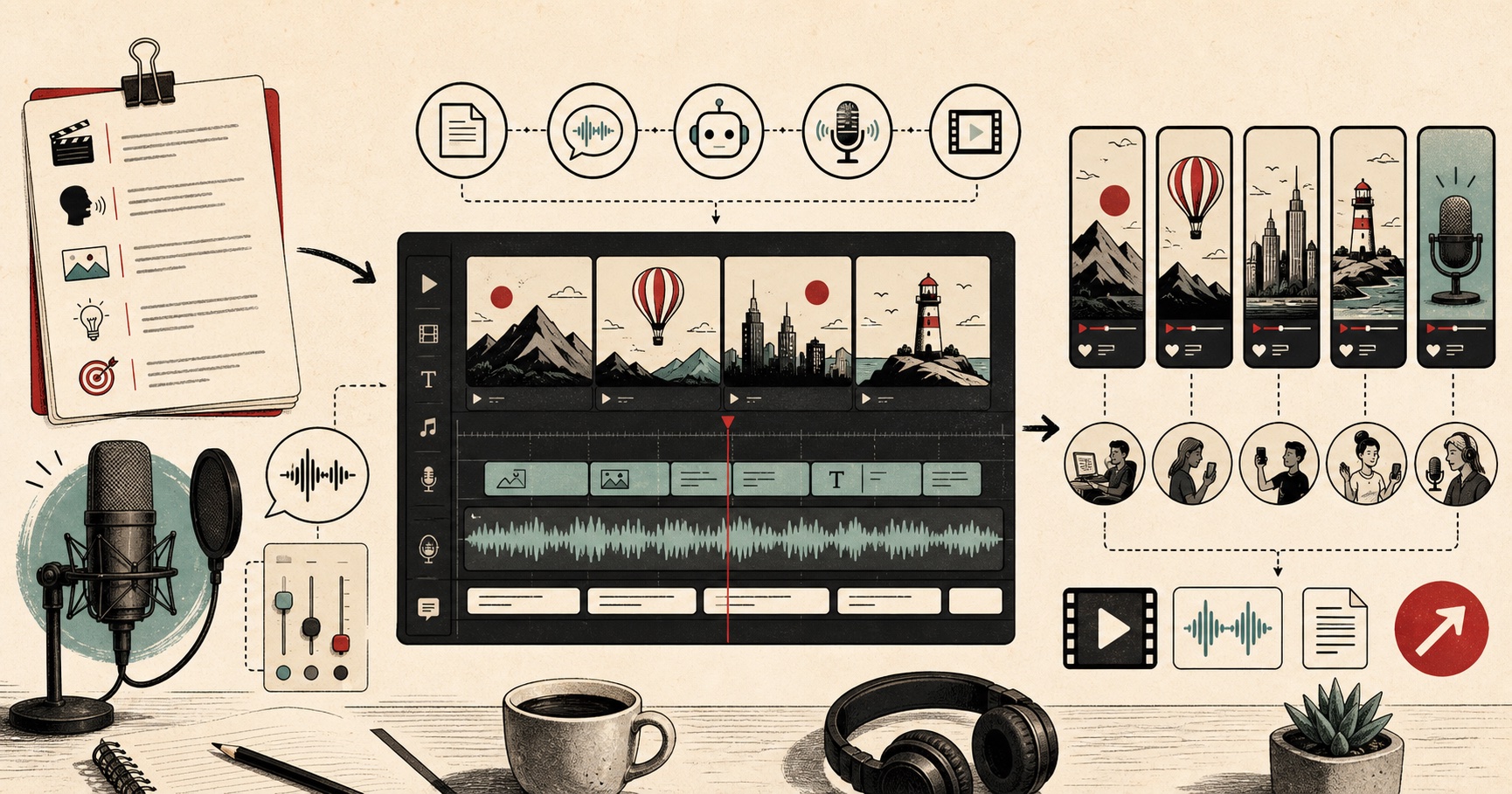
Here's the order I follow for a single Reel.
- Decide the length first. Instagram lets you make Reels up to 20 minutes, but its help centre says Reels over 3 minutes won't be recommended to new audiences. If you want reach beyond your followers, plan for under 3 minutes. Narration runs at roughly 150 words a minute, so a 30-second Reel needs 70 to 90 words.
- Generate the narration. Paste the script into FreeTextoSpeech. A single Generate takes up to 5,000 characters without an account and 10,000 signed in, which covers even a 3-minute Reel. Choose a voice and set the speed.
- Download in the right format. MP3 is the default and is fine for dropping straight into Instagram. If you'll edit in CapCut, Premiere, or Instagram's Edits app first, switch the format menu next to Download to WAV for a 24 kHz uncompressed file.
- Bring it into your edit. Lay the voiceover under your clips and cut the footage to the sentences, not the other way round.
- Add captions. Plenty of people watch Reels with the sound off, so keep the key words visible as text as well as spoken.
Basic use is free with no signup. Anonymous use includes 25,000 cloud characters every 30 days, which is a lot of 30-second Reels.
Picking a voice that stands out
A lot of Reels use the same in-app voice, and viewers notice. FreeTextoSpeech runs on the open Kokoro model, with 54 voices across 9 languages: US and UK English, Spanish, French, Hindi, Italian, Japanese, Brazilian Portuguese, and Mandarin Chinese. That matters on Instagram, where one account often posts in two languages.
Match the voice to the kind of account. Product demos and lifestyle pages suit a bright US female voice such as Sky, Jessica, or River. Explainer and "did you know" pages suit a lower US male voice like Liam, Eric, or Fenrir. A British narrator such as Lily or Lewis gives travel and food Reels a different feel from the usual feed. Try three on your actual script, choose one, and keep it as your account's voice. To work out which voice another account uses, see how to identify an AI voice. If the read still sounds stiff, our guide on making text to speech sound human covers the fixes.
Scripting for the scroll
On Reels, the opening line and the cover do the same job: they decide whether someone stops. Write the script with that in mind.
- Say the payoff in the first line. "Three fonts that make a menu look expensive" works better than an introduction about who you are.
- Write in the order the clips appear. If clip two shows the result, the sentence about the result should land there too.
- Leave the caption for the extra detail. The voiceover tells the story; the Instagram caption below the Reel can carry links, ingredients, or prices.
- Write numbers and handles as they should be spoken. "@freshbakes" reads oddly; "fresh bakes" reads cleanly.
Controlling how the voice sounds
FreeTextoSpeech reads plain text, so the controls are in the writing itself and one slider.
- Line breaks and commas. Where you put a new sentence is where the narrator takes a breath, so line up sentence breaks with your clip cuts.
- Phonetic spelling. If a product or place name comes out wrong, rewrite it the way it sounds and generate again.
- Speed. The slider runs from 0.25x to 4.0x. Around 1.1x suits most Reels; tutorials that need the viewer to follow along are clearer at 1.0x. If the Reel runs long, trim the script rather than pushing the speed up.
A worked example: a 25-second tip Reel
Take a café account posting a latte-art tip. The script: "Your latte art keeps sinking? Warm the milk less. Pour from higher, then drop close. Wiggle, then pull through. Thirty seconds, and it holds." That's about 25 words of narration over 25 seconds of footage, which leaves room for the shots to breathe. Generate it with Jessica at 1.0x, download the WAV, and cut each clip on a sentence: cold jug, high pour, close drop, the finished heart. Put "Warm it less" and "Pour high, then low" on screen as text, write the full method in the caption, and pick the finished cup as the cover.
Import options: editor vs Reels directly
There are three ways to get the voice onto a Reel.
- Instagram's built-in text-to-speech. Add a text sticker in the Reels editor and choose text-to-speech. It's quick, but it reads only what's on screen and uses Instagram's voices.
- Edit first, then upload. Assemble the Reel in CapCut, Premiere, or Instagram's Edits app with your voiceover, export a vertical 1080x1920 (9:16) video, and upload it. Instagram accepts aspect ratios from 1.91:1 to 9:16, but vertical fills the screen.
- Add the audio inside Instagram. The Reels editor and Edits both let you use your own audio, so you can lay the voiceover over clips without another app.
Before you share, choose the cover: a frame from the Reel or an image you upload. That's what shows on your profile grid, so pick a frame with the subject clearly visible. Then write the caption, which is where details like the recipe or the link-in-bio note go. For format choice, MP3 is fine for uploading as-is, while WAV is better if you're still editing; the text to speech to MP3 guide covers when to pick each.
Commercial use, no strings
FreeTextoSpeech allows commercial use with no attribution, so the narration can go on sponsored Reels, paid partnerships, and Reels promoting your own shop. There's no credit line to add to your caption and no paid plan required. The voice is generated fresh from your text, so nobody else holds rights in that recording.
Two Instagram-specific things to know. First, when you upload a Reel with your own voiceover, Instagram labels it as original audio. On a public account, other people can make Reels with that audio unless you turn it off under Sharing and reuse in your settings. Second, music is separate. If Instagram detects licensed music in your upload, it changes the attribution from original audio to the song, and that song's rules apply. Keep background music to Instagram's audio library, or clear it yourself. For other places this workflow fits, see our roundup of text to speech use cases.
Batching a week of Reels
If you also post on TikTok, don't reupload the TikTok export to Instagram. Instagram says Reels with noticeable watermarks from other apps may be recommended less, and a video saved from TikTok usually carries one. Since the voiceover is your own file, rebuild the Reel from the original clips and the same audio instead. The TikTok voice generator uses the same voices, so one narration can serve both platforms. A practical week: write five scripts on Monday, generate all five narrations in one session, and name each file by its posting day. Then each evening's job is just cutting clips to an audio track you already have, choosing a cover, and writing the caption.
Try it on your next Reel
Pick a Reel you'd normally narrate yourself, write 70 to 90 words for it, and run them through FreeTextoSpeech for Instagram. Download the MP3 to post straight away, or the WAV if you're editing first, then choose a cover and post. Open FreeTextoSpeech to start.