Free AI narration audio tool

Voiceover for Video

Time narration against a video without uploading it. Generate a voice or add a recording, preview the timing, then download the audio and cue files for your editor.

Build the voiceover audio

Audio-only video voiceover builder

Time narration against your video

Video stays on this device

Upload a video for timing, add generated or recorded narration, then download WAV, MP3, SRT, or a cue sheet. This tool does not render a video file.

1. Load the reference video

2. Add narration

One generated clip at a time0 / 5,000

3. Preview and export audio

Set original audio to 0% to replace it. Mixing depends on whether your browser can decode the video's audio track.

Project status

Load a video and add narration to begin.

No video output: import the downloaded audio into CapCut, Premiere Pro, DaVinci Resolve, Final Cut Pro, or another video editor.

The quick answer

This is an audio-only video voiceover maker. Your video stays in the browser as a timing reference. The downloads are WAV or MP3 audio, SRT captions, and cue files, never a rendered video.

What it does

Build the audio track before opening your editor

A reference video makes timing easier, but it does not need to leave your device. Place each narration clip against the picture, check the original sound level, and export one audio track that starts at the right moment. You still control the final video export in your usual editor.

Step by step

How to make a voiceover for video

  1. 01

    Load a reference video

    Choose an MP4, MOV, or WebM file. The browser reads its duration locally and does not upload the video.

  2. 02

    Add the narration clips

    Generate speech from text or upload your own recordings. Set the start time, trim points, order, and volume for each clip.

  3. 03

    Preview the timing

    Play the reference video to hear the narration in place. Keep, mute, or lower the original audio while the voiceover is playing.

  4. 04

    Download audio and cues

    Export WAV or MP3, plus SRT, CSV, and JSON timing files. Import the audio into your video editor to finish the project.

FAQ

Voiceover for video questions

01

Does this tool export a finished video?

No. It exports voiceover audio and timing files only. The uploaded video is a local reference for playback and timing. Add the downloaded audio to your video in an editor such as CapCut, Premiere Pro, DaVinci Resolve, or Final Cut Pro.
02

Is my video uploaded?

No. The browser opens the video from your device. Cloud speech mode sends only the narration text for generation. In-browser speech mode keeps both the source text and generated audio on the device.
03

Can I keep the sound from the original video?

Yes, when your browser can decode that audio track. Set its volume, leave automatic ducking on to lower it under narration, or set the volume to zero when you want only the voiceover.
04

What happens when narration runs past the video?

The tool shows the amount of overrun and blocks the timed audio download. Change the clip start, trim the clip, or generate a shorter read. You can still download narration-only audio.
05

Which files can I use?

The reference video can be MP4, MOV, or WebM, up to 200 MB and 10 minutes. Narration uploads can be WAV, MP3, M4A, AAC, or OGG if the browser supports the file codec.
06

What is included in the cue download?

The cue download contains a CSV timing sheet and a JSON project manifest. Each record includes the clip name, text, start and end time, trim points, and volume.

Still wondering? Get in touch →

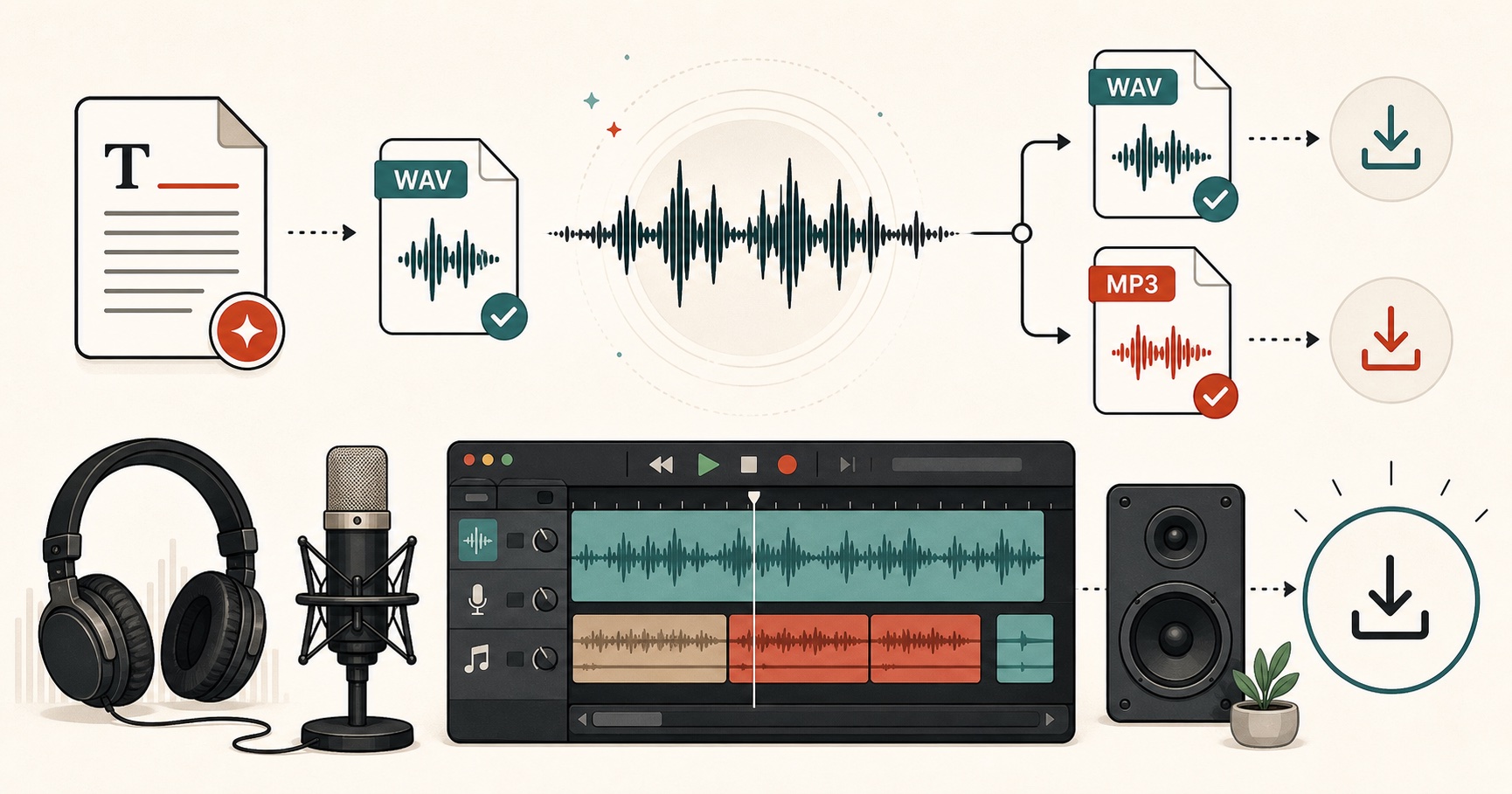
visual guide showing text converted into WAV and MP3 audio files for editing and download

Visual guide

An audio export guide for WAV, MP3, and production-ready speech files.