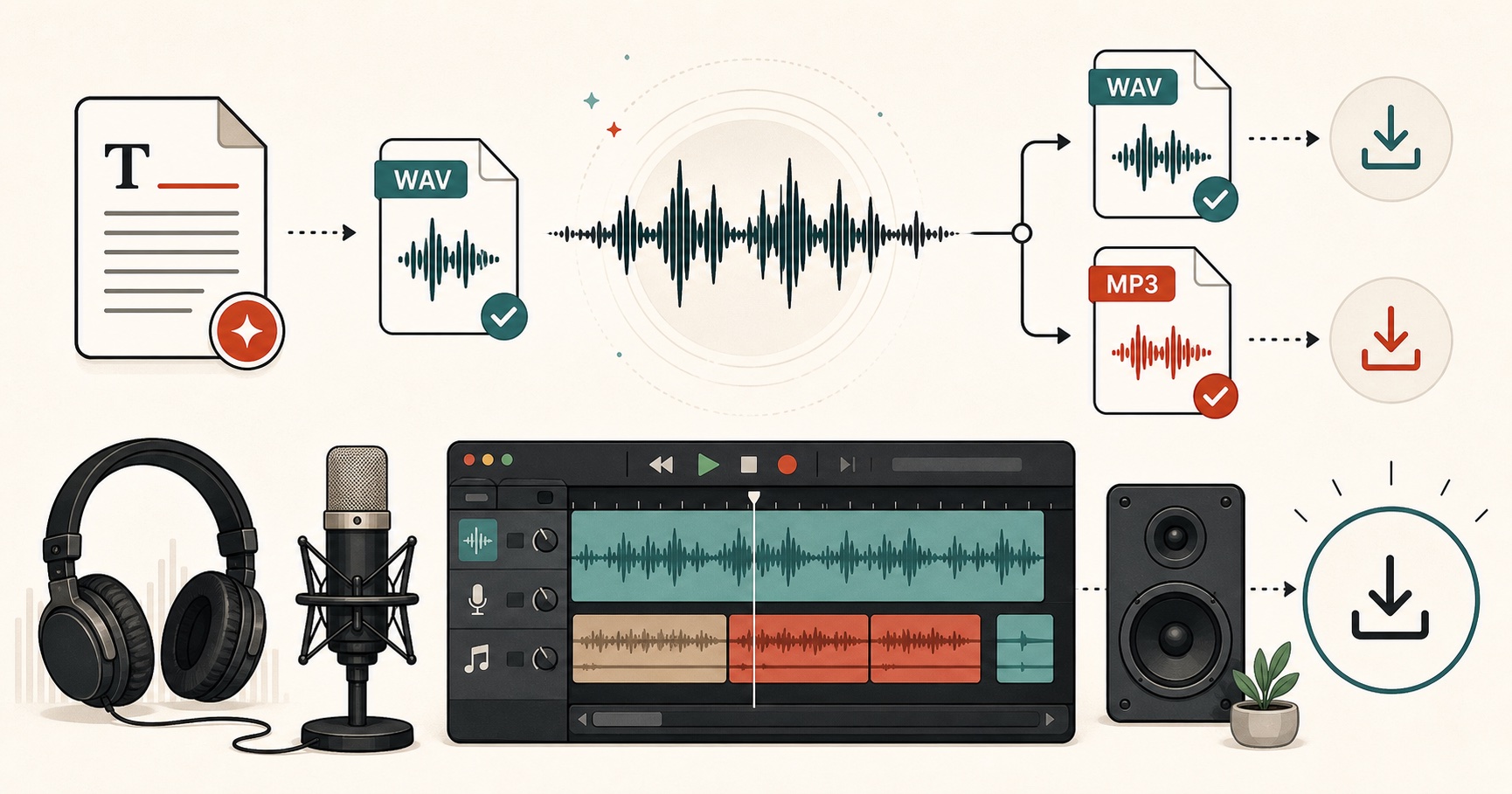
Adding a voiceover to a video used to mean a microphone, a quiet room, and a lot of retakes. Now you can add a voiceover to a video for free by typing your script and letting an AI voice read it. You generate the audio, download it, and drop it into your editor.
This guide walks you through the whole thing, from script to finished clip. It works with any editor you already use, like CapCut, Premiere, or iMovie. You can generate a free voiceover here and follow along as you read.
No recording, no studio, and nothing to install. Just your words turned into a clean, natural voice you can use anywhere, including commercial videos.
What you need to add a voiceover
You only need three things, and two of them are free. The first is a script, which is just the words you want spoken. The second is a text to speech tool to turn that script into audio. The third is any video editor where you drop the audio onto your clip, like CapCut on your phone or Premiere on a desktop.
That is it. If you already edit videos, you have the editor part covered, so the only new step is making the voice.
How to add a voiceover to your video
Here is the full workflow, from blank page to a video with sound. It takes a few minutes.
Write a short script for what each part of the video should say. Keep sentences short and write the way you talk, since it is going to be read aloud.
Turn the script into a voice with the free text to speech tool. Paste your script, pick a voice, set the speed, and generate. Download the WAV file when it sounds right.
Drop the audio into your editor by importing the WAV, lining it up under your video, and trimming it so the words match what is on screen.
Preview the video once with the sound playing. If a line runs long or short, tweak the script or move the clip, then export.
Adding your voiceover in popular editors
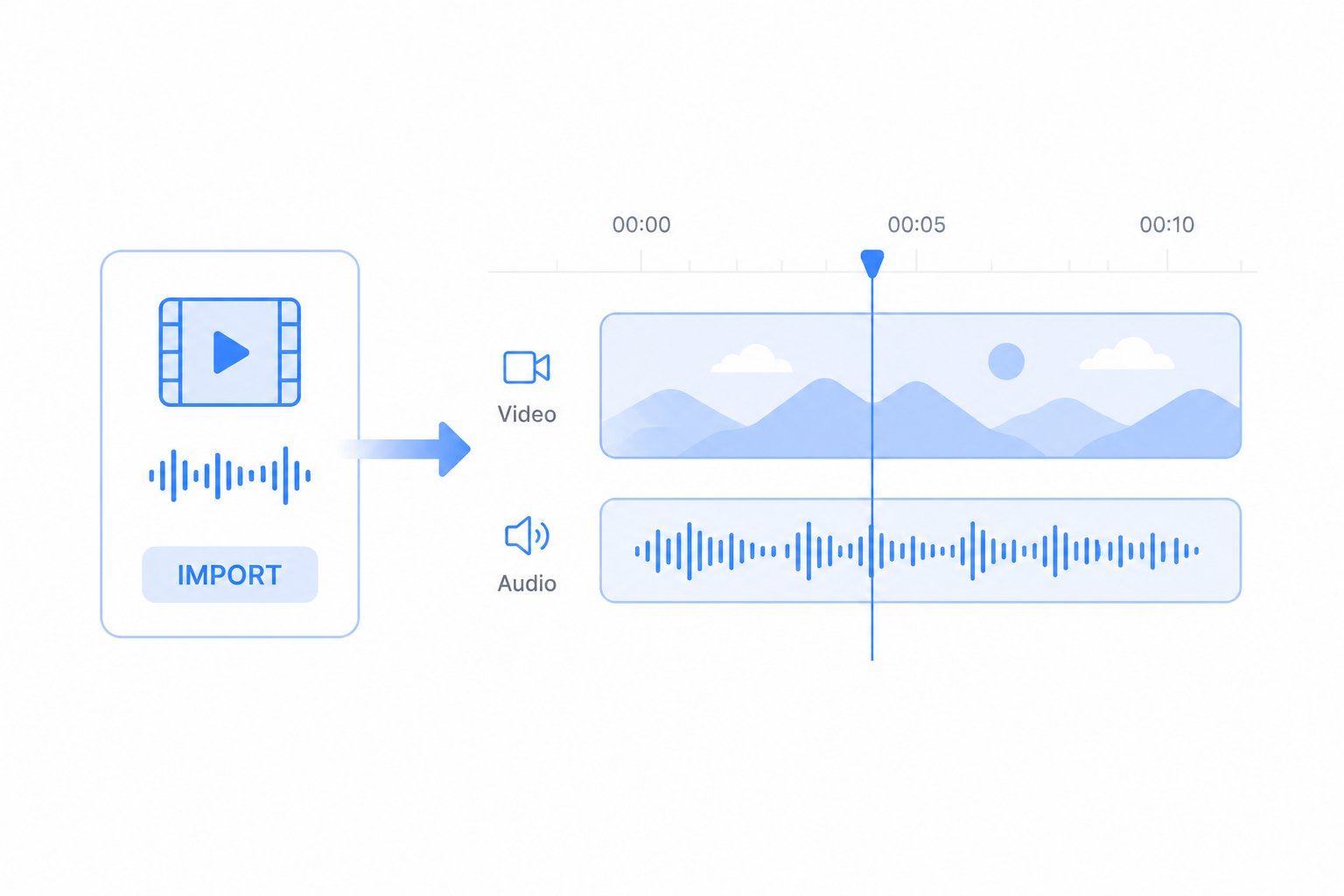
The audio is a normal WAV file, so it works in every editor. Here is where to find the import button in the common ones.
CapCut on your phone
This is the most popular option for short videos. Open your project, tap Audio at the bottom, then Add audio, and pick the WAV from your files. Drag it under the clip and trim the ends.
CapCut on desktop
The desktop app works much the same way. Go to the Audio tab, import the WAV, and drop it onto the timeline below your video track.
Premiere Pro
Premiere wants the file in your project first. Use File then Import to bring in the WAV, drag it to an audio track, and slide it into place under the footage.
iMovie
iMovie on Mac or iPhone uses the Add button. Tap or click it, choose Audio, find your WAV, and it drops onto the timeline ready to move.
In every case the trick is the same. Put the voice on its own audio track so you can move it freely without touching the video.
Tips for a professional voiceover
A few habits make an AI voiceover sound polished instead of robotic.
Reading your script out loud is the best check. Cut anything that sounds awkward when spoken, and keep sentences short and plain so they are easy to follow.
Pauses make the narration easier to follow. Add a comma for a short break and a full stop for a longer one, so it does not feel rushed over your visuals.
Lowering the music keeps the voice in front. Drop your background music to about a quarter of its volume under the voiceover so people can hear every word.
Picking the right voice and speed changes the feel. A slower, warmer voice suits a calm explainer, while a brighter, faster one fits an upbeat short. Preview a line before you commit.
Best types of videos for AI voiceovers
AI voiceovers work for almost any video, but they work best in a few formats.
Faceless YouTube videos lean on them completely, since the whole channel runs on narration over stock clips or screen recordings. You can voice a full YouTube video without ever turning on a camera.
Tutorials and explainers sound clearer with a calm, steady voice, so viewers can follow each step.
Product and ad clips get a confident read every time, which is handy when you need ten versions to test.
Slideshows and reels come together fast, since you can match a short line to each slide or scene.
Audiobook and story snippets let you preview how a passage sounds before you record anything for real.
Final thoughts
Adding a voiceover to a video is easy now. Write a short script, turn it into a voice with a free text to speech tool, and drop the WAV into your editor. Keep the script short, add pauses, and lower the background music, and your video will sound clear and professional.