Video editing source audio
Drop the WAV straight into Premiere, DaVinci Resolve, or CapCut. Lossless input means cleaner ducking, EQ, and noise gating later.
You've hit the free limit
Free tier: 5,000 characters/month
You've used all 5,000 free characters for this month. Sign in with Google to get 500,000 characters per month, free, no credit card.
You've used your 500,000 characters for this 30-day window. Your allowance resets automatically, thanks for using FreeTextoSpeech.
Paste text, pick a voice, download a clean WAV file. 54 voices across 9 languages, commercial use, no signup.
Text-to-audio covers everything from a quick voice memo to a full audiobook master. The output format you actually need depends on where the audio is going. FreeTextoSpeech generates lossless 24 kHz WAV by default because it is the cleanest source for any downstream workflow, keep the WAV as your master, derive MP3 or streaming formats when distribution requires them.
Related use cases
Paste your text (up to 5,000 characters), pick a voice from 54 Kokoro options across 9 languages, hit generate, and download a 24 kHz WAV file. No signup, no watermark, free for commercial use. Need MP3 instead? Generate the WAV here, then convert via the dedicated /text-to-mp3 workflow.
Up to 5,000 characters per request. Split longer scripts into chapters or sections, each one becomes a separate audio file.
54 Kokoro voices across 9 languages. Sample a few before committing, voice choice matters more than any post-processing.
Synthesis runs in your browser session. No queue, no waiting room, no signup. Most reads finish in a few seconds.
You get a lossless 24 kHz WAV file by default. Need MP3 instead? Use the dedicated /text-to-mp3 page for the conversion workflow.
Drop the WAV straight into Premiere, DaVinci Resolve, or CapCut. Lossless input means cleaner ducking, EQ, and noise gating later.
Use TTS for show intros, segment bumpers, ad reads, or full episodes. WAV master goes into your DAW, MP3 ships to the host.
Catch awkward sentences and pacing problems by listening to your manuscript before recording. Cheaper than reshooting a chapter.
Convert articles, PDFs, and course modules into audio for dyslexic readers, commuters, or learners who absorb better by ear.
WAV is lossless, generate once, derive MP3 or AAC for distribution. Going the other way (MP3 to WAV) does not recover the lost frequencies.
For voice-only content, 128 kbps MP3 is sonically indistinguishable from the WAV master in blind tests. No reason to pay the file-size cost of 320 kbps for podcasts or audiobooks.
Human speech tops out around 8 kHz, so 24 kHz captures everything with headroom. 44.1 kHz or 48 kHz is overkill for narration and just inflates file size.
A 5-minute read is about 7 MB as WAV, 3.7 MB as 128 kbps MP3, or 1.2 MB as 64 kbps Opus. Pick the format your delivery channel actually accepts.
For web playback, host an MP3 or AAC and stream it. For DAW work, download the WAV. Mixing the two, streaming a WAV, wastes bandwidth without sounding any better through laptop speakers.
Adjust pacing later in your editor. Compounding speed changes at both generation and editing introduces pitch artefacts that are hard to undo.
Still wondering? Get in touch →
When you need a lossy format for podcast hosts, email, and web playback.
Lossless 24 kHz master files for DAW and video editing workflows.
Long-form narration with full commercial rights and no watermark.
Studio-quality reads for intros, ad spots, and full episodes.
Indie audiobook narration with the WAV masters production needs.
Drop in a PDF and get clean narration of every page.
One paste, one click, lossless WAV in seconds.
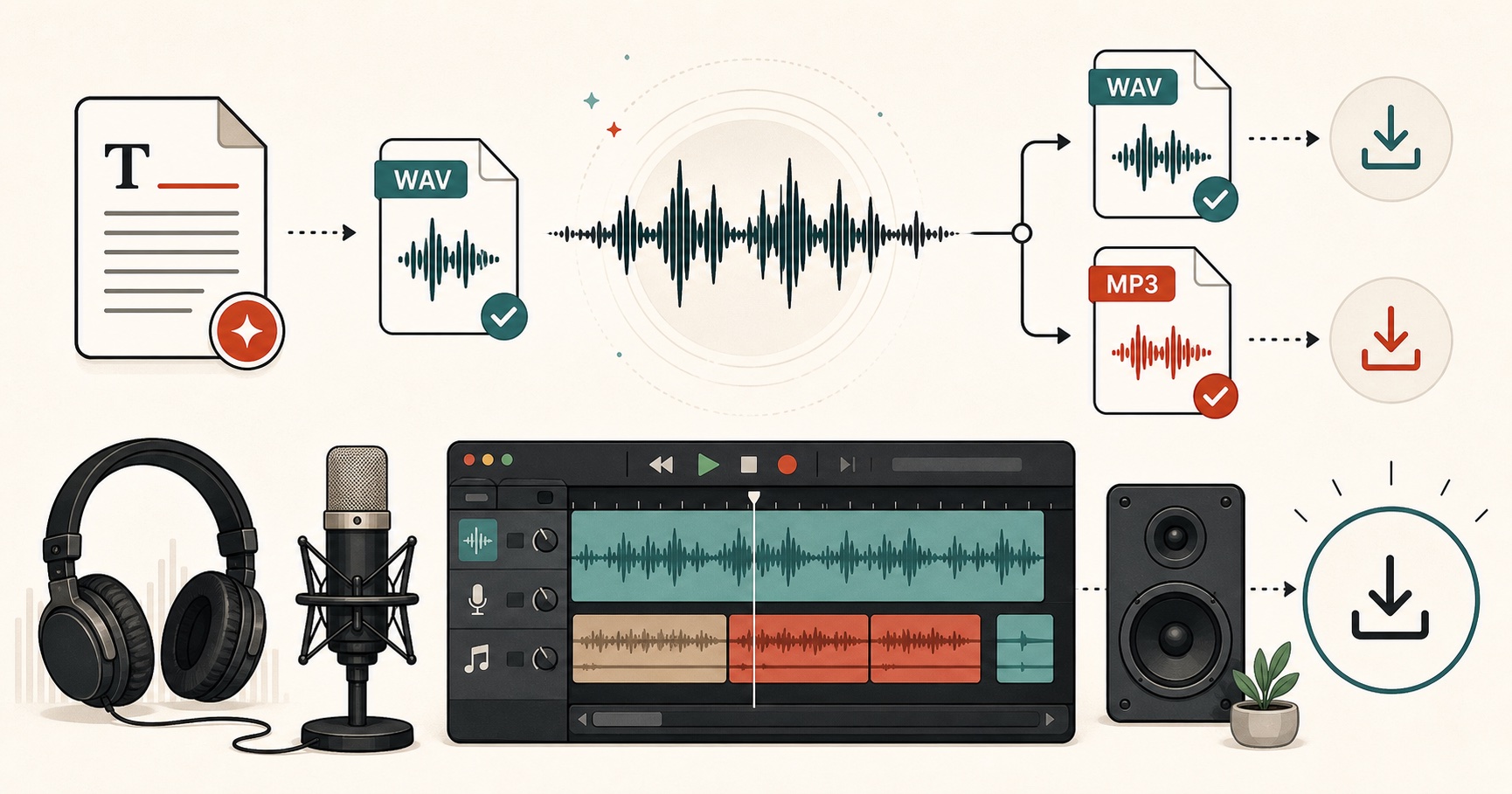
Visual guide
An audio export guide for WAV, MP3, and production-ready speech files.