Clean up an automatic transcript
Speech recognition gets names, brands and jargon wrong. Search for the misspelling, fix each hit, and save a corrected file.
Open an SRT, VTT or SBV in the browser, change words and times line by line, move every line at once with Shift all, and save it in the format you need. The video is optional.
Related use cases
Open the Subtitle Editor on Auto Caption, drop your file and choose Edit without video, or add the video to hear each line. Make your changes, then save from Export as SRT, VTT, SBV or TXT.
Drop an SRT, VTT or SBV. Choose "Edit without video" to work on the file alone, or add the video to watch each line as you fix it.
Click a line and type. Split a line at the cursor, merge it with the next one, or delete it. Search finds a word in every line.
Each line has start and end time fields. To move the whole file, enter seconds in Shift all; a negative number moves everything earlier.
Download SRT, VTT, SBV or TXT. With the video loaded you can also render an MP4 with the subtitles burned in.
Speech recognition gets names, brands and jargon wrong. Search for the misspelling, fix each hit, and save a corrected file.
Cut four seconds off the start of a video and every subtitle is now late. Shift all by -4 and they line up again.
Merge two fragments that belong together, or split a long sentence into two lines that are easier to read.
Open an SBV, save an SRT. For a straight format change with line breaks kept exactly, the Subtitle Converter is quicker.
The subtitle editor runs on Auto Caption, our free caption site. Your file stays in your browser the whole time.
Drop a subtitle file on its own and the tool asks for its video. You don't have to give it one. "Edit without video" opens the file straight away, with a timeline that runs to the last subtitle. That's enough for spelling fixes, timing changes and format changes.
Adding the video helps when you need to hear the words. Click any line and playback jumps there; the line being spoken stays highlighted as the video plays. You also get the Style and Export panels, so the same session can end with a burned-in MP4 instead of a file. See Burn Subtitles into Video for that route.
When every line is off by the same amount, you only need one number. Play the video, note when the first line is actually spoken, and compare it with the start time shown under that line. If the speech starts at 0:12.40 and the subtitle says 0:10.90, type 1.5 into Shift all. If the subtitles are early instead, use a negative number.
Lines pushed before zero are removed, and a line that crosses zero is trimmed to start there. For a single line that's off, edit its start and end fields directly; times are shown to a hundredth of a second. If the offset grows over the length of the video, a single shift won't fix it. That kind of drift is faster to solve by making new subtitles from the current cut with the Subtitle Generator, which costs 20 free minutes a day at most and handles files up to 30 minutes.
Editing makes it easy to leave a gap or an overlap behind. Before you upload, run the saved SRT through Caption QA. It flags overlapping times, lines that go by too fast to read, rows that run too long and empty subtitles. Fix what it finds in the editor, save again, and you're done.
If the file is going to become narration, SRT to Speech reads each line in one of our voices at the time it appears, and Subtitle Converter handles any last format change.
Free on Auto Caption
Open the free editor on Auto Caption, drop your file, and download the result in a few minutes.
Opens auto-caption.app
Still wondering? Get in touch →
Drop the edited SRT into SRT to Speech and get narration timed to every line, in 54 natural voices.
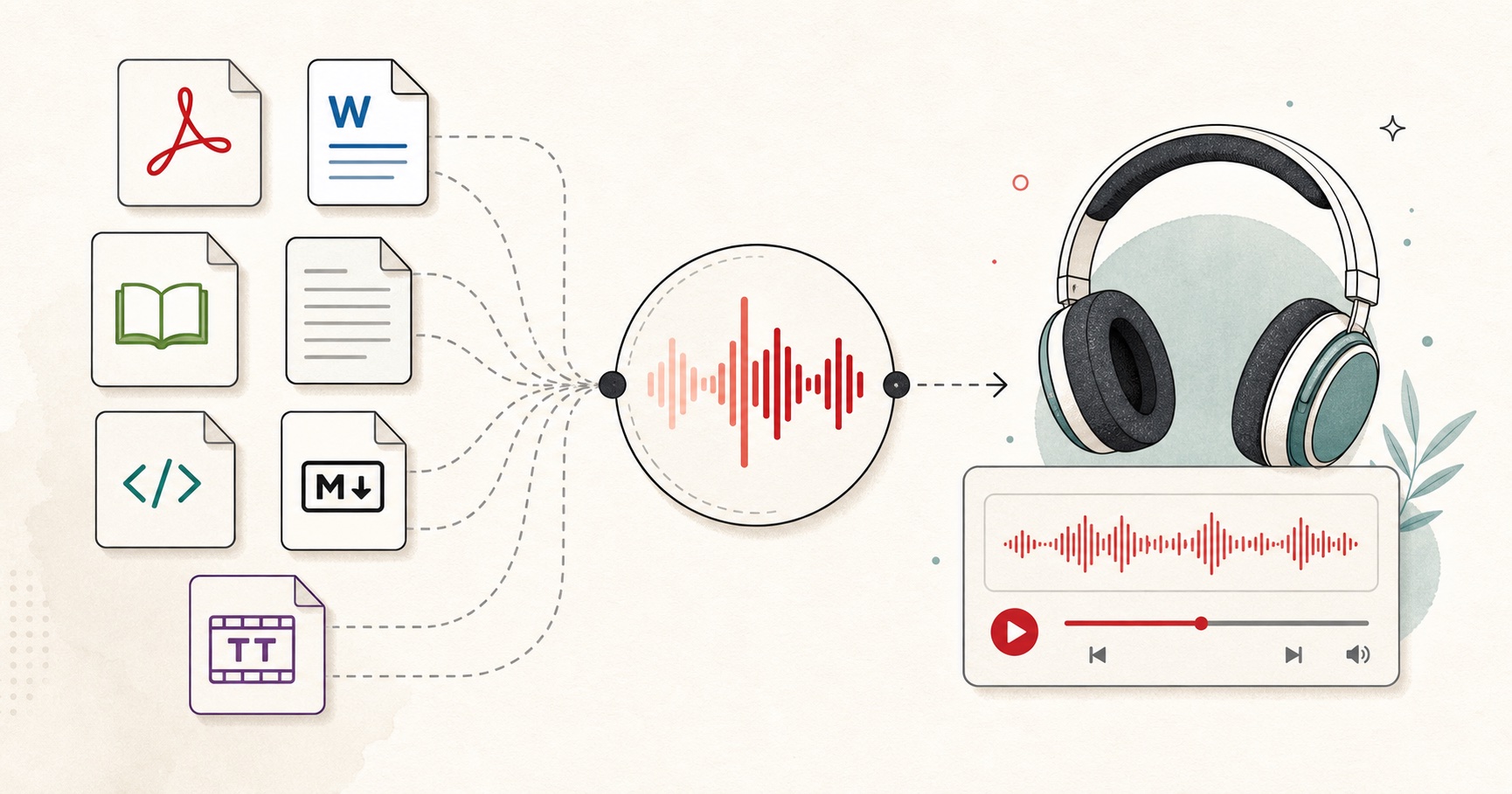
Visual guide
A document-to-audio workflow for listening to files, articles, books, and notes.
A tiny favor
Allow ads for this site, then check again. Prefer no ads? Paid plans remove ads and add more cloud characters, from $4 a month.
Allow ads for freetexttospeech.net, then check again.
Already on a paid plan?Sign into restore your perks.
Send feedback
Tell us what you think
Bugs, ideas, or anything that would make FreeTextoSpeech better.