Posts where captions must always show
Burned-in text does not depend on the app, the player or a viewer finding the CC button. It is just part of the picture.
Bring the video and the subtitle file you already have. The tool draws each line onto the frames with your font, colors and position, then encodes a new MP4 on your device, so nothing is uploaded or transcribed. A cloud render is there too, for phones and long videos.
Related use cases
Open Burn Subtitles on Auto Caption, drop the video and its SRT or VTT together, pick a style and position, then press Render MP4. Importing subtitles uses no transcription minutes.
Drag the video and its SRT, VTT or SBV file onto the box together, or one after the other. Importing subtitles skips transcription, so it uses no minutes.
Play a few lines. If every subtitle is early or late by the same amount, type the difference into Shift all and the whole file moves at once.
Classic is selected for you: clean outlined text, no effects. Change the font, size, colors or background box, and drag the text where it reads best.
Choose original size, 1080p or 720p and render. In Chrome or Edge on a computer, videos over 10 minutes ask where to save first and write straight to disk.
Burned-in text does not depend on the app, the player or a viewer finding the CC button. It is just part of the picture.
A video forwarded in a messenger rarely brings its subtitle file along. Open captions travel inside the MP4.
Lobby TVs, trade-show booths and event loops usually play muted. Text on the picture is the only way the message gets through.
Generated a voiceover from your SRT with SRT to Speech? Burn the same SRT in and the words on screen match the voice line for line.
Burning subtitles in happens on Auto Caption, our free caption site. It renders in your browser, with a cloud option for phones and long videos.
Burning in is permanent. Once the text is part of the picture, nobody can turn it off, resize it, or swap in another language, and fixing a typo means rendering again. A separate track avoids all that: YouTube, for one, accepts SRT, SBV and WebVTT uploads that viewers can toggle with the CC button.
So the honest rule is: keep the file for platforms that support it, and burn in for everything else. Many people do both, uploading the SRT where they can and posting the hardcoded MP4 where they can't. If you don't have a subtitle file yet, the Subtitle Generator will make one from the audio, and the Auto Caption Generator does the same with word-by-word highlighting for social clips.
A tool that renders on a server has to receive the whole video first and send the result back. On Auto Caption the work happens in your browser tab with WebCodecs. A 2 GB file doesn't need to cross your connection twice, and it never sits on anyone else's disk.
The trade-off is that your computer does the encoding. Most browsers keep the finished video in memory, which limits a render to 10 minutes. Chrome and Edge on a computer can write directly to a file you choose and go up to 30 minutes. If MP4 encoding isn't available, the output is WebM. Transcription, when you need it, takes files up to 30 minutes.
On a phone, an older laptop, or for a longer video, use the Cloud option in the Export panel instead. The video uploads once, our GPU burns the captions in with the same renderer, and the MP4 stays available to download for 7 days. Cloud renders take videos up to 15 minutes and use your daily minutes: one per minute of video, two for 4K output.
Need to fix a lot of text first? The Subtitle Editor opens the file on its own, without the video.
Free on Auto Caption
Open the free editor on Auto Caption, drop your file, and download the result in a few minutes.
Opens auto-caption.app
Still wondering? Get in touch →
No microphone needed. Paste the narration, pick a voice, and place it over your video before you burn in the captions.
Visual guide
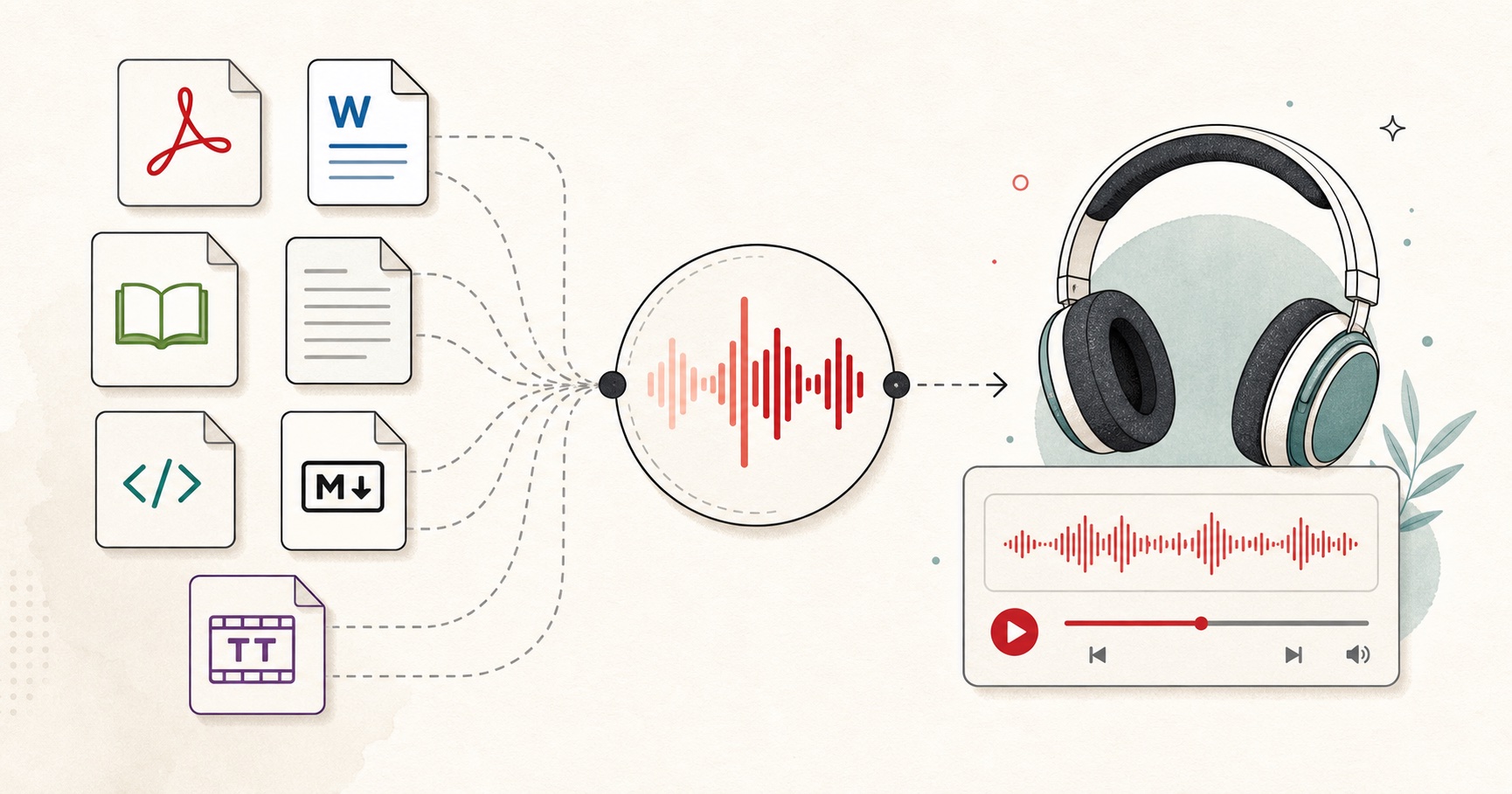
A document-to-audio workflow for listening to files, articles, books, and notes.
A tiny favor
Allow ads for this site, then check again. Prefer no ads? Paid plans remove ads and add more cloud characters, from $4 a month.
Allow ads for freetexttospeech.net, then check again.
Already on a paid plan?Sign into restore your perks.
Send feedback
Tell us what you think
Bugs, ideas, or anything that would make FreeTextoSpeech better.