SRT to VTT
A video element on a web page loads captions through a track tag, and that tag takes WebVTT. Convert the SRT and point the track at the new file.
Paste or drop an SRT, VTT or SBV file and pick the format you need. Timing carries over to the millisecond and line breaks inside a cue stay put. The conversion runs in your browser, so the file never leaves your device.
Related use cases
Open the Subtitle Converter on Auto Caption, drop or paste your file on the left, choose SRT, VTT, SBV or TXT on the right, then press Download.
Drop an SRT, VTT or SBV file on the left box, or paste the text straight in.
The converter recognises the input on its own. There is nothing to set.
Choose SRT, VTT, SBV or TXT. The converted text appears on the right as you switch.
Save the file with the right extension, or copy the text and paste it wherever it needs to go.
A video element on a web page loads captions through a track tag, and that tag takes WebVTT. Convert the SRT and point the track at the new file.
Desktop video editors and a lot of upload forms still ask for SRT. Strip the WEBVTT header and settings and get plain numbered blocks.
Drop the numbers and timestamps and keep only the words. Good for show notes, a blog post, or a script to read with text to speech.
SBV is the SubViewer format YouTube accepts. Turn an old SBV into SRT so other tools and players can read it.
The subtitle converter runs on Auto Caption, our free caption site. Conversion happens in your browser and has no limits.
SRT, VTT and SBV hold the same core information: a start time, an end time and some text. That part converts cleanly. Times stay exact to the millisecond, and a subtitle written on two lines is still on two lines afterwards. Subtitles are numbered again from 1 and sorted by start time.
Anything a format has that the others don't is dropped. That means formatting tags such as italics and colors, VTT cue settings that place a line on screen, and VTT NOTE and STYLE blocks. If you rely on italics for off-screen voices, check the result before you publish. YouTube's own help page says it ignores style markup in basic SRT and SBV files anyway.
SRT to TXT and VTT to TXT give you the words, one subtitle per line, with every timestamp removed. That's useful for reading, quoting, or pasting into text to speech. But it can't be undone. Once the times are gone, no converter can put them back, so keep the timed file too.
If all you have left is the video, make a fresh timed file with the Subtitle Generator (20 free minutes a day). If you have audio only, Audio to Text exports SRT and VTT as well.
The converter doesn't edit anything. To fix a typo, move a line, or shift the whole file a few seconds, open it in the Subtitle Editor. To check timing and reading speed, use Caption QA. To put the subtitles onto the picture, Burn Subtitles into Video renders an MP4 in your browser. And if the subtitles should become a voiceover, SRT to Speech and VTT to Speech read them out on time.
Free on Auto Caption
Open the free editor on Auto Caption, drop your file, and download the result in a few minutes.
Opens auto-caption.app
Still wondering? Get in touch →
Fix text, times and offsets in an SRT, VTT or SBV, then save it.
Find overlaps, fast lines and long rows before you publish.
Turn a WebVTT file into timed voice audio.
Render your subtitle file onto an MP4 in the browser.
SRT to Speech reads every line in one of 54 natural voices, at the time it appears on screen.
Visual guide
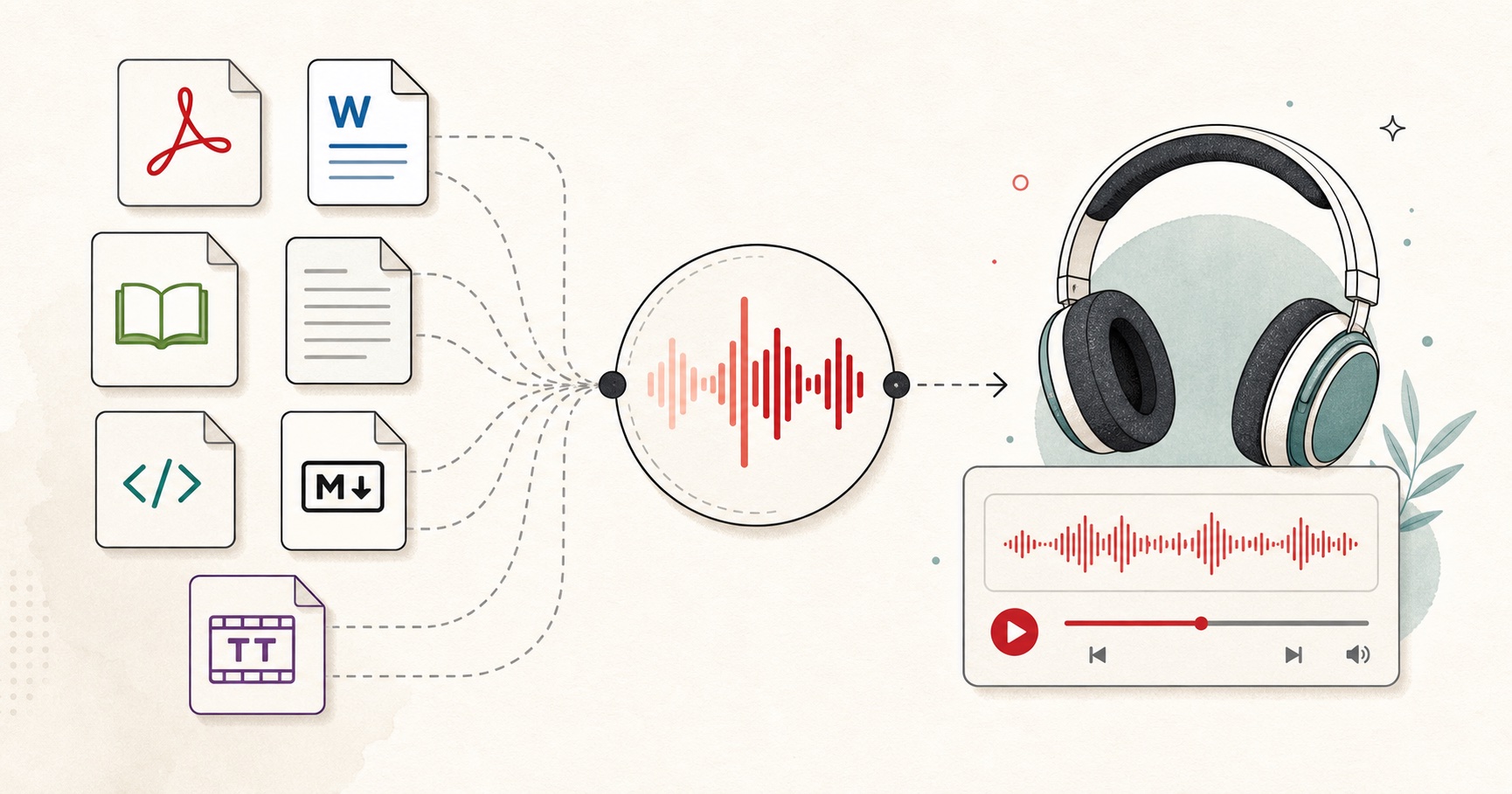
A document-to-audio workflow for listening to files, articles, books, and notes.
A tiny favor
Allow ads for this site, then check again. Prefer no ads? Paid plans remove ads and add more cloud characters, from $4 a month.
Allow ads for freetexttospeech.net, then check again.
Already on a paid plan?Sign into restore your perks.
Send feedback
Tell us what you think
Bugs, ideas, or anything that would make FreeTextoSpeech better.