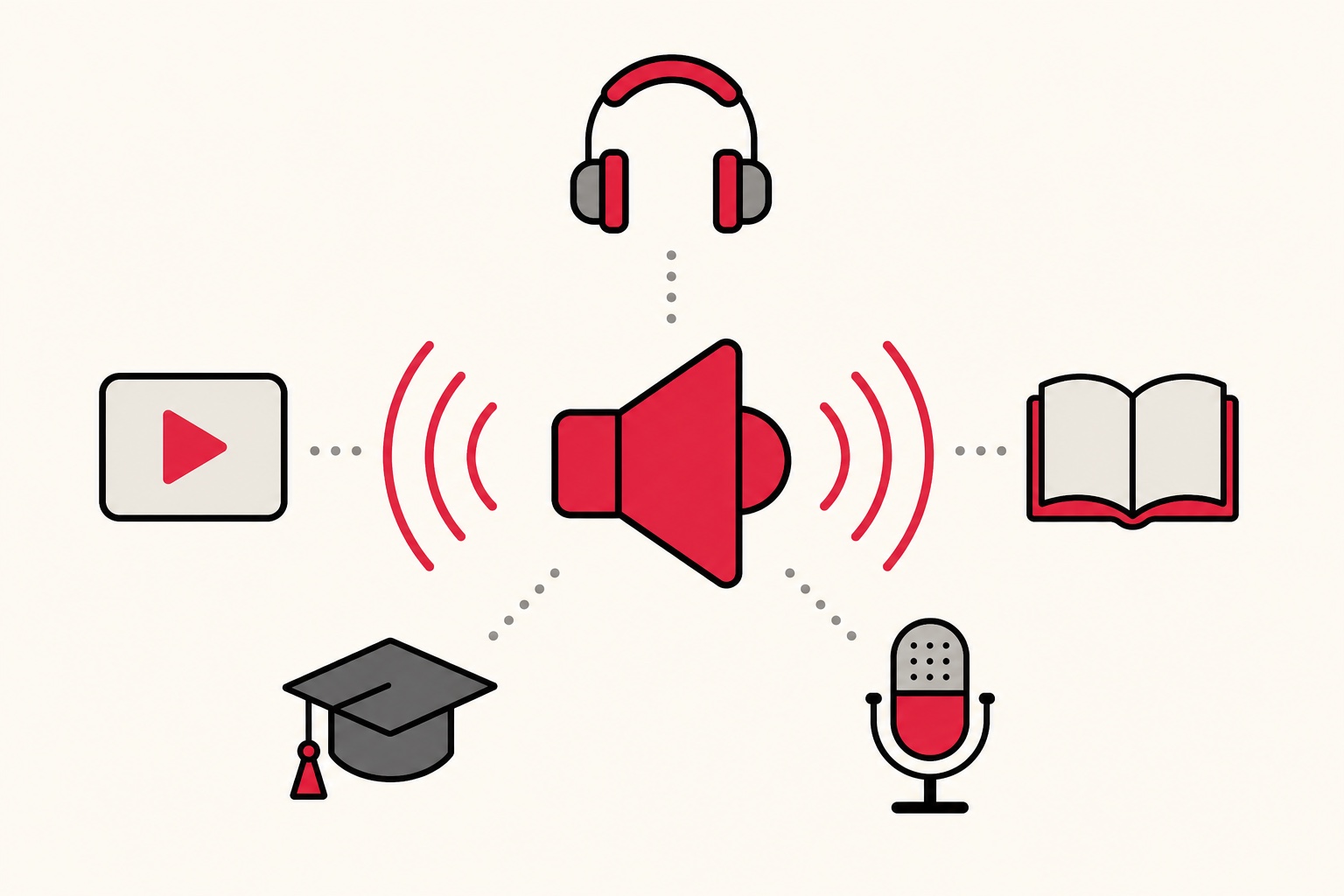
Short answer: people use text to speech for video and podcast voiceovers, turning documents and books into audio, studying and proofreading by ear, reading support for dyslexia and low vision, and language learning. Below are 15 concrete ways I see people use it, grouped by goal, and you can try every one of them free in FreeTextoSpeech.
Text to speech started life as an accessibility tool. But the voices have gotten good enough that the list of uses keeps growing, and the through-line is pretty simple: anything you would normally sit down and read can become audio you listen to while you do something else. Here is what people actually do with it in 2026, and how to get a good result in each case. I built this tool, so most of these come from watching how people use it and from running into the same snags myself.
Content creation
This is the category growing fastest, and it is driven by faceless channels and creators who would rather not record their own voice. A clean AI read takes away the biggest excuse people have for not publishing. They do not like how they sound, or they have no quiet room to record in. Both problems go away.
- YouTube voiceovers without a microphone, for faceless, tutorial and commentary channels. Keep one AI voice across every video and the channel starts to feel like a brand.
- TikTok and Reels narration in the clean, punchy voiceover style short-form audiences are used to.
- Podcast intros and segments when you want a second voice, a tidy read, or a narrator for an ad slot. For a back-and-forth between a host and a guest, an AI dialogue generator gives each speaker a voice and joins the lines into one file.
- Audiobooks and narration for your own writing, fiction, or newsletters, so people can listen instead of read.
- Explainer and training videos with a steady voice that never needs a retake.
If you are making content, my advice is to write short, spoken-style sentences and pick one signature voice. A US voice like Adam or Michael reads confident and clear for tutorials. For calmer storytelling I lean toward Bella or Nicole. Once you settle on a voice, use it everywhere, because returning viewers start to recognise your channel by sound alone. Here are our picks for the best AI voices for YouTube.
One thing to plan for: pick the format before you download, MP3 (default) for a small file or 24 kHz WAV for editing. That is actually good news for editing. WAV is uncompressed and drops straight into any video editor without a quality hit. If your upload workflow specifically wants an MP3, just leave the menu on MP3. If you edited a WAV, export one MP3 at the very end.
Study and productivity
Turning text into audio frees up your eyes and lets you use commute time, chores, and walks. The point here is not novelty. It is recovered time. Most people have an hour or two of dead reading time every day, and that is time you can turn into listening time.
- Turning study notes into audio to revise on the move, which also helps things stick through repetition.
- Listening to research papers and PDFs on a commute instead of staring at a screen. Our PDF to audio guide walks through the workflow.
- Proofreading by ear so you catch clumsy sentences, repeated words and typos your eyes glide right over. Hearing your own writing is one of the best editing tricks I know.
- Clearing long email and report backlogs hands-free while you do something else.
- Multitasking by getting through articles and documents while you cook, clean, or drive.
Proofreading by ear deserves a closer look, because it is the use people are most surprised by. When you read your own draft, your brain quietly fills in words that are not there and smooths over sentences that do not work. Your ears are less forgiving. Paste your draft, press play, and follow along on screen. You will hear where a sentence runs too long, where you used the same word three times in a row, and where a comma should have been a full stop. Slowing the speed to about 0.9x makes those snags even easier to catch. Honestly, this is the feature I use most on my own writing.
Most of these you can try in about a minute on the free text to speech tool.
Accessibility and learning
This is where text to speech began, and it is still one of the most valuable things it does. For a lot of people this is not a convenience at all. It is the difference between finishing a reading task and giving up on it.
- Reading support for dyslexia and ADHD, where hearing text while following along helps comprehension and cuts down fatigue. See our accessibility guide.
- Support for low vision, so you can hear content that is hard to read on screen, at a pace that suits you.
- Language learning, hearing how written text actually sounds in the language you are learning, read by native voices.
- Pronunciation practice using native voices across 9 languages, slowed down so you can catch each sound.
- Reducing screen fatigue by listening to your reading instead of piling on more hours of screen time.
Language learners get the most out of the native voices. FreeTextoSpeech covers US and UK English, Spanish, French, Hindi, Italian, Japanese, Brazilian Portuguese, and Mandarin Chinese, so you can hear real text read in the accent you are trying to pick up. Drop the speed to around 0.75x, play one sentence at a time, and repeat it out loud. For Hindi practice, voices like Alpha and Omega give you a clean reference to copy.
A quick worked example: turning a blog post into a voiceover
Here is the full path from text to finished audio, so you can see how the pieces fit together.
- Trim the text to what you actually want spoken. Cut headings, captions and links that should not be read aloud.
- Split by the character limit. An anonymous request handles up to 5,000 characters, roughly 1,000 words, so paste one section at a time for longer pieces. The in-browser engine (English voices) handles up to 50,000 characters per request, no account needed.
- Pick one voice and keep it across every section, so the finished audio sounds like a single narrator.
- Set the speed. Around 1.05x to 1.1x keeps a voiceover lively without sounding rushed.
- Press play, then download the WAV. Save each section, then line the files up in your editor in order.
- Convert only if you have to. Keep the WAV for editing. Export to MP3 at the very end if a platform demands it.
How to control the way a voice sounds
You do not need SSML tags or any special markup here. FreeTextoSpeech takes plain text, and you shape the delivery with three simple levers.
- Punctuation - a full stop gives a real pause, a comma gives a shorter one. Break a long sentence into two and the voice will breathe in the right places.
- Spelling - if a name or acronym comes out wrong, respell it the way it sounds. Writing "en gadget" instead of the brand name, for example, nudges the voice toward the pronunciation you want.
- The speed slider - anywhere from 0.25x to 4.0x. Slow it down for language practice and read-along, nudge it up for skimming a report.
That is the whole toolkit. If you have used other tools that expect SSML, you can forget all of that here. Plain text plus punctuation covers what most people need.
Common mistakes to avoid
A few small habits separate audio that sounds professional from audio that sounds off.
- Switching voices mid-project - a script that opens with one voice and ends with another feels disjointed. Choose one and commit.
- Pasting raw, unedited text - written English is full of asides and long clauses that sound clumsy read aloud. Trim it into spoken-style sentences first.
- Pushing the speed too high - past about 1.3x, listeners have to work harder than they should. Fast is not the same as clear.
- Downloading the wrong format - MP3 is the default; pick WAV in the format menu if you plan to edit.
- Ignoring the character limit - if a long document seems to cut off, you have hit the per-request limit. Split it into sections and stitch the audio back together.
How to pick the right settings for each use
Let the use case drive your choices:
- Video voiceover: a distinctive voice, speed around 1.05x to 1.1x, short scripted sentences.
- Studying and documents: a clear voice, speed 1.0x to 1.2x once you are used to it, chunked by section.
- Accessibility and read-along: a warm voice, speed 0.9x, kept consistent across the document.
- Language practice: a native voice, speed 0.75x to 0.85x, one sentence at a time.
What makes text to speech practical now
Three things changed. Voices got good enough that people will actually listen, tools became free and instant, and you can download the audio to keep. FreeTextoSpeech gives you 54 voices across 9 languages, a 5,000-character limit per request, MP3 or WAV downloads, and an in-browser engine that works offline after a one-time model download. It is free, with no signup for basic use, and commercial use is allowed with no attribution. We run the Kokoro model under the hood, which is where the natural sound comes from.
The offline point matters more than it looks at first. Once the model has downloaded that one time, the in-browser engine keeps working with no connection, so you can generate audio on a plane or a train with patchy signal. And because commercial use is allowed with no attribution, the voiceover you make for a client video or a monetised channel is yours to use, no credit line and no licence fee.
Try it
Pick whichever use is closest to your own life, paste some text into FreeTextoSpeech, and hear it for yourself. Most people find a second use within a week of the first, because once text can turn into audio, you start noticing how much of your reading you would honestly rather listen to.