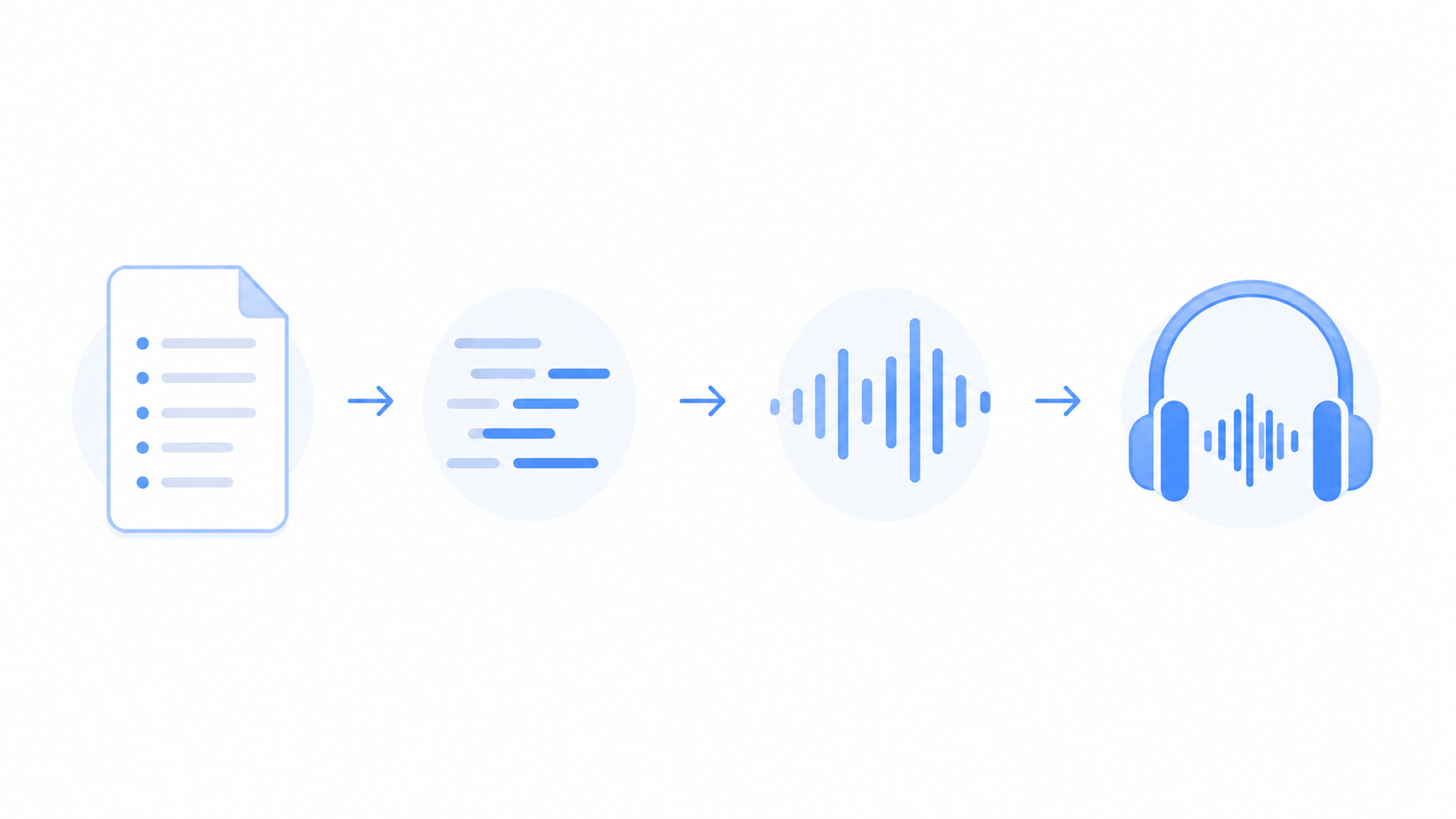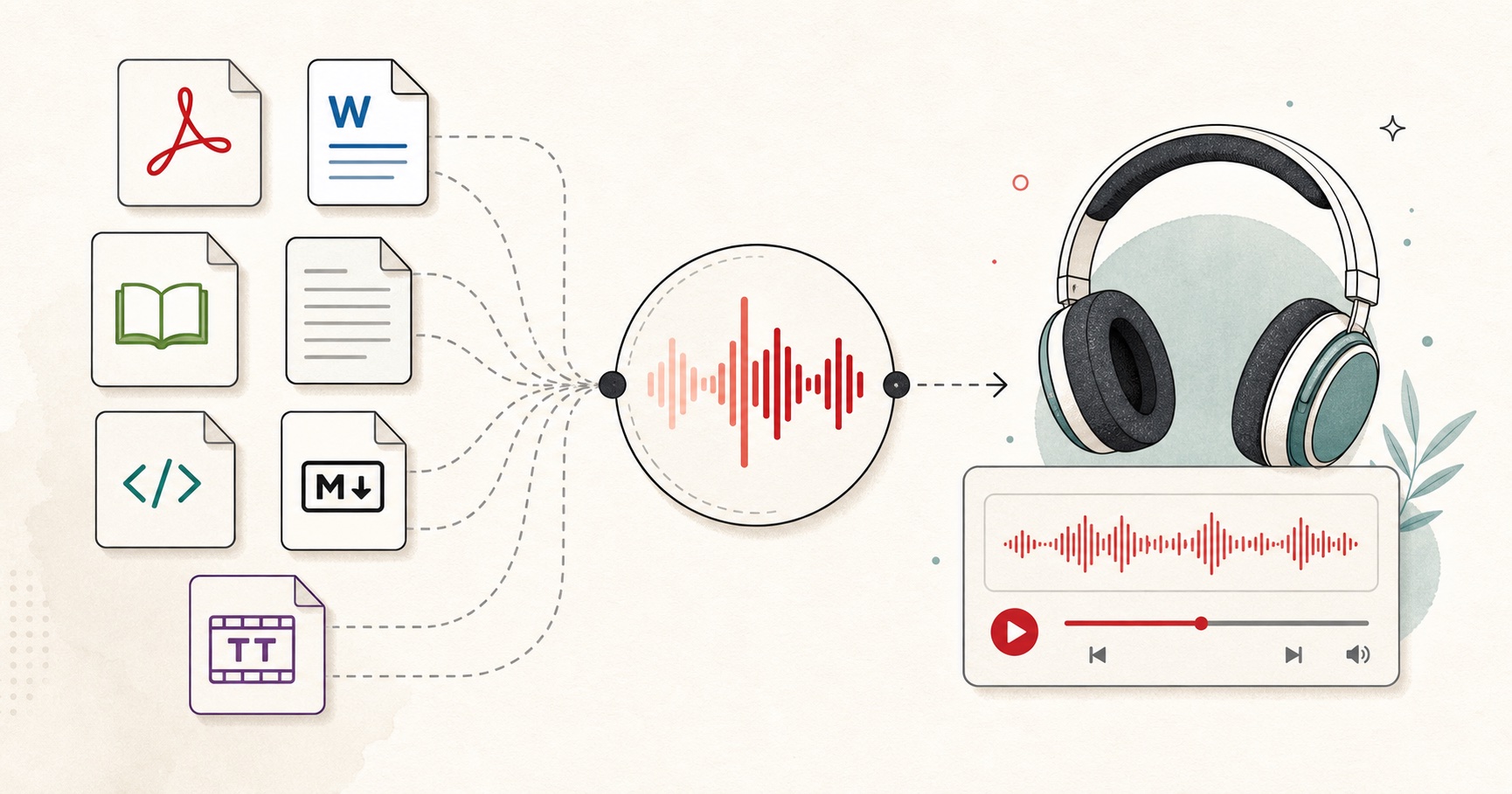
Short answer: copy the text out of your PDF, paste it into FreeTextoSpeech in chunks of up to 5,000 characters, pick a voice, and download the WAV. If your PDF is a scan, run OCR first with Google Docs or Adobe Acrobat. Everything below is the longer version, including how I handle documents that are way too big for one paste.
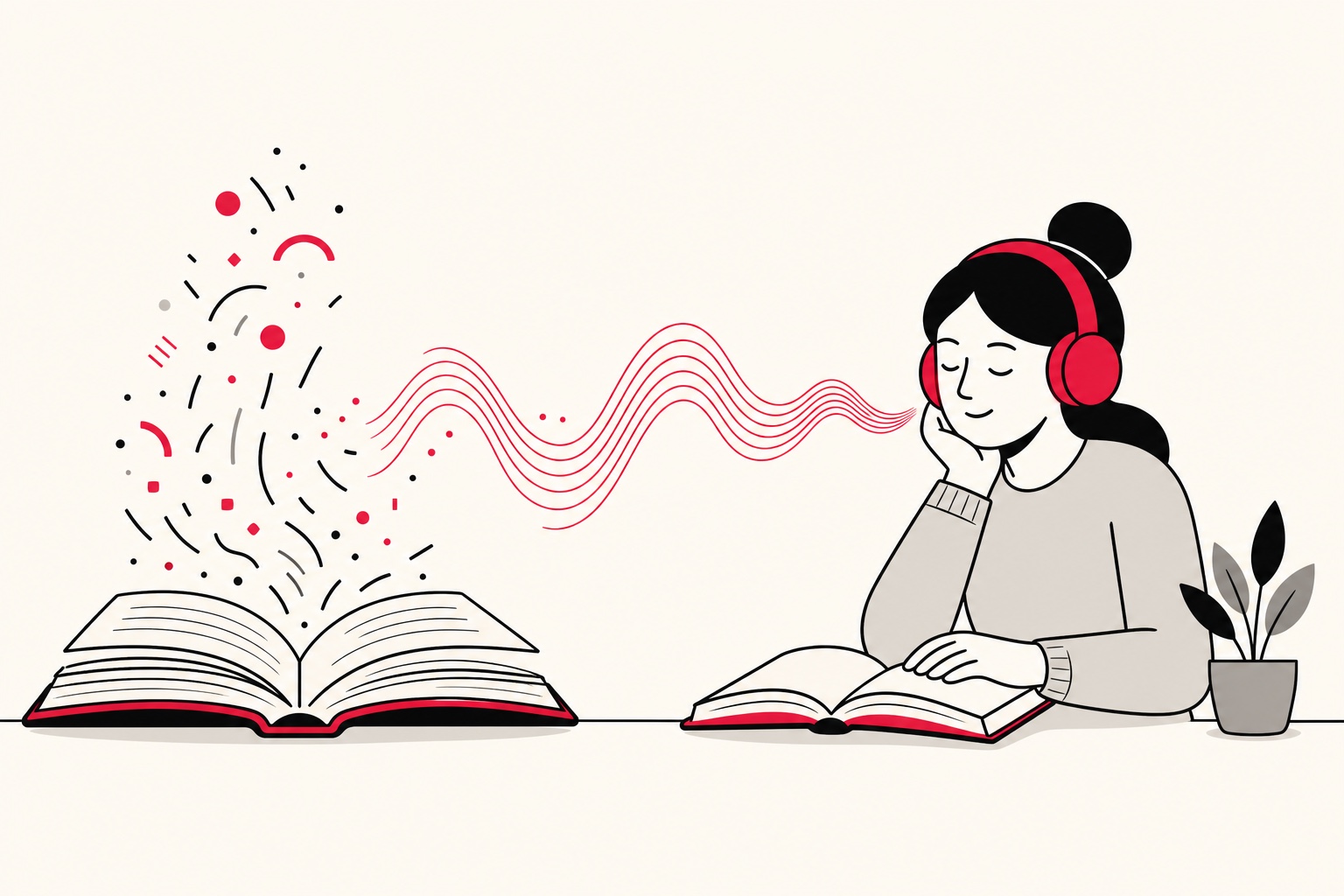
I built FreeTextoSpeech partly because I got tired of documents I never actually read. Reports, papers, long articles I saved and forgot. Turning them into audio fixed that for me. You listen on a commute, on a walk, doing dishes, and the backlog stops piling up. Reading support is a big one too, if screens tire your eyes. The thing that killed this idea for years was the robotic voice. Nobody sits through thirty minutes of a flat, buzzy read. Neural voices changed that, and once the voice was good the whole workflow suddenly made sense. The tool is free, no signup needed for basic use, no credit card, and the audio is cleared for commercial use with no attribution. So you can use it for real work, not just a quick demo.

Step 1: Check if your PDF has selectable text
Open the PDF in any reader and try to highlight a paragraph with your cursor. If you can select and copy words, you have a text-based PDF and you can jump straight to Step 3. If all you can do is draw a box around the whole page and no individual words highlight, it is a scanned image, and you need OCR first. Do this check before anything else. The two types need completely different handling, and knowing which one you have saves you a wasted attempt.
A faster way to be sure: hit Ctrl+F, or Cmd+F on a Mac, and search for a word you can plainly see on the page. If the reader jumps to it and highlights it, the text is real. If the search finds nothing, you are looking at a picture of text, and Step 2 is for you.
Step 2: OCR a scanned PDF (if needed)
OCR, short for optical character recognition, turns a picture of text into real, selectable text. Two free tools cover almost everything:
- Google Docs. Upload the PDF to Google Drive, right-click it, and choose Open with Google Docs. Google converts the scan into editable text on its own, and you copy from there.
- Adobe Acrobat (free Reader). Go to Tools, then Scan and OCR, then Recognize Text. That makes the PDF searchable so you can copy from it.
OCR is not magic on a bad scan, so skim the output before you make any audio. The mistakes are always the same ones: a capital O read as a zero, "rn" turning into "m", and hyphenated line breaks left stuck inside words. Dark or crooked scans give you the worst of it. If you can, rescan the page flat and well lit instead of fighting a bad image, because you will spend longer cleaning garbled text than you would rescanning. Two minutes of proofreading here keeps the voice from tripping over nonsense later.
Step 3: Clean the text
PDF text drags a lot of junk along with it. Page numbers, headers and footers that repeat on every page, footnote markers, and sentences chopped in half across lines. Give it a minute of cleanup so the voice does not pause in weird places or read a page number out loud in the middle of a sentence.
- Remove page numbers and running headers with a quick find and replace.
- Rejoin sentences that got split across lines, so the voice reads them as one thought.
- Strip footnote markers and stray citations that would interrupt the read.
- Fix broken words where a hyphen split a term over two lines, so "informa- tion" becomes "information".
- Spell out anything you want said in full, like turning "Dr." into "Doctor" or "e.g." into "for example", when the short form sounds wrong spoken aloud.
You do not need SSML tags or any special markup. FreeTextoSpeech takes plain text, and you control how it sounds with ordinary punctuation. A comma is a short pause. A full stop is a longer one. A paragraph break is the longest. If a sentence feels rushed, add the punctuation you would want a person to slow down for. That is honestly the whole trick, and it is quicker than it sounds once you have done it once.

The read PDF aloud page is set up for exactly this workflow.
Step 4: Paste into FreeTextoSpeech
Open FreeTextoSpeech and paste your cleaned text, keeping each request under 5,000 characters, which works out to roughly 1,000 words. Keep an eye on the character counter, and split at a chapter or section break if you go over. Split at a natural break rather than mid-paragraph, and each clip feels finished on its own instead of ending on half a sentence.
The anonymous free tier gives you 5,000 characters per request and 25,000 cloud characters every 30 days, which is enough to try a chapter or two. Sign in and your monthly allowance jumps to 500,000 characters, which covers a full book over time without thinking about it. There is also an in-browser engine that takes up to 50,000 characters per request and works offline after a one-time model download. I use that one for long documents and for reading on a plane, where there is no connection anyway.
Step 5: Pick a voice and speed
FreeTextoSpeech runs on the open Kokoro model and gives you 54 voices across 9 languages, so you can match the voice to what you are reading. Different material wants a different voice:
- Academic papers and textbooks: Kore, Michael or Jessica read clearly and keep dense text legible.
- Business reports: Nicole or Adam for a clean, confident read.
- Long articles and essays: Sarah, Bella, River or Heart hold up better over a long listen.
- UK English preference: Emma, Lily, George or Daniel if a British voice suits the document.
Start speed at 1.0x, then nudge to about 1.1x for lighter reading, or drop to 0.9x for technical text where you need every word to land. The slider goes from 0.25x all the way to 4.0x, so you have plenty of room in both directions. Here is the advice most people skip: test a short paragraph before you commit a whole PDF. Honestly, the voice matters more than the speed. Two minutes of sampling saves you from generating an hour of audio in a voice you end up not wanting to hear.
Step 6: Generate, download, and handle long documents
Click generate and download. Pick MP3 for a small file or WAV (24 kHz, uncompressed) if you plan to edit. For a long PDF you will end up with several WAVs. Two easy ways to deal with that: drop them into a playlist in order and play straight through, or stitch them into one file in Audacity, which is free. Name the files in order, like chapter-01 and chapter-02, so your player keeps them in sequence instead of shuffling them around.
WAV files are bigger, which is a little annoying if you want them on your phone. If you downloaded WAV, you can still convert it later. It is a one-time export in Audacity or any similar editor. Our guide on converting TTS audio to MP3 walks through the exact steps.
A quick worked example
Say you have a 40-page research report you want to hear on your commute. You highlight a paragraph, the text selects fine, so no OCR needed. You paste the report into a plain text editor and delete the running header that repeats on every page along with the page numbers at the bottom. The report is around 3,000 words, way past a single 5,000-character request, so you split it into four parts at the section headings. You sign in to raise your monthly allowance, pick Nicole for a clean business read, and leave speed at 1.0x. You generate four MP3 files, rename them part-01 through part-04, drop them into a playlist, and start listening on the way to work. Hands-on time: under fifteen minutes.
Common mistakes to avoid
- Pasting a whole book at once. Anything over the character limit gets cut off. Split first, then generate.
- Skipping the cleanup step. Leftover headers and page numbers get read out loud and yank you out of the flow.
- Downloading WAV when you only need to listen. MP3 is the default and much smaller; pick WAV only if you plan to edit. If the text is already copied out of the PDF, the text to MP3 converter is the shortest path to a file for your phone.
- Trying to use SSML tags. They are not needed, and the voice will just read them out as text. Use punctuation and spelling instead.
- Picking a voice you never tested. Sample a paragraph before you generate the full thing.
Special cases worth knowing
- Multilingual PDFs: FreeTextoSpeech has native voices across 9 languages, including US and UK English, Spanish, French, Hindi, Italian, Japanese, Brazilian Portuguese and Mandarin Chinese, so switch the voice to match the text. For a Hindi document, voices like Alpha, Beta, Omega or Psi read it naturally.
- Heavy math: equations often come out of the PDF as symbols the voice skips over, so a dedicated accessibility tool may serve STEM textbooks better than this one.
- DRM-locked PDFs: if you cannot select any text at all, the file is protected, and you will need an accessible copy from wherever you got it.
- Tables and columns: multi-column layouts sometimes copy in a scrambled order, so read the pasted text once to check it flows before you generate.
Frequently asked questions
Is it really free? Yes. Basic use needs no signup and no credit card, and the audio is cleared for commercial use with no attribution.
How long can my document be? Each request is capped at 5,000 characters without an account (10,000 signed in), but you can split a long PDF into as many requests as you want. Signing in raises the monthly total to 500,000 characters.
Can I listen offline? Yes. The in-browser engine works offline after a one-time model download and takes up to 50,000 characters per request.
What audio format do I get? An MP3 by default, which is small enough for your phone. Pick WAV (24 kHz) in the format menu next to Download if you plan to edit.
Try it
Grab a PDF you keep meaning to read, run the first chapter through FreeTextoSpeech, and start listening. If it is study material, our guide on turning study notes into audio pairs well with this one. Cost: zero.