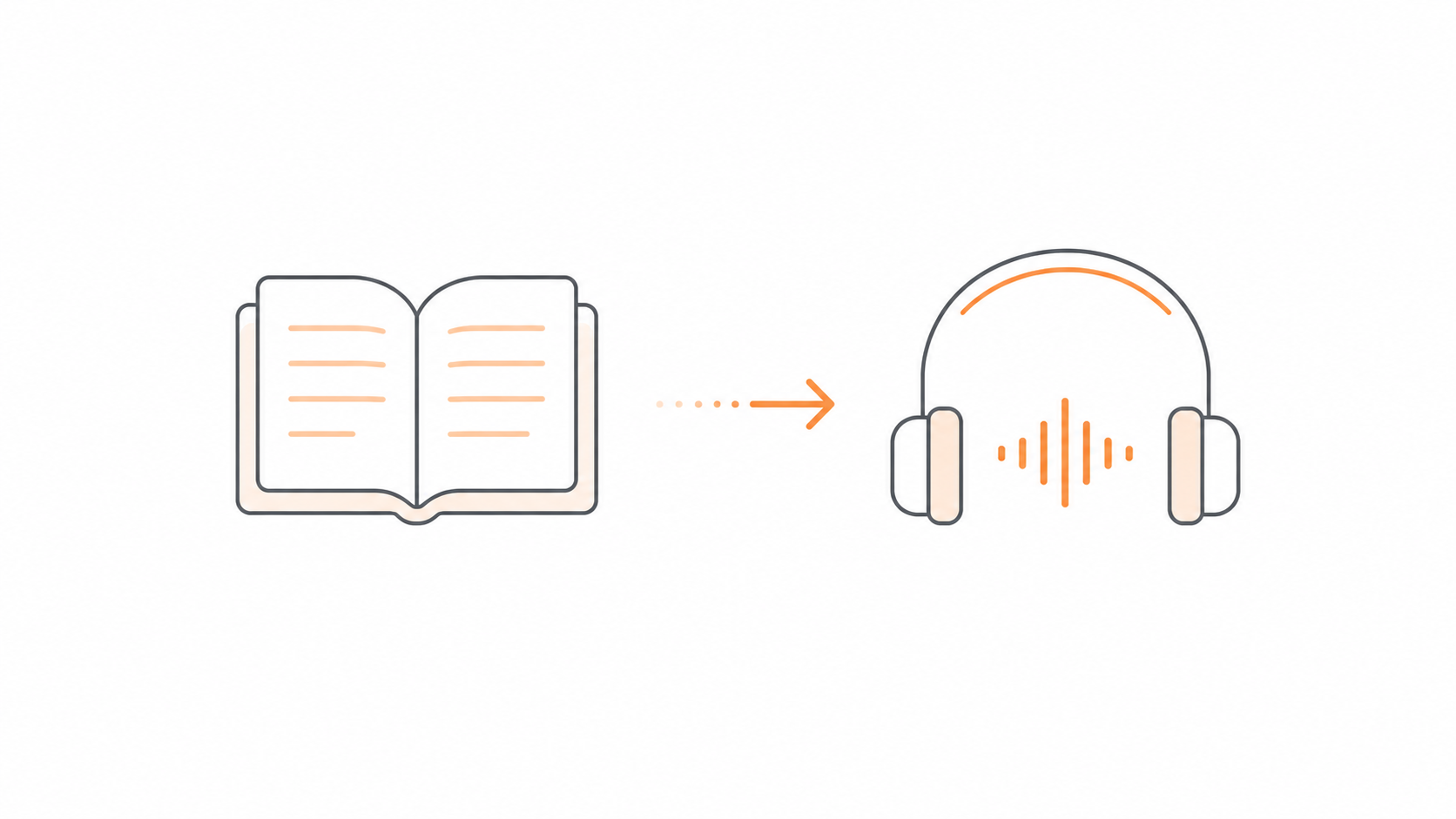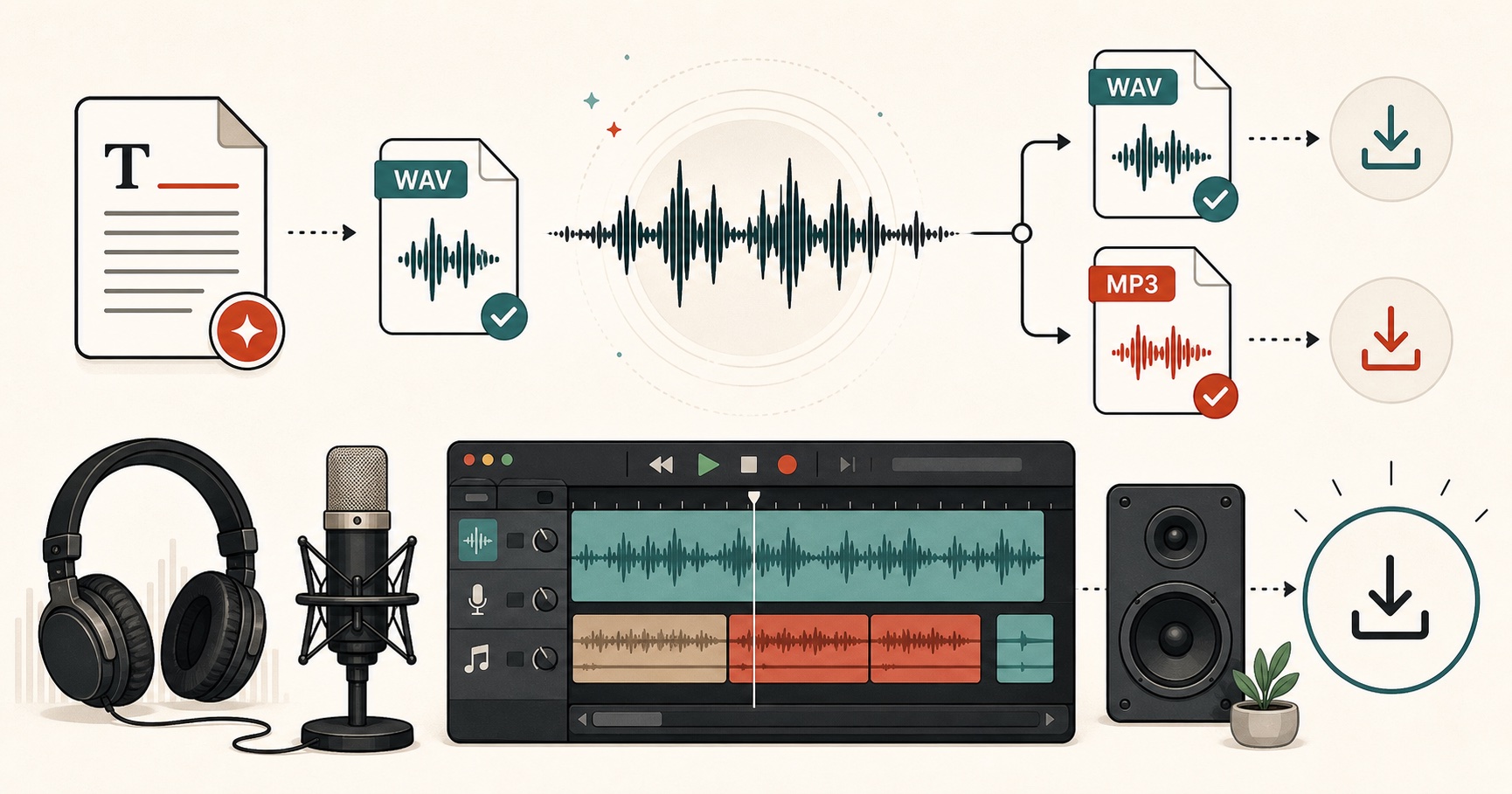
Short answer: paste your text into FreeTextoSpeech, pick a voice, click Generate, and click Download. The file is an MP3 by default, so there is nothing to convert. The format menu next to Download also offers WAV (24 kHz), which is the better pick if you plan to edit the audio before it goes anywhere. Below I'll cover how to get a clean MP3, when WAV is the smarter download, and what to do with an old WAV you already have.
I get why people type "text to speech to MP3" into search. A lot of free tools hand you an odd format, or make you sign up before you can download anything, and MP3 is the format everything accepts. I built FreeTextoSpeech as a free browser tool running the open Kokoro model, and MP3 is the default download for exactly that reason: it is small and it plays on every phone, laptop, and platform. WAV is there for the cases where you want an uncompressed master to edit from.

WAV vs MP3: the quick version
- MP3 is compressed and a lot smaller, which is why it's the go-to for sharing, podcast feeds, chat apps, and playing on a phone. It throws away some data, but on speech at a sensible bitrate you won't hear the difference.
- WAV is uncompressed. It keeps the full quality with no artefacts. The files are bigger, but it's the format you want for editing, layering into video, or keeping a master copy you can come back to.
Here's the size thing in real terms. A few minutes of speech as a WAV can be several times heavier than the same clip as an MP3. That matters when you're emailing files or serving a podcast feed, because nobody enjoys a slow download. On your own drive, though, it barely registers. So the rule I stick to is simple: if the audio is finished, download the MP3. If you're still going to edit it, download the WAV and export an MP3 at the end.
How to get an MP3 straight from the tool
- Paste your text into FreeTextoSpeech. Anonymous use takes up to 5,000 characters per Generate, which is roughly 1,000 words. Signed in, it's 10,000. Longer than that? Split it at paragraph breaks into sensible chunks.
- Pick a voice. There are 54 voices across 9 languages, so it's worth trying a few. For US English I'd compare Heart, Bella, or Sarah for a warmer read, or Adam and Michael when you want something lower. UK options include Emma, George, and Daniel.
- Set the speed. The slider runs from 0.25x to 4.0x. A tiny nudge, say 0.95x, can make narration feel calmer without actually sounding slow. This is the setting most people leave alone when they shouldn't.
- Generate, then check the format menu. It sits next to the Download button and is set to MP3 unless you change it.
- Click Download. The MP3 lands in your Downloads folder on a computer, or the Files app on a phone.
That's the whole thing. No account, no converter, and commercial use is allowed with no attribution. Anonymous use includes 25,000 cloud characters every 30 days, and signing in raises that to 500,000.

You can also start from the text to MP3 page, which opens the same tool.
When to download WAV instead
MP3 is the right file for finished audio. WAV is the right file for audio you're still working on, because every MP3 export throws a little data away and repeated exports stack up.
- Editing in a video tool? Download the WAV and drop it on the timeline. Your editor compresses everything once at the final render anyway.
- Stitching several clips? If you had to generate a long piece in chunks, download each part as WAV, join them in Audacity or any editor, and export one MP3 at the end. One compression, not five.
- Adding music or noise processing? Do it on the WAV, then compress the finished mix.
- Keeping a master copy? A WAV lets you re-export later at any bitrate without losing anything.
Already have a WAV? Convert it once
If you downloaded a WAV earlier, or you finished an edit and now need an MP3, you only need one conversion. The free WAV to MP3 converter runs in your browser, so the file never gets uploaded anywhere. Audacity works too: File, Import, Audio to open the WAV, then File, Export, Export as MP3. For voice on its own, 128 kbps already sounds clean. If there's music or effects in the mix, go to 192 kbps.
Keeping the quality high
- Compress once. Don't convert an MP3 into another MP3. That stacks compression on compression and the sound gets worse each time.
- Do your edits before compressing. Trim, join, and balance the volume on the WAV, then export to MP3 as the last step.
- Don't drop the bitrate too far. Speech below about 96 kbps can sound thin and a bit hollow. The space you save is small, so it's not a trade I'd make.
Common mistakes to avoid
- Downloading the WAV out of habit. If the audio is already finished, the MP3 is smaller and plays everywhere. Leave the format menu on MP3.
- Editing an MP3 and exporting it again. If you know you'll edit, download the WAV up front so you only compress at the end.
- Reaching for SSML tags. The tool takes plain text only, so SSML won't do anything here. You shape the read with ordinary punctuation, spelling, and the speed slider, which is simpler and works everywhere.
Shaping the voice without SSML
Because the input is plain text, you get natural results with a few habits instead of markup. Drop a comma where you want a short pause, and start a new sentence where you want a longer one. Spell out anything that might get misread, so "2024" becomes "twenty twenty-four", and write abbreviations the way they should sound. If a word lands wrong, try a nearby spelling until it clicks. For pace, the speed slider does the heavy lifting. These small edits cover most of what people expect from SSML, and they keep your text portable so you can regenerate it later without fuss.
A note for podcasters and creators
Podcast hosts and a lot of platforms expect MP3. If the voiceover goes out as-is, download the MP3 and upload it. If it's one piece of a bigger edit, including narration for a longer project, download the WAV, do all your editing, and compress once at the very end. That single-compression habit is the difference between clean speech and a slightly muddy final file. Commercial use is allowed with no attribution, so the audio can go straight into a monetized show or a client video. If you're building narration for one specific platform, read the notes in text to speech for YouTube before you lock in your export settings.
Quick FAQ
- Does FreeTextoSpeech export MP3 directly? Yes. MP3 is the default download. WAV (24 kHz) is the other option in the format menu next to Download.
- Is MP3 good enough for speech? Yes, for listening, sharing, and podcast feeds. Pick WAV only when you'll edit the audio further.
- What bitrate should I use if I convert a WAV? 128 kbps for voice alone, 192 kbps if there's music in the mix.
- Do I need to sign up? No. Basic use is free, no signup, no credit card. Signing in raises your allowance from 25,000 to 500,000 characters every 30 days.
Try it
Paste your text into FreeTextoSpeech, generate, and download the MP3. If you're going to edit first, switch the format menu to WAV, finish the edit, and export one MP3 at the end.