Short answer: most robotic-sounding audio is a text problem, not a tool problem. Punctuate for pauses, spell tricky words the way they sound, pick a warm voice, and nudge the speed down to about 0.9x. Do that in FreeTextoSpeech and the same voice suddenly sounds like a person. The full checklist is below, with examples you can copy.
Almost every "best AI voice" review I read lands on the same complaint. The voice sounds great for ten seconds, then goes flat and robotic. I built FreeTextoSpeech, so I've watched a lot of people hit this wall, and the fix is almost always in your hands. A modern neural voice is very good at reading natural language, but it can only work with the text you feed it. Write for the eye, with long sentences and no breathing room, and even a great voice will trip. Write for the ear, and an ordinary free voice can sound genuinely human.
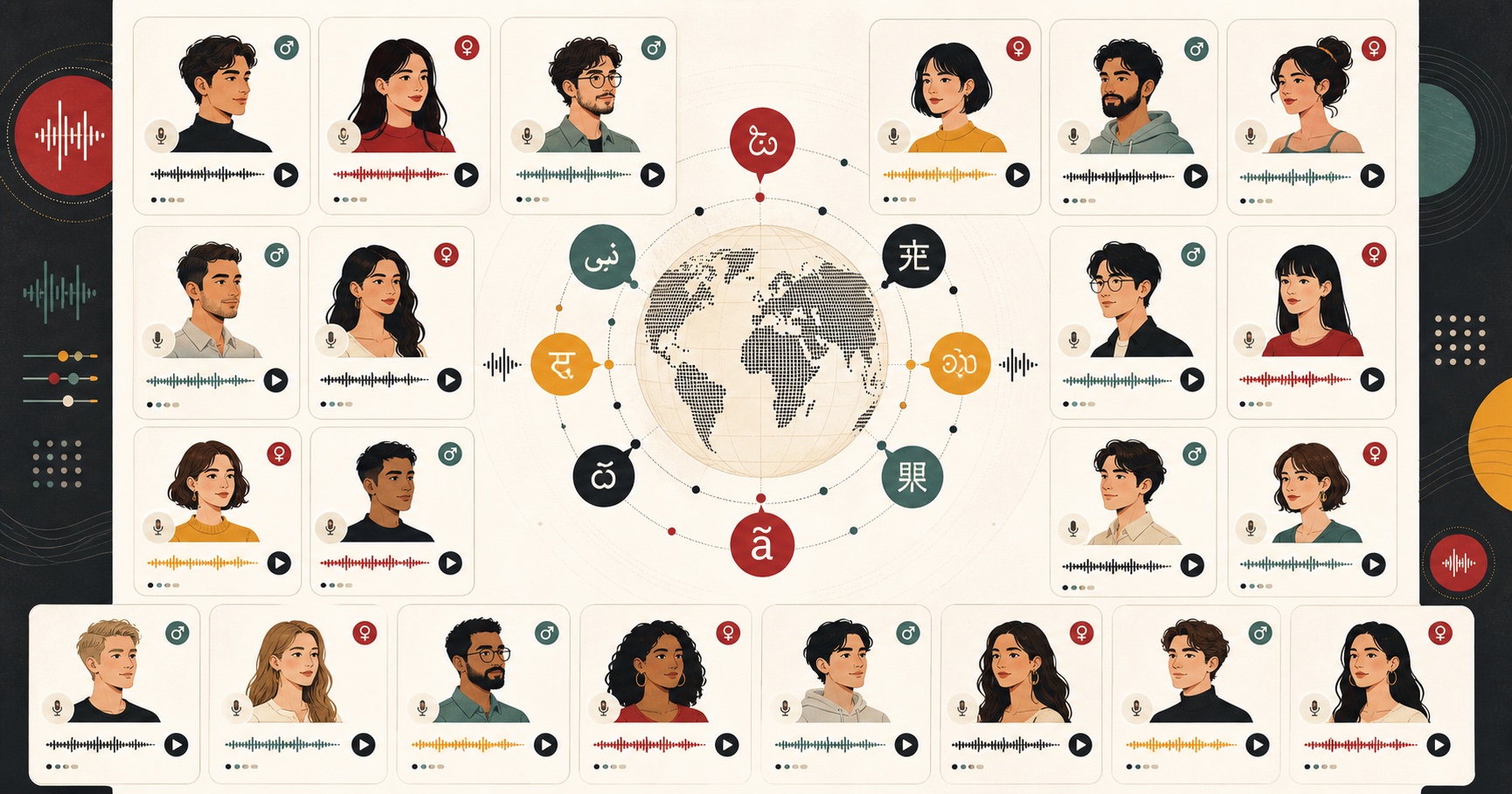
This guide walks through the changes that actually matter, in the order they matter. None of them need code, plugins, or a paid plan. FreeTextoSpeech runs on the open Kokoro model, takes plain text, and gives you 54 voices across 9 languages, so everything here works on the free tool with no signup.
Why AI voices sound robotic in the first place
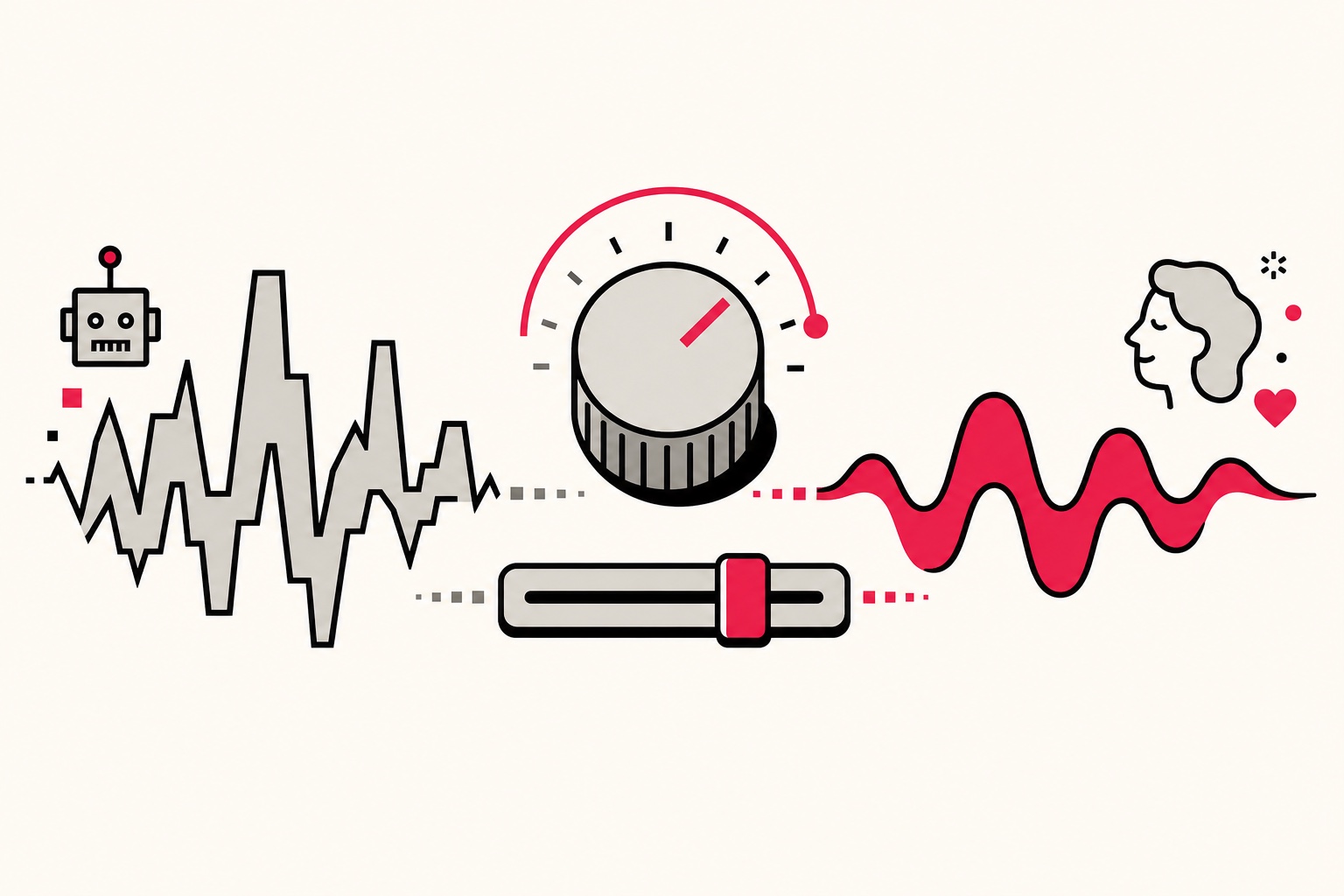
An AI voice does three things with your text. It works out how each word should sound, it decides where to pause and how to rise and fall, and it stitches those sounds into continuous audio. The rhythm and the pauses come almost entirely from your punctuation and sentence structure. When those cues go missing, the voice has to guess, and its guesses are cautious and flat. That flatness is what people hear as robotic. So the one mindset shift that changes everything is this: you are not typing text, you are writing a script for a voice.
One thing to clear up early. You do not need SSML or any special markup to control this. Some older tools ask you to wrap your text in tags to add pauses, and people carry that habit over. FreeTextoSpeech does not work that way, and you should not paste tags into it. Everything you need comes from plain punctuation, spelling, and the speed slider. That keeps your input clean, and it means anyone on your team can edit the script without learning a markup language.
1. Punctuate for the ear, not the eye
A text to speech voice gets its rhythm from your punctuation. Commas make short pauses, full stops make longer ones, and a paragraph break resets the breath. Paste a wall of text with no punctuation and the voice has nowhere to breathe, so everything runs together.
- Add commas where you would naturally pause if you spoke the sentence out loud. Read your text aloud once and drop a comma everywhere you take a breath.
- Break long sentences into two. If a sentence needs three commas to survive, it is usually two sentences wearing a trench coat.
- Use paragraph breaks between ideas so the delivery does not feel breathless.
- Use full stops generously. Short, complete sentences give the voice clean landing points, and they sound confident.
- Keep the comma before "and" in a list of three or more. It stops the items from blurring into one rushed phrase.
Here is the same line before and after. Before: "our new update is faster more reliable and easier to use so you can get more done without the usual headaches." After: "Our new update is faster, more reliable, and easier to use. So you can get more done, without the usual headaches." Same words, but the second one breathes in the right places. Question marks matter too. A real question mark lifts the end of the sentence, so "Ready to try it?" sounds like a question, while the same words with a full stop sound like a statement. This is the setting most people skip, and it costs them the most.
2. Spell for sound, not for spelling
Because the tool reads the sounds of your words, unusual names and abbreviations can come out wrong. Type them the way they should sound. Write "Doctor" instead of "Dr." if you want the full word. Spell a brand name phonetically if it is getting mangled. Expand acronyms you want read as words. If a name like "Siobhan" comes out wrong, try "Shiv-awn" and listen. When you are not sure how to write a sound, a phonetic spelling generator can suggest a respelling to start from. You are not changing your final text anywhere, you are just changing the input the voice reads.
Numbers and dates trip people up the most. "1996" might get read as one thousand nine hundred ninety six when you wanted "nineteen ninety six." "$5.2M" is safer written as "5.2 million dollars." A time like "3:30" reads more naturally as "three thirty." When in doubt, write it the way you would say it aloud, then preview. For a deeper look at this, see our guide on fixing numbers, dates and acronyms.
3. Choose a voice that fits the content
The voice you pick sets the whole tone, because each one was trained on a different person. FreeTextoSpeech gives you 54 voices across 9 languages, so preview a few before you commit. A mismatch, like a bright, energetic voice reading a serious legal notice, reads as fake no matter how good the model is. Honestly, the voice matters more than the speed here.
- Warm long-form narration: Heart, River, Sarah, Bella.
- Clear and authoritative: Michael, Adam, Nicole, Kore.
- British delivery: Emma, George, Lily, Daniel.
- Energetic and youthful: Nova, Sky, Puck.
Match the language to the content too. If part of your script is in Spanish, French, Hindi, Italian, Japanese, Portuguese, or Mandarin, use a voice trained for that language instead of an English one. The pronunciation will be far more natural and the accent will fit. Previewing two or three voices on the same paragraph takes under a minute, and it is the fastest way to find the one that clicks.
If you want to hear how the different voices handle real content, our best text to speech rundown compares them honestly.
4. Tune the speed
Speed changes how human a voice feels. FreeTextoSpeech lets you set anywhere from 0.25x to 4.0x. Start at 1.0x, then drop to about 0.9x for dense or technical passages so the words have room, or push slightly to 1.1x for light, upbeat content. Small moves do a lot. A voice that sounds robotic at 1.0x often sounds thoughtful at 0.9x, because that extra fraction of a second lets each phrase land. Below about 0.8x it starts to drag, and above 1.3x it sounds rushed and clipped. For most narration, the sweet spot sits between 0.9x and 1.05x.
5. Preview, then generate in chunks
Generate one paragraph first and listen. If a word is off, fix the spelling and try again. Then work through the rest in chunks of up to 5,000 characters per request, which is roughly 1,000 words. This keeps quality high and lets you catch problems early instead of redoing a whole article. Chunking also gives you natural save points, so if you want a slightly different speed for one section, you can generate it on its own.
A worked example: turning a flat paragraph human
Say you start with this product blurb, pasted straight from a slide: "MeetFlowPro 2.0 is here it syncs across 3 devices supports 12 languages and cuts setup time by 40% so teams ship faster." Read aloud by any voice, that runs together and mangles the numbers.
Now rewrite it for the ear: "MeetFlow Pro two point oh is here. It syncs across three devices, supports twelve languages, and cuts setup time by forty percent. So teams ship faster." Three small changes did the work. The brand name got a space so it reads cleanly, the numbers are spelled the way they should sound, and the run-on became three short sentences with commas for the list. Set a warm voice like Sarah at 0.95x and it sounds like a person, not a machine.
Common mistakes that keep voices robotic
- Pasting raw text from a PDF with broken line endings, which forces awkward pauses mid-sentence. Clean up the line breaks first.
- Writing one giant sentence with five clauses joined by "and."
- Leaving numbers and acronyms unformatted, so the voice mispronounces them and breaks the spell.
- Picking the first voice you hear instead of previewing three or four.
- Pasting markup or SSML tags into the box, hoping to add pauses. The tool reads plain text, so tags get read out loud or ignored. Use punctuation instead.
- Chasing perfection on the whole file before you test a single paragraph. Preview small, fix fast.
Quick questions people ask
Does a paid tool sound more human than a free one? Not by much anymore. The gap between free neural voices and expensive ones is now mostly about extras like cloning, not raw naturalness. Good text beats an expensive voice reading bad text every time.
What format do I get, and can I get an MP3? MP3 is the default, and you can switch the format menu to a 24 kHz WAV, which is clean, uncompressed audio for editing. Bigger files, which is a little annoying if you are emailing them, but the quality is worth it.
Can I use the audio commercially? Yes. FreeTextoSpeech is free for commercial use with no attribution required, so you can put the audio in videos, ads, courses, and products.
A repeatable 60-second routine
- Read your text aloud once and add commas where you breathe.
- Split any sentence longer than about 25 words.
- Spell out tricky names, numbers and acronyms.
- Pick a voice that matches the mood and set the speed to 0.9x.
- Generate one paragraph, listen, adjust, then do the rest.
Get started
You do not need any tech skills to make an AI voice sound human, just a few small edits to the text. Open FreeTextoSpeech, paste a paragraph, pick a warm voice, set the speed to 0.9x, and hear the difference for yourself. When it sounds right, download the WAV and use it anywhere, including commercial projects, at no cost. If you want to go further, our guide on pronunciation of numbers, dates and acronyms covers the trickiest cases in detail.