Visual guide
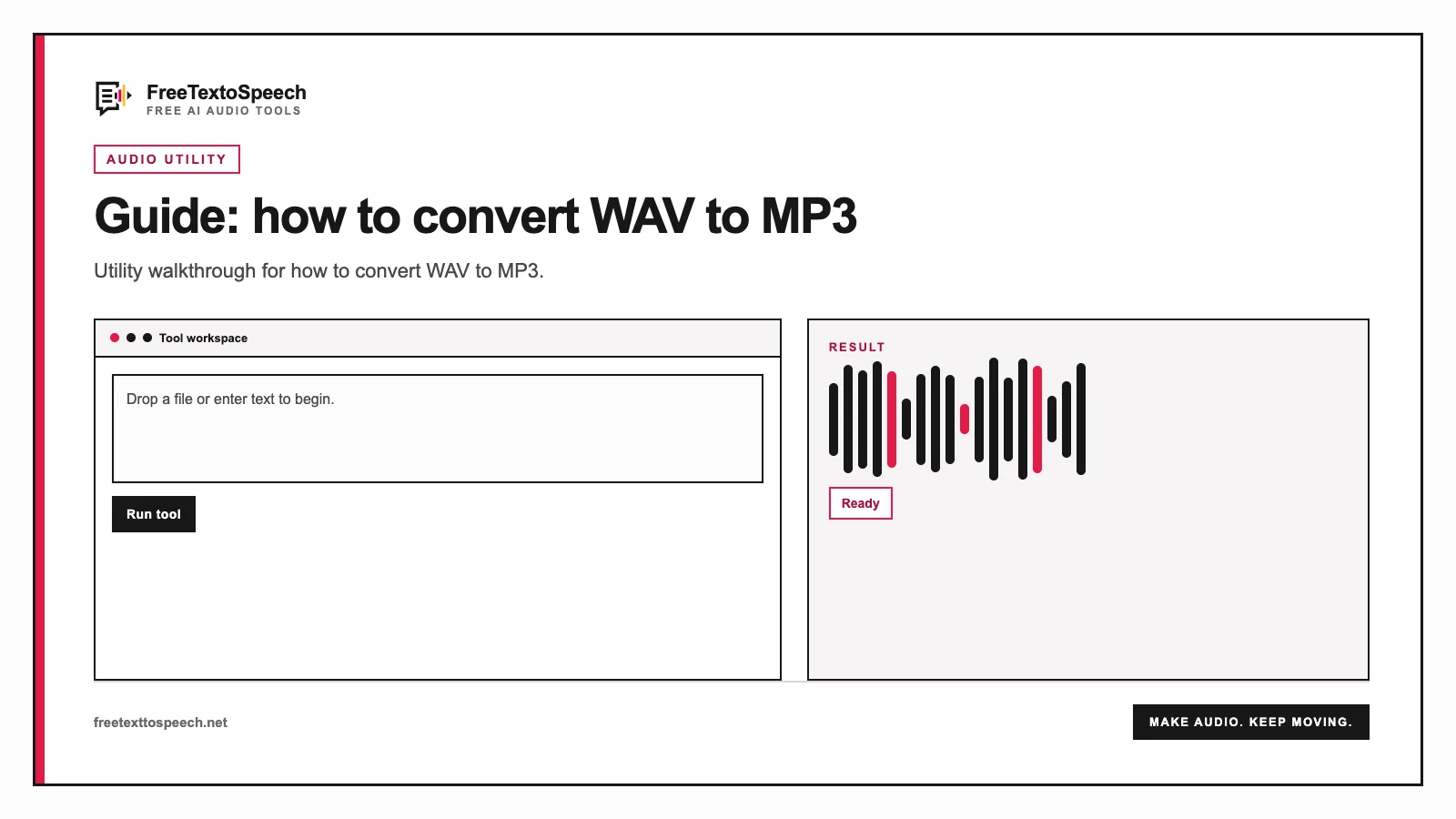
How the how to convert WAV to MP3 tool presents input and output.
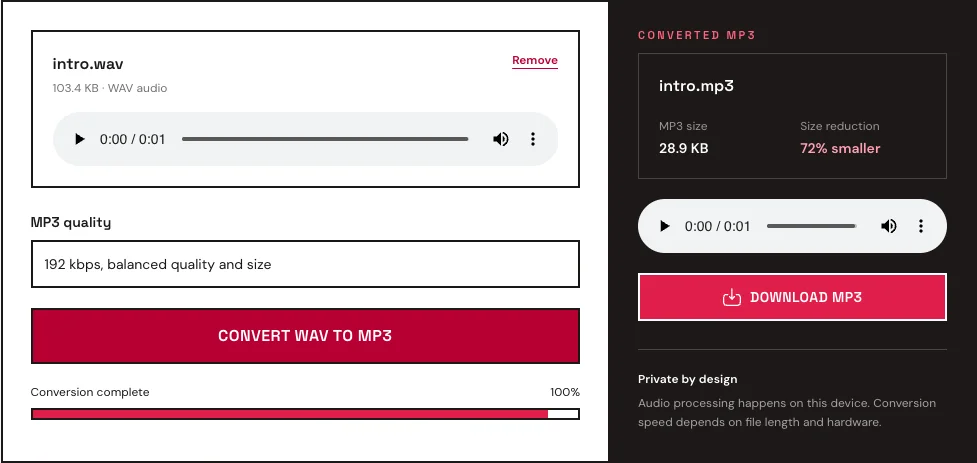
Need to convert WAV to MP3 without uploading the recording? Choose a file in our free WAV to MP3 converter, select 128, 192, or 320 kbps, and click Convert. The browser handles the encoding locally and gives you a downloadable MP3.
WAV and MP3 solve different problems. Our bias is simple: keep the WAV, deliver the MP3. WAV is easier to edit and safer to archive. MP3 is much easier to email, publish, or keep on a phone.
The part worth thinking about is bitrate. A spoken recording rarely needs the same setting as a music master, and choosing 320 kbps for everything mostly gives you larger files.
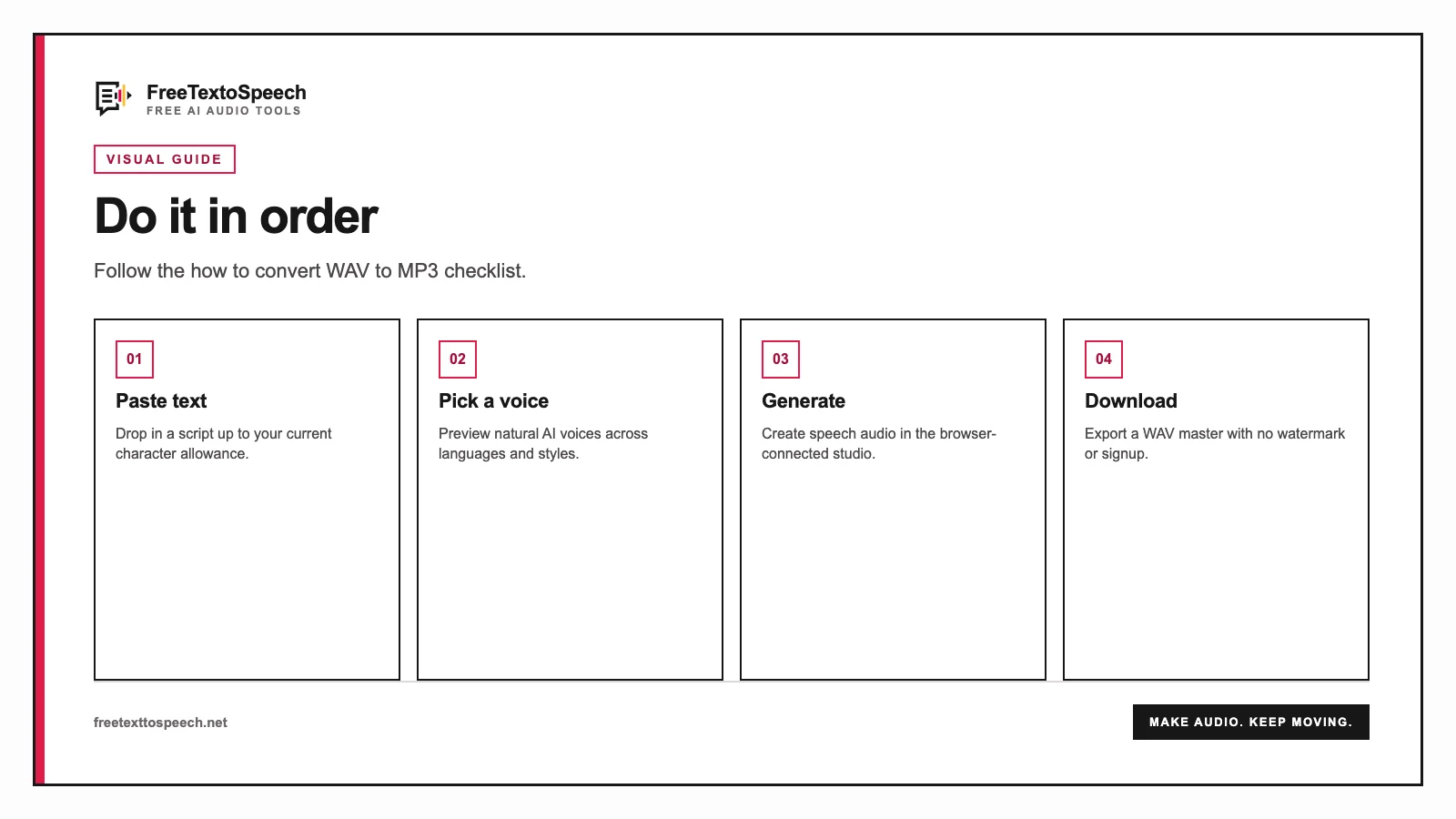
The browser workflow takes four steps:
.wav file onto the page or select one from your device.Your audio remains on the device during this process. That matters for unpublished podcasts, client recordings, private narration, and anything else you would rather not send to a conversion server.
The conversion time depends on the length of the WAV and the speed of the device. A short voice-over should finish quickly. Long, high-sample-rate stereo files require more memory and processing time.
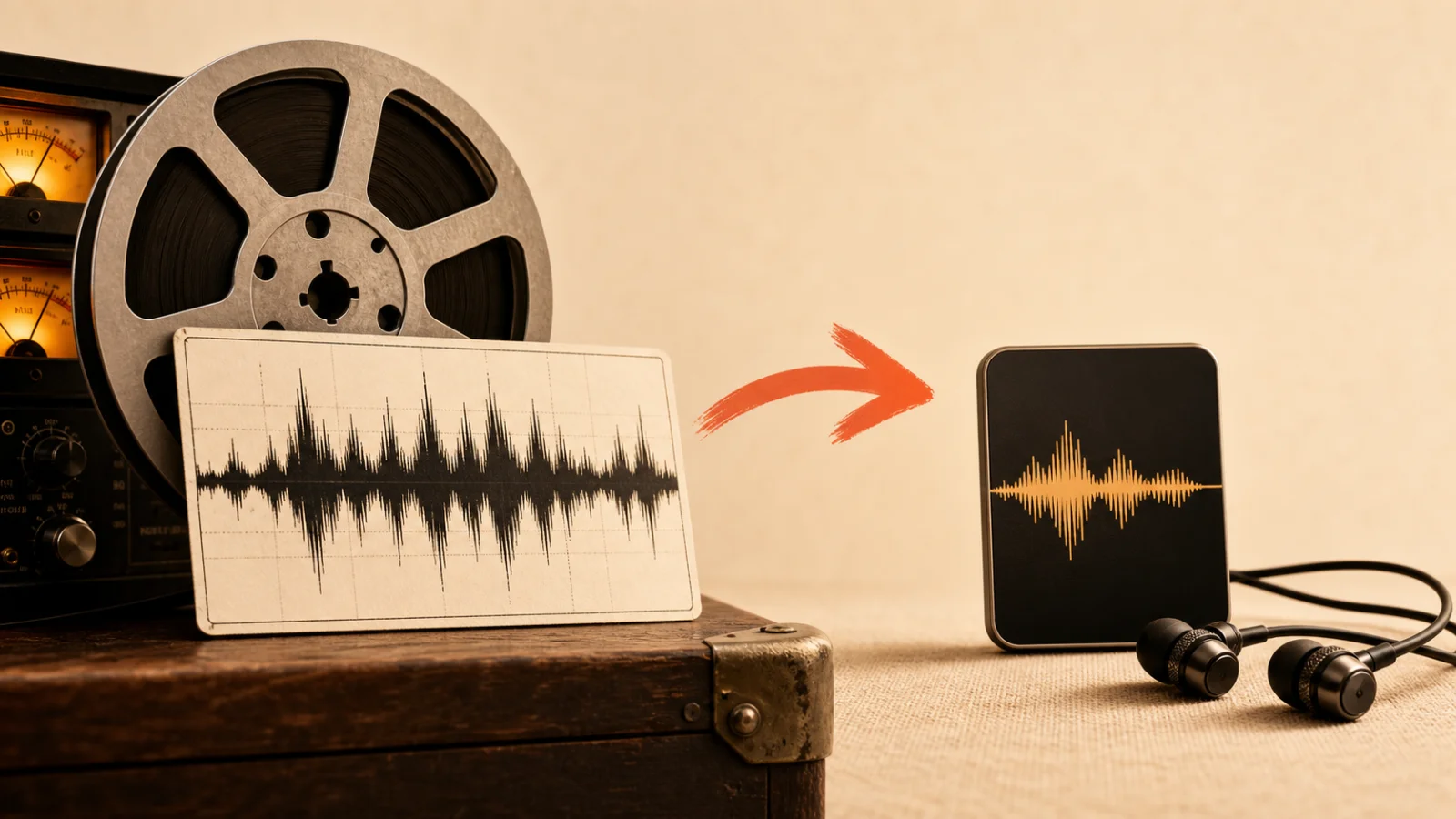
WAV is a container, but most WAV files contain uncompressed PCM audio. PCM stores a direct digital representation of the waveform. It is large, predictable, and easy for editing software to process.
MP3 uses lossy compression. The encoder analyzes the sound and removes information that is less noticeable to human hearing. It then stores the remaining audio much more efficiently.
The result is a substantial reduction in file size. The exact saving depends on the original sample rate, bit depth, channel count, duration, and selected MP3 bitrate.
As a rough example, one minute of stereo 44.1 kHz, 16-bit PCM WAV is about 10 MB. The same minute encoded as a 192 kbps MP3 is roughly 1.4 MB. Spoken mono audio may be smaller still.
That reduction is why MP3 remains useful for podcast distribution, web audio, email attachments, and phones. The lost information is also why you should avoid replacing the original WAV master.
Yes. MP3 compression is lossy, so the conversion permanently removes some audio data. The practical question is whether the listener will notice.
For a clean spoken recording, 128 kbps MP3 can sound very good. Speech occupies a more limited frequency range than complex music and is relatively easy to compress. A higher bitrate becomes useful when the file contains music, ambience, layered effects, or wide stereo information.
Several factors influence the audible result:
Conversion cannot improve the source. Encoding a poor recording at 320 kbps will not repair clipping, background noise, or missing frequencies.
The bitrate indicates how much data the MP3 uses per second. A higher number usually means a larger file and better preservation of detail.
| MP3 bitrate | Approximate size per minute | Recommended use |
|---|---|---|
| 128 kbps | About 0.9 MB | Speech, lectures, audiobooks, simple podcasts |
| 192 kbps | About 1.4 MB | Speech with music, general web audio, mixed podcasts |
| 320 kbps | About 2.4 MB | Music, complex mixes, highest MP3 quality |
These file sizes are estimates. Metadata and encoding details can change the final number slightly.
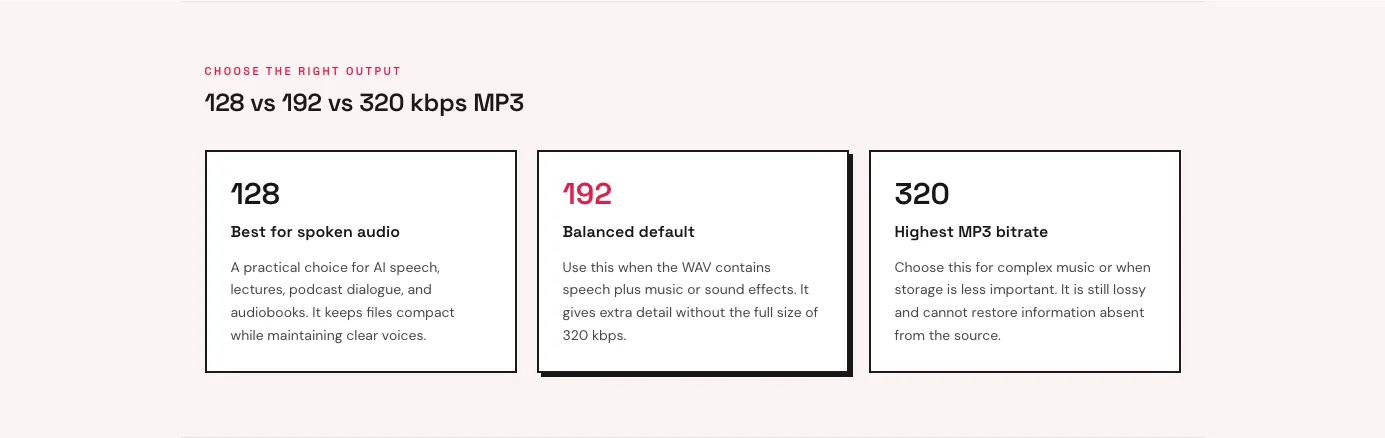
Choose 128 kbps when the source is mostly a single voice. This is usually appropriate for AI narration, meeting summaries, spoken study material, and podcasts without much music.
If the WAV is mono, moving to a very high MP3 bitrate often creates a larger file without a meaningful improvement for ordinary listeners.
Choose 192 kbps when you are uncertain. It gives music and effects more room while still producing a file far smaller than the WAV.
This is a sensible setting for podcast episodes with an intro theme, YouTube voice-overs with background music, and presentations that combine narration with sound effects.
Choose 320 kbps when the file contains music or detailed stereo material and file size is not a major concern. It is the highest common constant bitrate for MP3.
Remember that 320 kbps remains lossy. If the file will be edited or mastered later, use the WAV rather than the high-bitrate MP3.
The right answer depends on the stage of the workflow.
Use WAV in Audacity, Reaper, Logic, Premiere Pro, DaVinci Resolve, or another editor. Editing software repeatedly reads, processes, and exports the audio. Starting with an uncompressed or lossless source avoids introducing MP3 artifacts before the final output.
WAV is also the safer archive. If a publisher later requests a different MP3 bitrate, AAC, FLAC, or another format, you can create it from the master without compounding compression loss.
Use MP3 when the audio is finished and must be moved or published. The smaller file loads faster on a website, consumes less storage, and is easy to play across devices.
Typical MP3 destinations include:
Some platforms accept WAV and perform their own conversion. Uploading WAV can be useful when the service publishes several formats. If bandwidth or upload time is limited, a high-quality MP3 may be more practical.
FreeTextoSpeech downloads MP3 by default and can also give you a standard 24 kHz WAV. Choose WAV when you want a lossless narration master to edit. If you only need a listening copy, there is nothing to convert: the text to MP3 converter gives you an MP3 straight from your script.
To create an MP3 delivery copy:
If you are planning a script before generating it, use the speech time calculator to estimate the final duration. That estimate also helps predict MP3 size.
At 128 kbps, a ten-minute voice file will be roughly 9 to 10 MB. At 192 kbps, it will be around 14 MB.
Traditional online file converters upload the source to a remote server, process it, and return a download. Many reputable services handle this responsibly, but an upload still creates an additional copy outside your device.
Local browser conversion avoids that transfer. The page provides the interface and the encoding code, while the audio stays in browser memory on your machine.
This approach is useful for:
Browser conversion also removes upload time. The main limitations are device memory, battery use, and processing speed. A desktop or modern laptop will handle long audio more comfortably than an older phone.
WAV is a container and can hold audio encoded in several ways. Browsers reliably handle common PCM WAV files, but an unusual codec may fail.
Open the file in your audio editor and export it again as 16-bit or 24-bit PCM WAV. Then retry the conversion.
Check the selected bitrate. A 320 kbps file is 2.5 times the size of a 128 kbps version. For voice-only content, use 128 kbps unless a platform requires something else.
Listen to the source WAV. If the WAV is already clipped, conversion will preserve the distortion. Lower the source level and export a new WAV before encoding.
If only the MP3 sounds damaged, try a higher bitrate and verify that the source uses a standard sample rate.
MP3 encoding uses the device processor. Close other heavy tabs, keep the page active, and convert one file at a time. Very large audio projects are better handled on a desktop.
Changing .wav to .mp3 does not convert the audio. It only renames the container. A real conversion must decode the WAV samples and encode new MP3 frames.
Normalization changes the audio level, not the format. If the WAV is too quiet or peaks at inconsistent levels, correct it in an editor before converting.
For podcasts, many producers target an integrated loudness near -16 LUFS for stereo or -19 LUFS for mono, although platform practices vary. Avoid blindly normalizing a noisy recording because raising the voice also raises the background noise.
The converter intentionally focuses on format conversion. Keeping level changes in an audio editor makes the processing easier to control and reproduce.
Use this order for repeatable results:
Do not edit the MP3 and repeatedly export it as MP3. Each generation adds compression loss. Return to the WAV master whenever a revision is required.
Open the free online WAV to MP3 converter, select the source, and choose a bitrate that fits the material. For plain speech, start at 128 kbps. If music sits under the voice, try 192 kbps. Keep the WAV either way. Future-you may need it.
Visual guide
How the how to convert WAV to MP3 tool presents input and output.
In context
A step-by-step visual guide for how to convert WAV to MP3.
A tiny favor
Allow ads for this site, then check again. Prefer no ads? Paid plans remove ads and add more cloud characters, from $4 a month.
Allow ads for freetexttospeech.net, then check again.
Already on a paid plan?Sign into restore your perks.
Send feedback
Tell us what you think
Bugs, ideas, or anything that would make FreeTextoSpeech better.