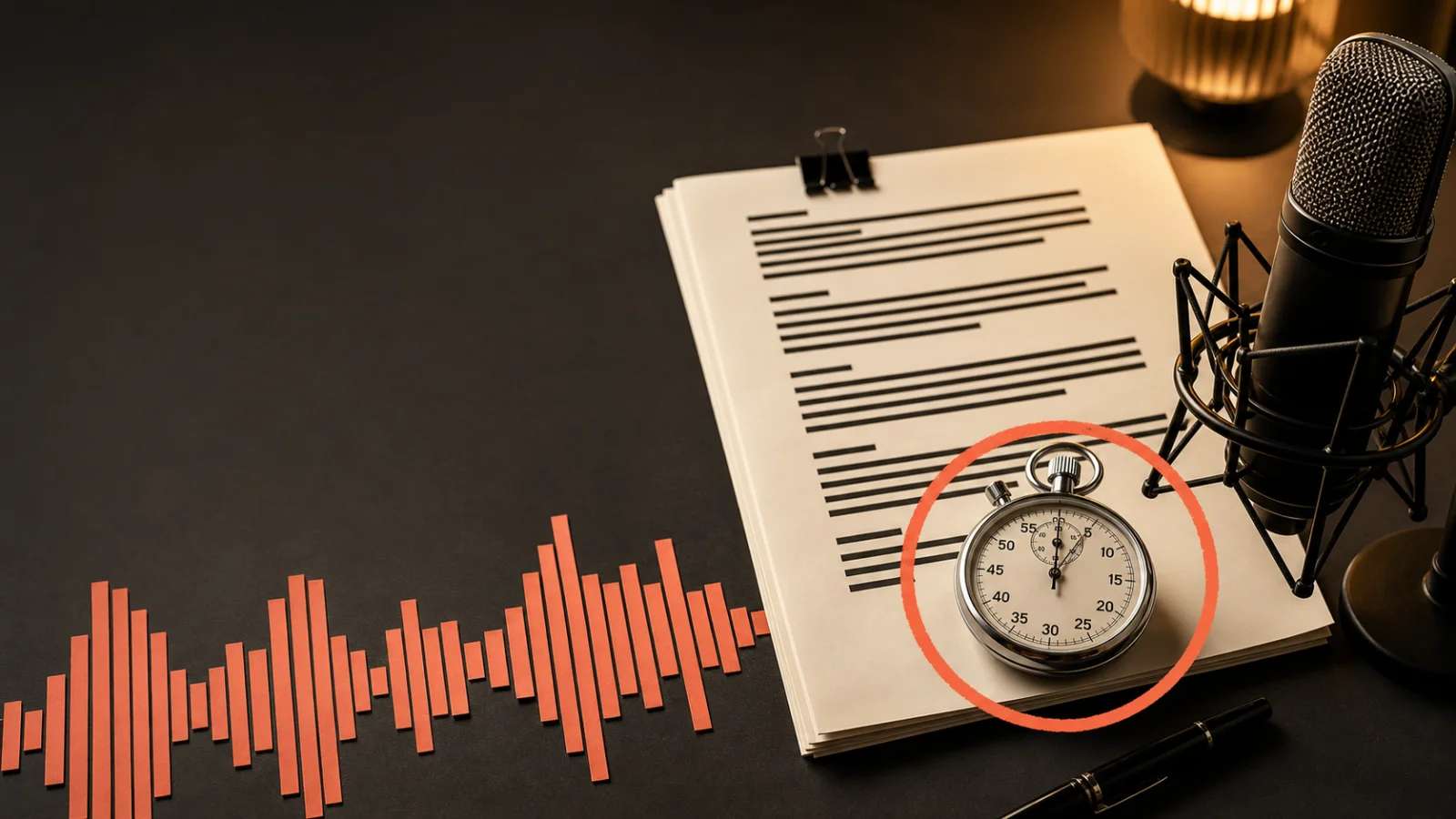
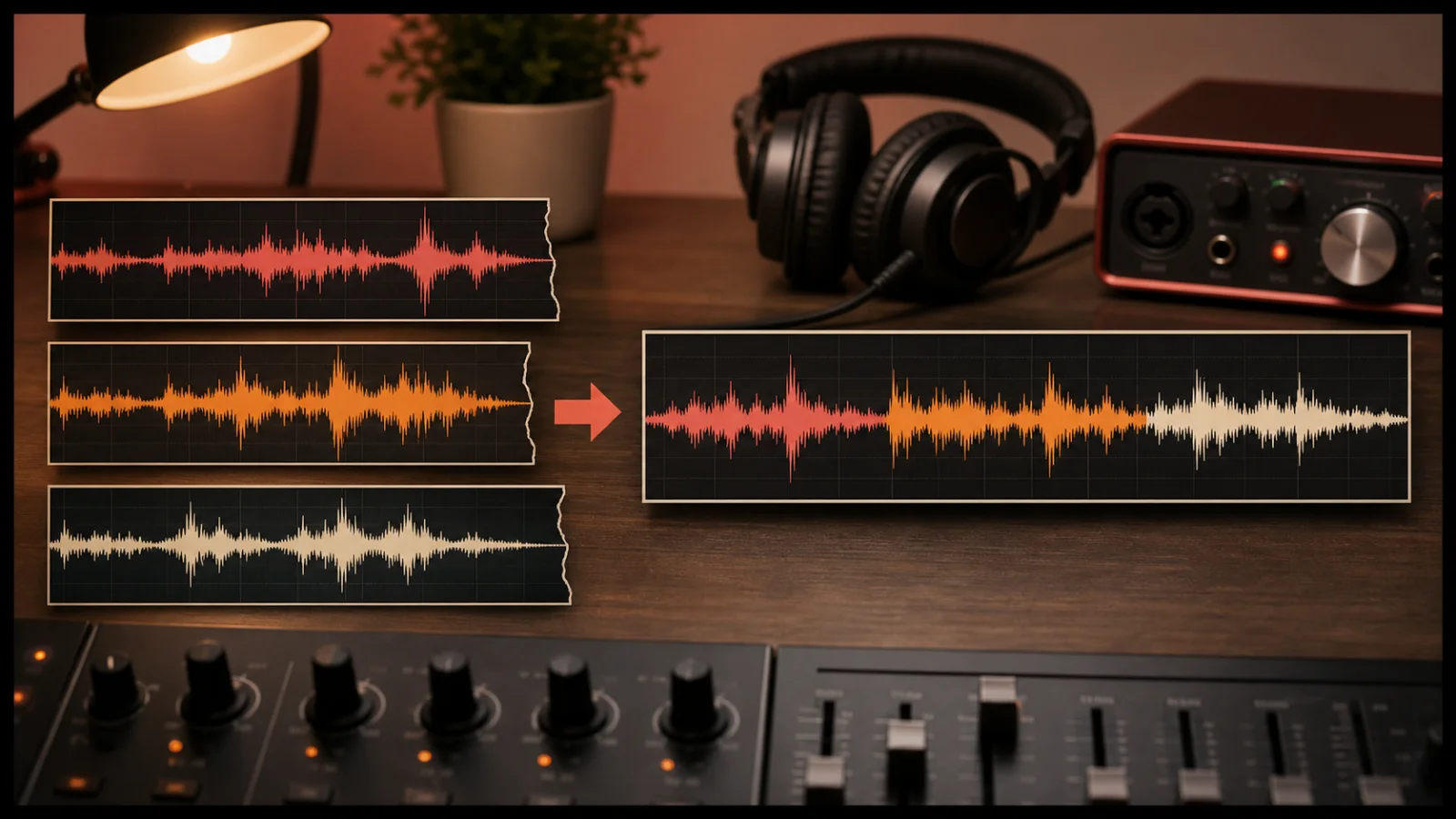
Visual guide
A step-by-step visual guide for how to make a voice message.
A voice message is an audio clip sent through a chat, email, support ticket, or social platform. You can make one in two practical ways: record your own voice inside the app, or write the message first and convert the text into an audio file.
Recording is fastest when the message is casual. Text to speech is useful when you want consistent wording, do not have a quiet place to record, need another language, or prefer not to use your own voice. For that second method, the free text to MP3 tool turns the written message into a downloadable audio file you can attach in any messaging app.
This guide covers both methods and explains how to make the result easier to understand.

Most messaging apps place a microphone button beside the text field. The exact gesture differs by app and device, but the workflow is usually the same:
If the app sends immediately when you release the button, look for a lock gesture or hands-free recording option. This lets you speak without holding the screen and often gives you a chance to review the clip before sending.
Move away from fans, traffic, television, and other voices. Keep the phone roughly a handspan from your mouth and point its microphone toward you. Speaking very close to the microphone can create harsh breath sounds; speaking from across the room adds echo.
Say the purpose in the first sentence. For example: “I’m sending the revised meeting time,” or “Here are the changes for the video.” A clear opening helps the listener decide whether to play the rest immediately.
For a message longer than a minute, make a three-line outline before recording. That small step prevents repeated points and long pauses.
A generated voice message starts as a short written script. You convert that script to MP3, listen once, then attach the file in the target app.
Use short sentences and everyday words. The recipient cannot scan backward as easily as they can in a text message. Put the requested action near the beginning, and repeat a date, amount, or address once if getting it wrong would cause a problem.
A useful structure is:
For example:
Hi Sam. The workshop has moved to Thursday at 3 p.m. Please reply by Wednesday evening to confirm that you can attend.
Read the script silently and remove anything that does not change the listener’s next action.
Open Text to MP3, paste the script, and choose a voice. Generate a short preview before processing a longer message. Check names, dates, abbreviations, and numbers carefully because those are common pronunciation trouble spots.

If a name sounds wrong, spell it phonetically in the script. If a phone number runs together, add commas or write the digits in small groups. Punctuation controls much of the timing: commas create short pauses, while periods create clearer breaks.
MP3 is usually the most convenient format for a voice message because the file is compact and widely supported. If you plan to edit the audio in a video or audio application first, generate a lossless file with Text to WAV, finish the edit, and export the final message as MP3 or another format accepted by the destination app.
Play the complete file from beginning to end. Do not check only the first sentence. Listen for:
Revise the written script and generate it again when necessary. Editing the source text is faster and cleaner than trying to repair individual words in an audio editor.
Open the conversation and use the attachment, plus, paperclip, document, or audio button. Select the generated file from Downloads or Files, confirm the recipient, and send it.
Some apps classify an attached MP3 as a file rather than a native push-to-talk voice note. The recipient can still play or download it, but the visual presentation may be different. Test the workflow with your own secondary account if the exact appearance matters.
Record your own voice when speed and personal tone matter most. A natural recording carries emotion, hesitation, laughter, and emphasis with almost no setup. It is often best for family, friends, and quick team updates.
Generate the message from text when precision and repeatability matter. It can help with announcements, support instructions, accessibility, language practice, prototype dialogue, or a message that several people need to receive with identical wording.
Neither approach is automatically more authentic or more professional. The best method is the one that fits the relationship, makes the message easy to understand, and is honest about who or what produced the audio.
Treat a voice message like any other shareable file. The recipient may download, forward, transcribe, or record it. Do not include passwords, one-time codes, financial account details, medical information, or private identifiers unless the channel and recipient are appropriate.
Do not imitate a real person or suggest that a generated voice belongs to someone who did not approve it. For business, education, or public publishing, a brief disclosure that the voice is synthetic can prevent confusion.
If a message contains urgent financial instructions, an unusual payment request, or a request for credentials, verify it using a second trusted channel. A convincing voice is not proof of identity.
Yes. Write the message, convert it with a text-to-speech tool, download the MP3, and attach the file in your messaging app.
MP3 is a practical default because it is compact and broadly supported. Check the destination app if it rejects the file or requires a different format.
Keep routine messages as short as the information allows. If the message needs several topics, consider sending a short audio summary followed by the details in text so the recipient can search and reference them later.
It depends on the app. Some apps show an uploaded MP3 as an audio attachment or document rather than a native microphone recording. The file remains playable, but its appearance can differ.
Disclose it whenever a listener might reasonably believe the audio is a recording of a real person, especially in business, education, support, public content, or any sensitive context.
Visual guide
A step-by-step visual guide for how to make a voice message.

In context
The online studio layout used for how to make a voice message.
A tiny favor
Allow ads for this site, then check again. Prefer no ads? Paid plans remove ads and add more cloud characters, from $4 a month.
Allow ads for freetexttospeech.net, then check again.
Already on a paid plan?Sign into restore your perks.
Send feedback
Tell us what you think
Bugs, ideas, or anything that would make FreeTextoSpeech better.