Visual guide
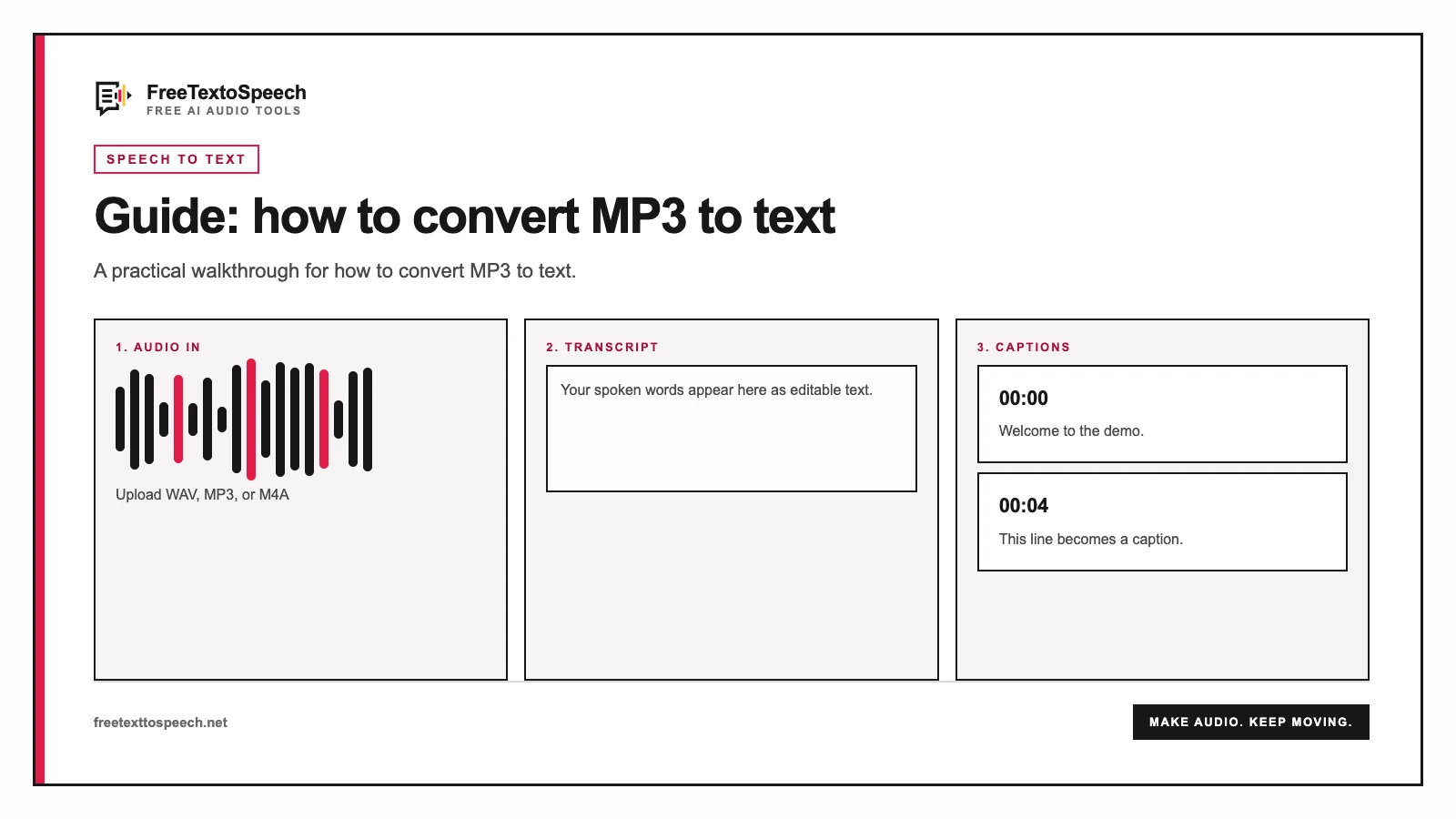
Transcription workflow for how to convert MP3 to text.
FreeTextoSpeech Team
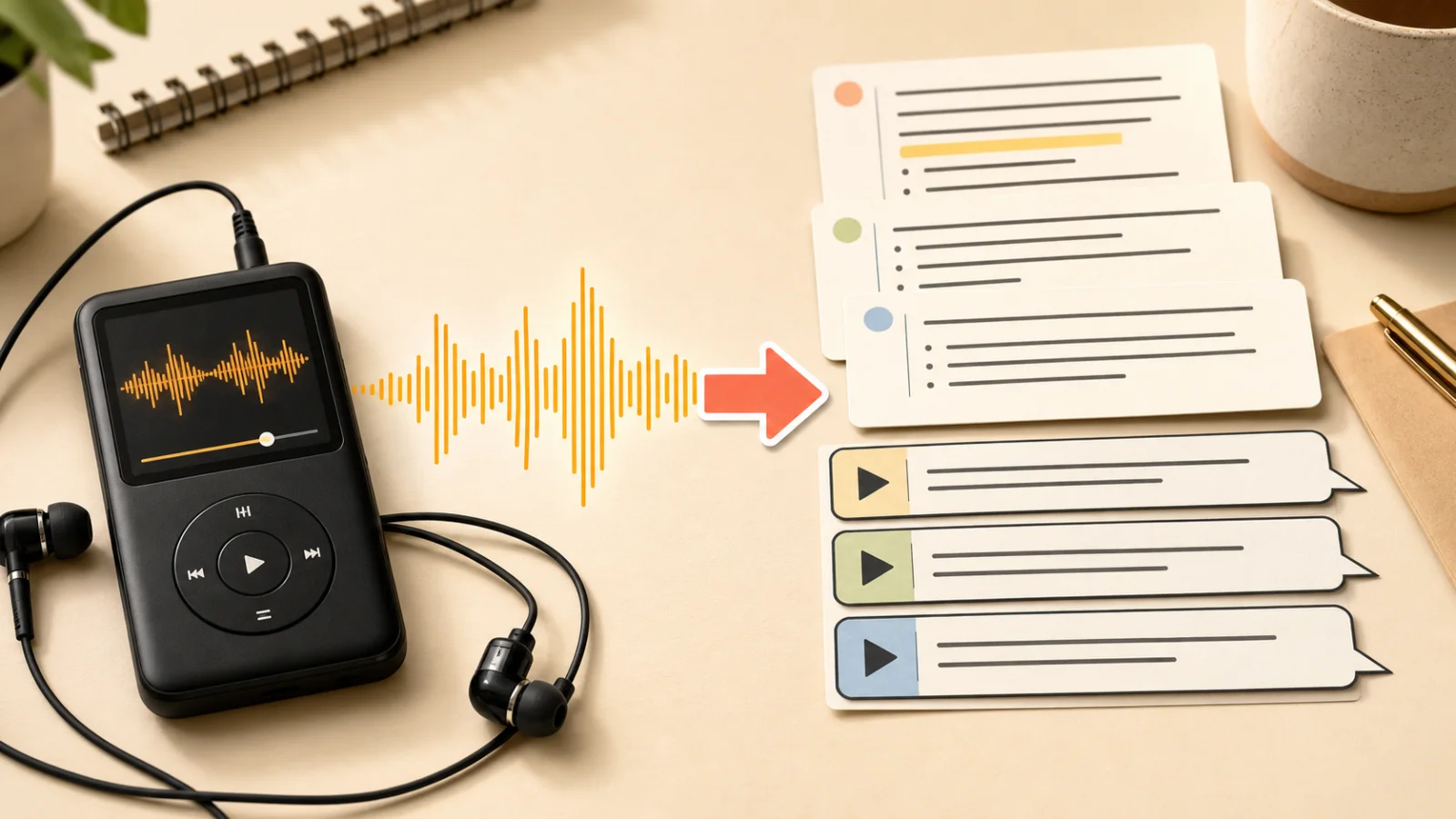
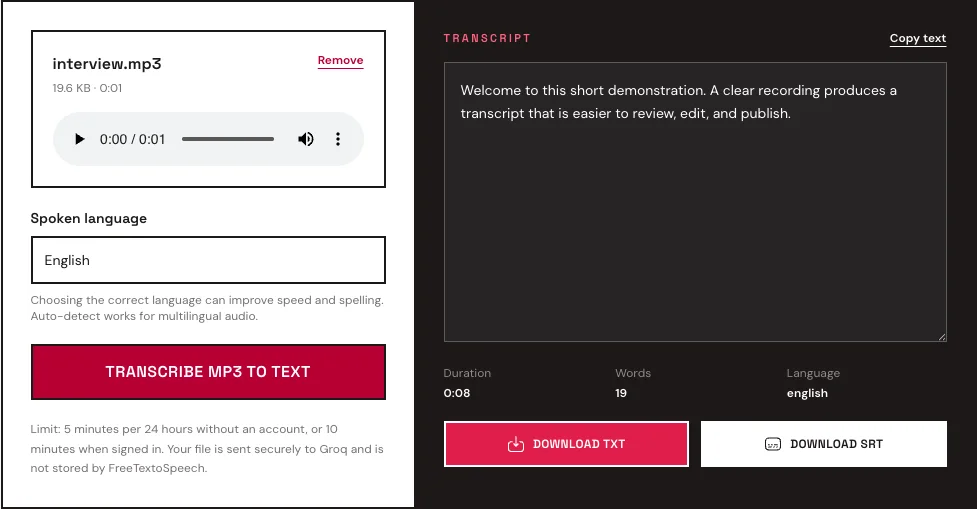
You can convert MP3 to text by choosing the recording in our free MP3 to text converter, selecting the language, and clicking Transcribe. Copy the recognized speech or download an editable TXT file and a timestamped SRT subtitle file.
MP3 is everywhere: interviews, voice memos, podcast downloads, lectures, old meeting exports. It is small, familiar, and usually good enough for speech recognition.
“Usually” is doing some work there. A clean 96 kbps voice memo can transcribe better than a noisy 320 kbps recording made across a large room. File size is not audio quality, and audio quality is not transcript accuracy. The microphone still wins.
The tool sends the selected file securely to a server-side endpoint. That endpoint keeps the Groq API key private, verifies the daily allowance, and forwards the MP3 to Whisper Large V3 Turbo. FreeTextoSpeech does not save the recording or transcript.
Long recordings should be split before transcription. Cut at a complete sentence, a speaker change, or a topic boundary. Natural breaks make separate transcript sections easier to combine later.
Usually, yes. A well-recorded MP3 at a sensible bitrate contains enough information for accurate speech recognition. The model does not need studio-master audio to identify ordinary conversation.
Quality problems appear when the source has been compressed aggressively, re-encoded several times, recorded far from the speaker, or mixed with loud background sound.
Bitrate alone does not guarantee a good transcript. A clean 64 or 96 kbps mono voice recording may be easier to understand than a noisy 320 kbps file. The microphone position and room matter more than a large number in the export menu.
When both the original WAV and an MP3 copy are available, use the clean original if it fits the limit. Otherwise, an MP3 copy made with the WAV to MP3 converter is a practical choice.
Listen to the beginning, middle, and end of the file. Confirm that the audio is not silent, corrupted, clipped, or playing at the wrong speed.
Trim sections that contain no useful speech. Silence still adds duration. Shared uploads allow five minutes per file, while your own Groq key allows up to 30 minutes. Removing a long introduction or empty tail leaves more of the allowance for the words you need.
If music is much louder than speech, reduce it in an audio editor. Voice isolation can help in difficult cases, but heavy processing may damage consonants. Compare the cleaned version with the original before choosing it.
Keep the MP3 at its current quality when possible. Converting an MP3 to another MP3 causes another lossy encoding step. If editing is necessary, export once from the best available source.
Choose the spoken language when the entire recording uses one language. This gives the speech model useful context and can improve speed and spelling.
Automatic detection is appropriate when you do not know the language or receive recordings from several sources. It is also useful for a quick first pass.
Code-switching requires more review. A speaker may use English for most of a sentence and switch languages for a name, quotation, or local expression. Check those sections against the recording instead of assuming every word is correct.
Do not begin by polishing every comma. First verify facts that change the meaning of the recording.
Review these items in order:
Use timestamps to return to uncertain passages. The SRT download contains segment timing, which can be useful even when your final output will be plain text.
If a sentence seems nonsensical, listen to the surrounding audio. The problem may begin several words earlier, especially when one speaker interrupts another.
Add speaker labels manually when needed. General transcription and speaker diarization are different tasks. A transcript may recognize the words without reliably identifying which person said them.
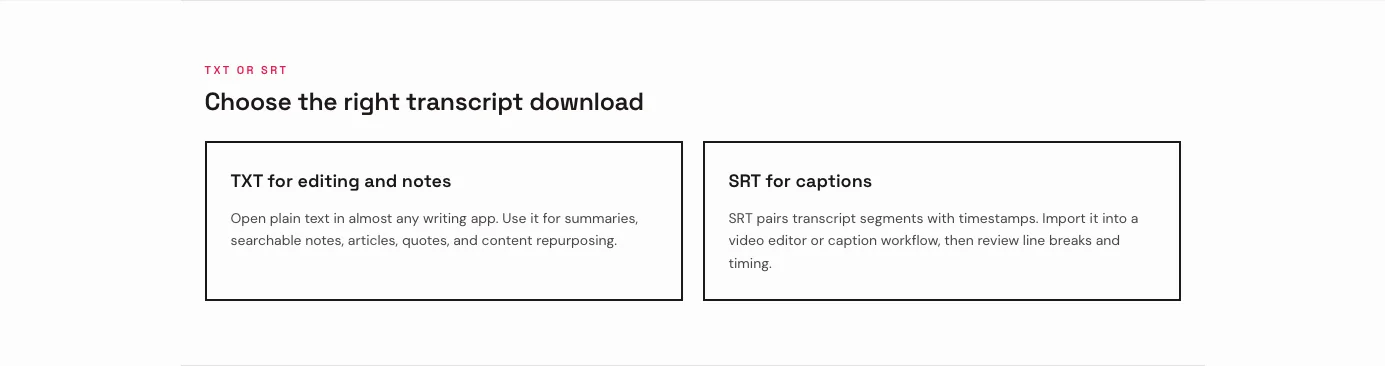
TXT contains the transcript without formatting or timestamps. It opens in almost every editor and is easy to paste into a document, knowledge base, email, or writing tool.
Use TXT for:
Break the transcript into paragraphs before sharing it. Spoken language uses repetition, unfinished sentences, and filler words that feel natural in audio but look untidy on a page.
Keep direct quotations faithful to the recording. If you remove filler words for readability, follow the editorial standards appropriate to your project and do not alter the speaker’s meaning.
SRT is a subtitle format built from numbered caption blocks. Each block contains a start time, an end time, and text.
Import SRT into a compatible video editor or publishing platform when the MP3 is part of a video, slideshow, podcast clip, or audiogram. The timing gives you a faster starting point than placing every caption manually. The file also works in the other direction: SRT to speech reads each caption back as narration inside its own time window.
Automatic segment boundaries are not final caption design. Review:
Captions should help viewers follow the content, not merely reproduce a raw block of machine-generated text.
Once corrected, a transcript can support several formats.
An interview can become a question-and-answer article. A podcast section can become a short guide or newsletter. A lecture can become structured study notes. A voice memo can become a task list. A product explanation can become captions and a help-center article.
Start by identifying the purpose of the new content. Do not simply publish the entire transcript as a blog post. Remove repeated ideas, organize the material under descriptive headings, verify claims, and preserve the speaker’s intent.
For short-form social content, search the transcript for one complete idea rather than one dramatic sentence without context. Use the SRT timing to find the same section in the original audio.
Only transcribe audio you are allowed to process. A public recording is not automatically free of copyright, confidentiality, or consent requirements.
FreeTextoSpeech does not store the uploaded MP3 or returned transcript. Limited metadata is recorded to enforce the five-minute anonymous and ten-minute signed-in daily limits. The audio is sent to Groq for inference.
Groq states that inference inputs and outputs are not retained by default. It may temporarily process data for reliability or abuse monitoring unless the account enables Zero Data Retention. Avoid uploading highly sensitive material unless that handling matches your requirements.
Before uploading:
Before publishing:
Use the model for the rough transcript, then check the details that would be embarrassing to publish incorrectly. A wrong comma is fixable later. A wrong name in a quotation tends to travel.
Visual guide
Transcription workflow for how to convert MP3 to text.
In context
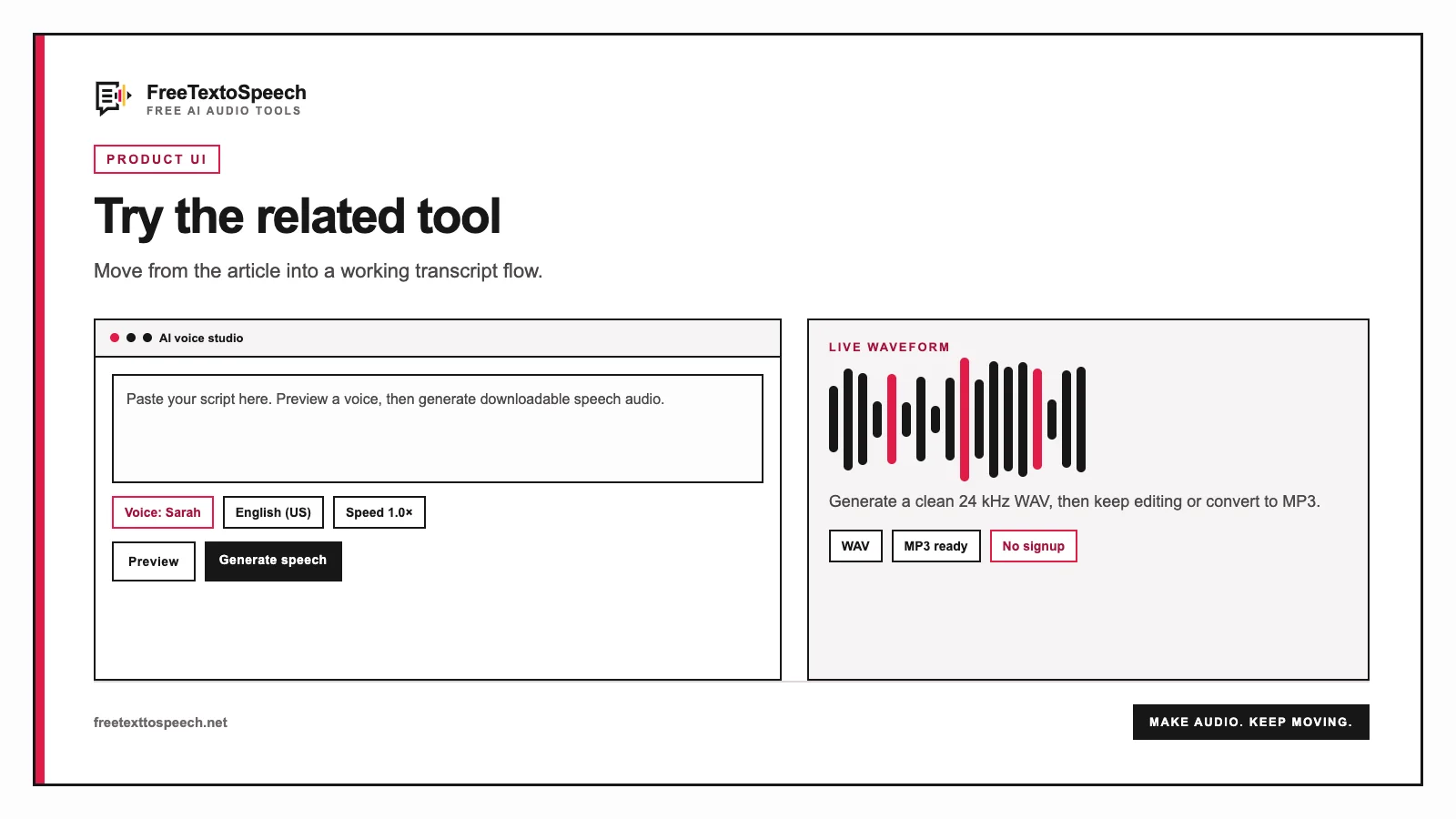
The online studio layout used for how to convert MP3 to text.
A tiny favor
Allow ads for this site, then check again. Prefer no ads? Paid plans remove ads and add more cloud characters, from $4 a month.
Allow ads for freetexttospeech.net, then check again.
Already on a paid plan?Sign into restore your perks.
Send feedback
Tell us what you think
Bugs, ideas, or anything that would make FreeTextoSpeech better.