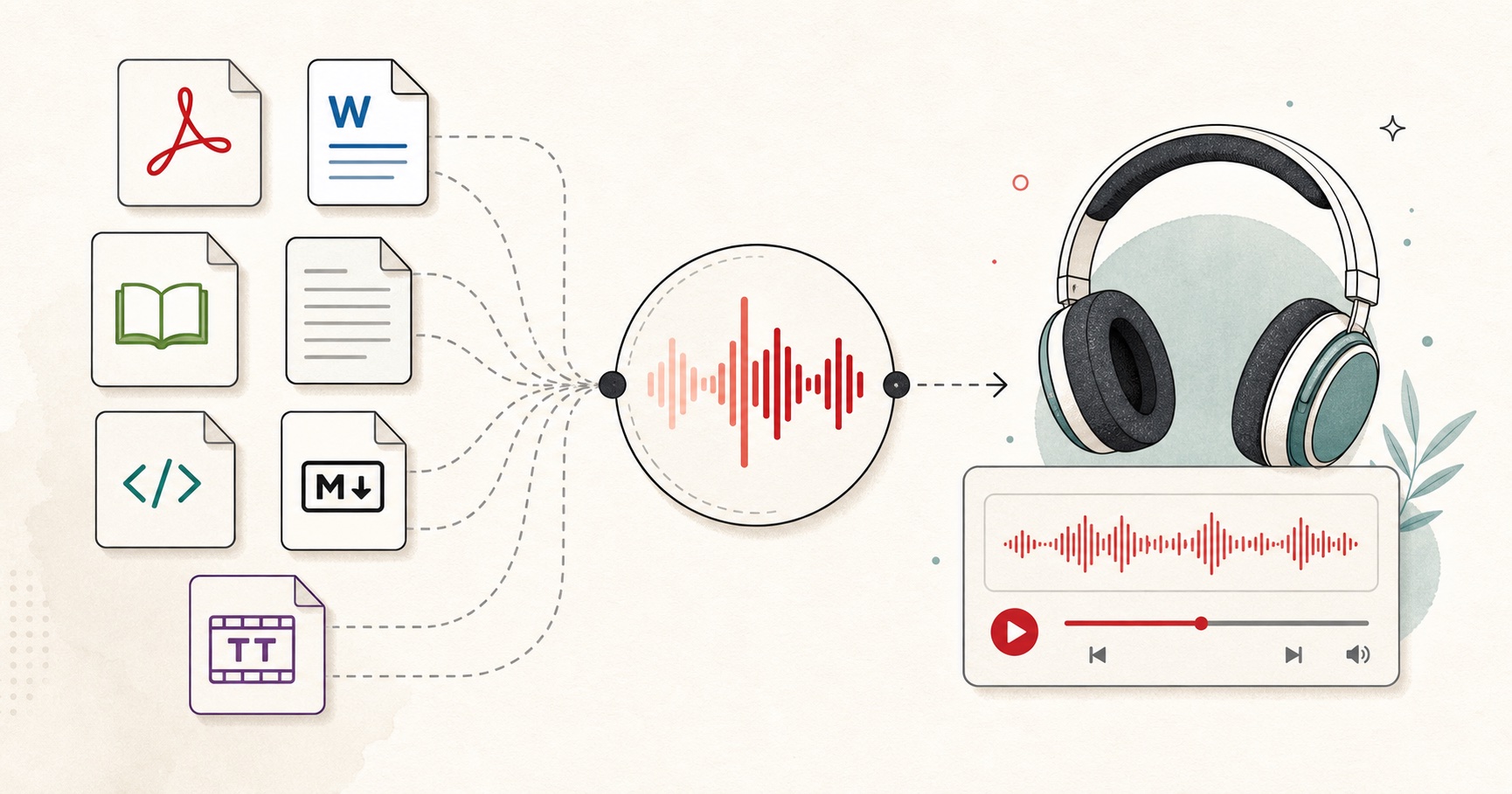
Short answer: pull the text out of your EPUB one chapter at a time (Calibre or a plain copy-paste both work), paste each chapter into FreeTextoSpeech in chunks of 5,000 characters, pick one voice and stick with it, then download each part as WAV (pick it in the format menu next to Download) and stitch them together in Audacity. You end up with a real audiobook you can load into any player, for free. Here is the full workflow I use.
Why do this at all
Plenty of books never get an official audiobook. Public-domain classics, indie titles, technical manuals, a friend's self-published novel, that 300-page PDF someone sent you and later converted to EPUB. If the audio version does not exist, or costs more than the book itself, making your own is a reasonable option.
I built FreeTextoSpeech partly because I kept hitting this wall myself. I wanted to listen to things I had already bought and read, without paying a subscription that charged by the character. So the tool is free, there is no signup for basic use, and commercial use is allowed with no attribution required. If you are turning your own writing into an audiobook to sell, that is fine.
A few reasons people take this route:
- Accessibility - listening instead of reading if you have dyslexia, low vision, or eye strain from screens all day.
- Commutes and chores - getting through a book while driving, walking the dog, or doing dishes.
- Studying - hearing a dense chapter read aloud often catches things your eyes skip.
- No official version - the title simply was never recorded, and you want it in your ears anyway.
The honest tradeoff: this is not one click. You are doing some manual work, maybe 30 to 60 minutes for a full book. But the audio quality from modern neural voices is good enough that people no longer wince at it, which was not true a few years ago.
Step 1: Get the text out of the EPUB
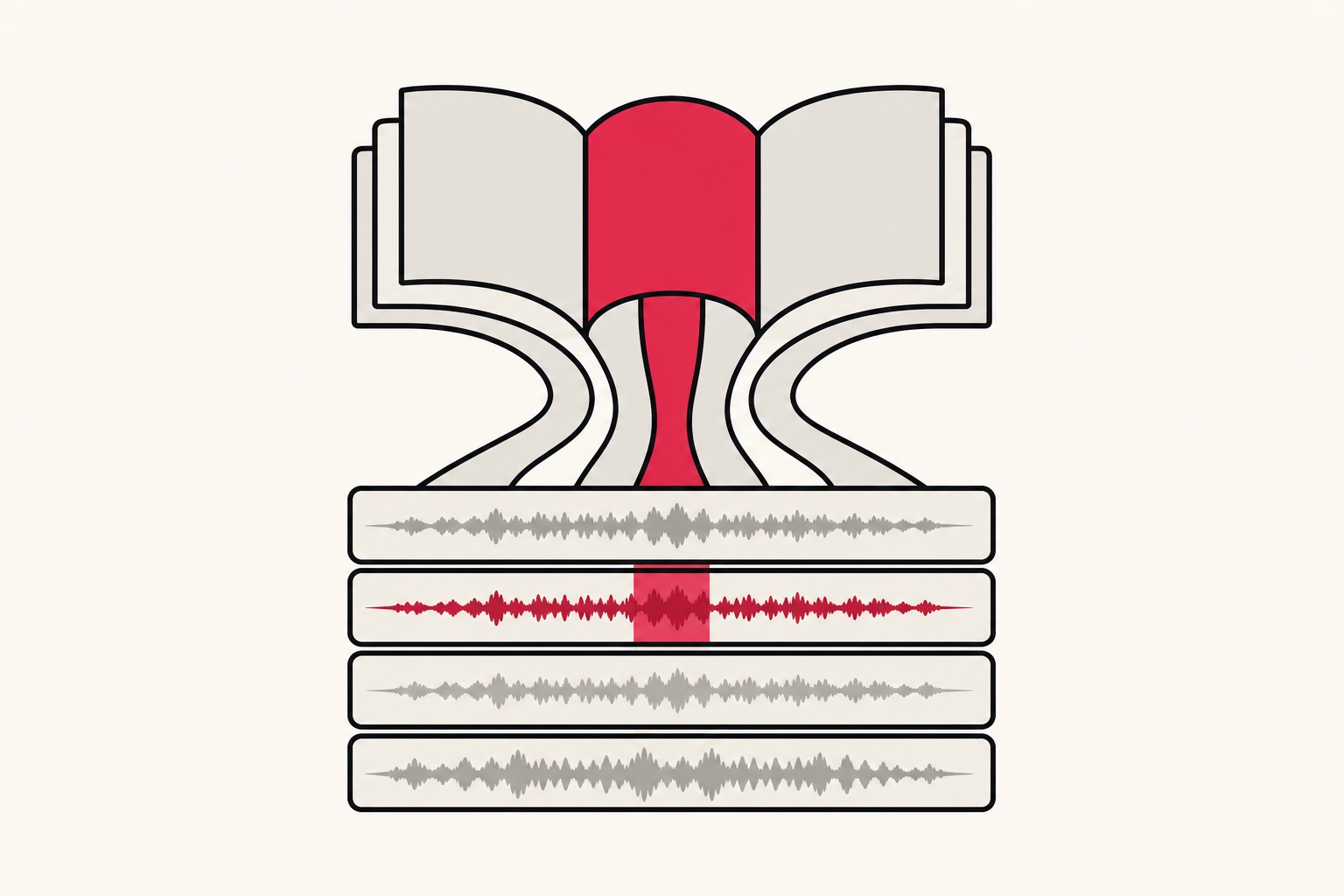
An EPUB is basically a zipped bundle of HTML files, one or a few per chapter. You cannot paste an EPUB into a text box directly, so you need the plain text first. Two ways to do it.
Option A: Calibre (best for whole books)
Calibre is the free, open ebook manager most people already have. To pull text out:
- Add the book - drag your EPUB into the Calibre library.
- Convert to a readable format - right-click the title, choose Convert books, and set the output to TXT. Calibre strips the markup and hands you clean plain text.
- Open the result - click the TXT format link in the book details panel, or find the file in the Calibre library folder. Now you have the whole book as text you can select.
Calibre also has an Edit book view (right-click, Edit book) that shows each chapter as its own HTML file. Handy when you want to grab chapters one at a time instead of one giant blob.
Option B: Copy per chapter from any reader
If you do not want to install anything, open the EPUB in a reader that lets you select text - Apple Books, Calibre's own viewer, or a browser extension. Then copy one chapter at a time. This is slower but it keeps you organized, because each chapter becomes its own audio file later, which is exactly what you want for an audiobook.
Whichever route you pick, work chapter by chapter. Do not try to process the book as one giant blob. Chapters give you natural file boundaries, natural chapter markers in your player, and an easy way to redo just one section if a voice mispronounces something.
Clean the text before you paste
EPUB extraction is usually cleaner than PDF, but it still leaves junk: page headers, chapter numbers floating alone, the occasional stray footnote marker, sometimes a table of contents dumped at the top. Spend a minute per chapter removing anything you do not want read aloud. The voice will read every character you give it, so a lone "Chapter 7" on its own line becomes an awkward spoken fragment unless you tidy it.
One thing you do not need to worry about: SSML. Some tools ask you to write markup tags to control pauses and emphasis. FreeTextoSpeech takes plain text only, so there is nothing to learn here. You shape the pacing with ordinary punctuation and the speed slider instead. Commas and periods create the pauses. That is the whole system.
Step 2: Paste into FreeTextoSpeech in 5,000-character chunks
Open FreeTextoSpeech and paste your first chunk of chapter text. The limit is 5,000 characters per request, which is roughly 800 to 900 words, or a few pages of a paperback. The character counter shows you where you stand.
Most chapters are longer than 5,000 characters, so you will split a single chapter into two or three requests. When you split, break at paragraph boundaries, never mid-sentence. A clean paragraph break means the audio picks up naturally when you stitch the pieces together later. Breaking mid-sentence leaves an obvious seam.
A rhythm that works well:
- Copy the first ~5,000 characters of the chapter, ending at a paragraph break.
- Paste, generate, download the WAV.
- Copy the next chunk, continuing from where you stopped.
- Repeat until the chapter is done, then move to the next chapter.
Name your files as you go: ch01_part1.wav, ch01_part2.wav, and so on. Future you, sitting in Audacity with 40 files, will be grateful.
Step 3: Pick one voice and never switch
This is the step people get wrong. They generate chapter one with Sarah, get bored, switch to Adam for chapter two, and end up with an audiobook where the narrator changes bodies between chapters. Pick one voice at the start and use it for the entire book. Consistency is what makes it feel like a real audiobook rather than a pile of clips.
FreeTextoSpeech runs on the open Kokoro model and gives you 54 voices across 9 languages. For English-language audiobooks, a few narrators hold up well over long stretches:
- Sarah - warm, steady US female voice. My default for fiction. Easy to listen to for hours.
- River - calmer, more measured US female voice. Good for nonfiction and reflective writing.
- Adam - clear US male voice with a neutral, grounded tone. Solid for most genres.
- Emma - UK female voice. If the book has a British setting, she fits the material better than an American accent.
Read a paragraph of dialogue and a paragraph of description with two or three candidates before you commit. Whatever sounds natural to you over a couple of minutes will sound right over a couple of hours. There is no emotion slider and no voice cloning here, so what you hear in the preview is what the whole book will sound like. That predictability is a feature when you are producing something long.
If you want to go deeper on choosing and tuning a narrator, I wrote a fuller guide on making an audiobook with AI voices, and another on making text to speech sound human that covers punctuation tricks for pacing.
Step 4: Download the WAVs and check them
Downloads are MP3 by default, which is fine if you just want a small file per chapter. For an audiobook you will edit and join, pick WAV (24 kHz) in the format menu next to Download. WAV is actually the right format to work in while editing, because it is uncompressed and you are not losing quality each time you touch it.
As the files come in, spot-check them. Play the first few seconds of each one. You are listening for two things: a name or unusual word the voice mangled, and any chunk where you accidentally pasted a duplicated paragraph. Fixing a bad chunk now is a 30-second reroll. Fixing it after you have stitched 40 files together is a headache.
Step 5: Stitch the files in Audacity
Audacity is free, open-source, and runs on Windows, Mac, and Linux. It is the standard tool for this job. Here is the assembly:
- Import in order - File, Import, Audio, and select your WAV files. Bring them in chapter by chapter so the timeline stays in reading order.
- Line them up end to end - use the Time Shift tool to place each clip right after the previous one, or import onto one track so they sit in sequence automatically.
- Trim any dead air - shave silence off the start and end of clips so chapters flow without long gaps.
- Add short gaps between chapters - a second or two of silence at each chapter break gives the listener a natural breath.
- Export - File, Export, and choose Export as MP3 if you want a compact audiobook file, or keep WAV for archival quality. This is the step that turns your WAVs into the MP3 most audiobook players expect.
If you do not need to join or edit anything, skip all of this: leave the format menu on MP3 and download each chapter as an MP3 directly. I covered when to pick each format in turning text to speech into MP3.
One optional touch: in Audacity you can set metadata (title, author, track number) on export, and some players read it as chapter info. Worth doing if you want proper chapter navigation.
Step 6: Listen in an audiobook player
Drop the finished file into a player that remembers your position and supports variable speed. On a phone, apps like Smart AudioBook Player (Android) or the Books app (iPhone) handle homemade files fine. On a desktop, VLC or any media player works. The thing you want is resume-where-you-left-off, because a book is long and you will not finish it in one sitting.
If you exported one file per chapter instead of one big file, most audiobook apps will treat each file as a chapter automatically, which gives you clean navigation without any extra tagging.
What to expect, honestly
A short novel is a couple of hours of listening and maybe 45 minutes of setup time, most of it the copy-paste-generate loop, which gets fast once you find a rhythm. The narration will not have an actor's dramatic range, and it will not do different voices for different characters. What it does is read your book clearly and consistently in a voice that does not grate. For a lot of books, that is exactly enough.
If you are working with PDFs rather than EPUBs, the extraction step differs but the rest is identical - I walk through it in the convert PDF to audio guide.
Try it
Grab one chapter of your EPUB, clean it up, and run it through FreeTextoSpeech to hear how it sounds before you commit to the whole book. If you would rather start from a dedicated page built for this exact job, the EPUB to speech converter lets you upload the EPUB directly and pick chapters. Otherwise pick your voice, paste your first 5,000 characters, and download the WAV if you will join chapters, or the MP3 if not. Once you have the workflow down, a full audiobook is just the same handful of steps repeated. It is free, no signup, and the files are yours to keep.