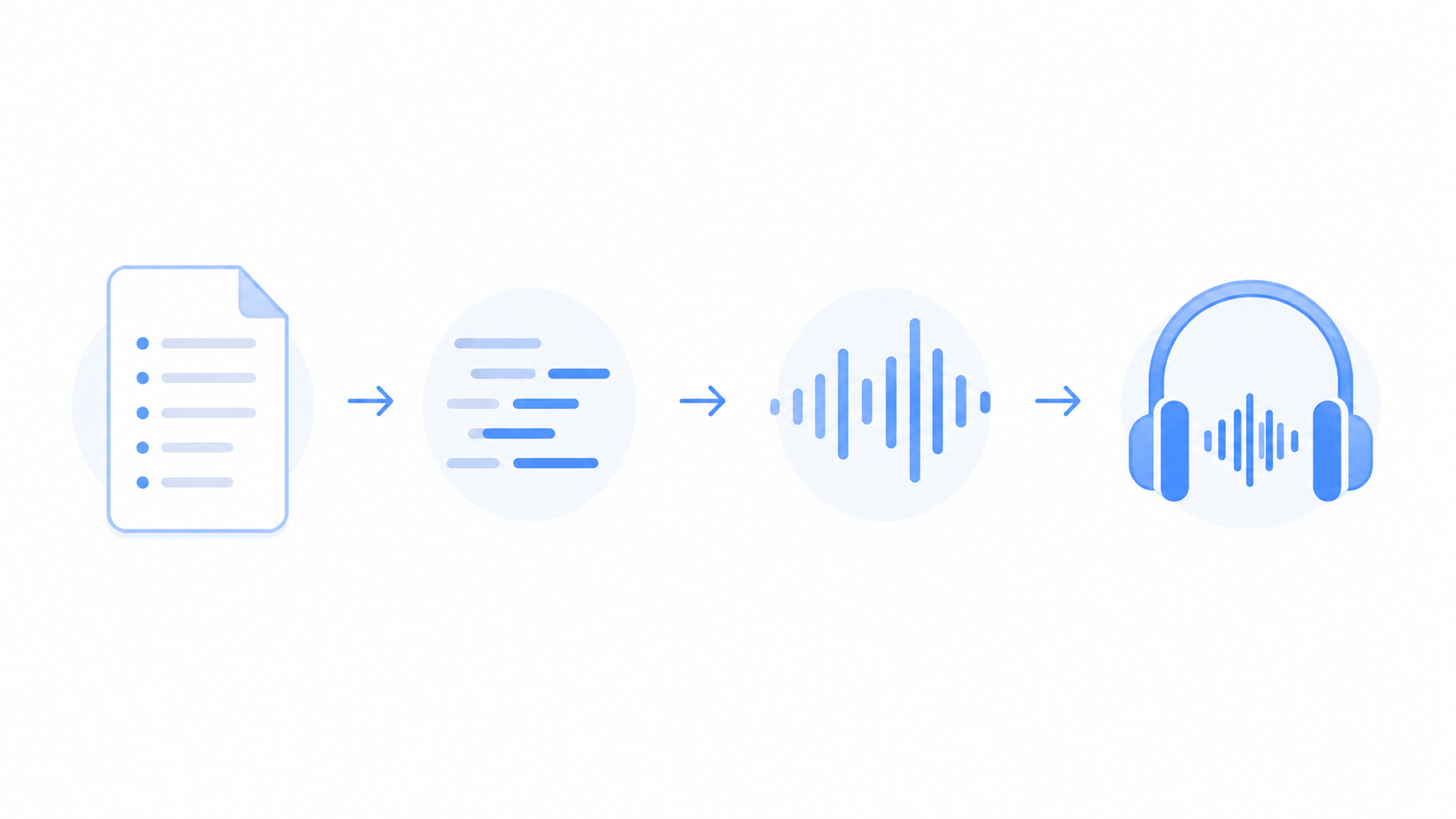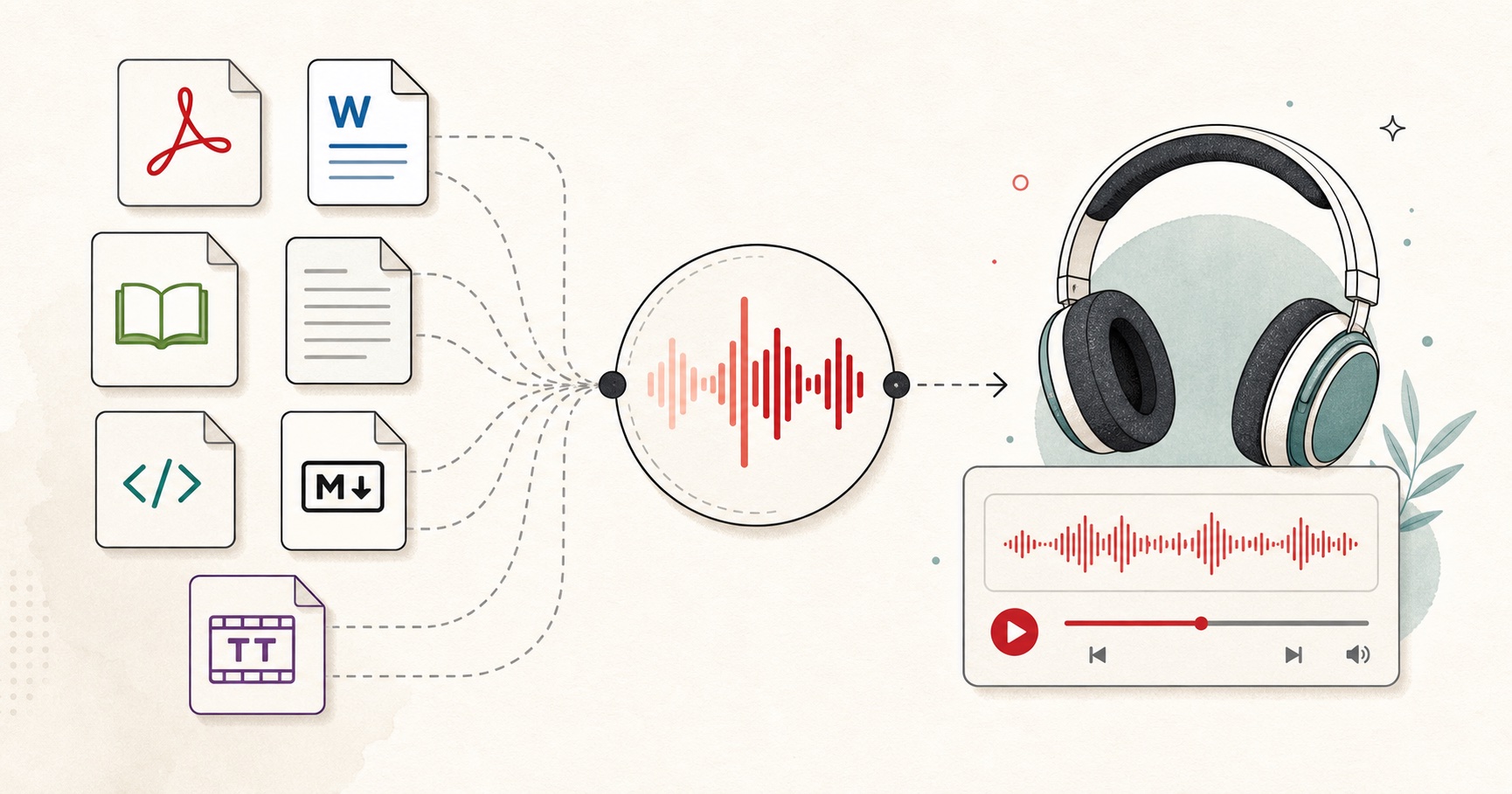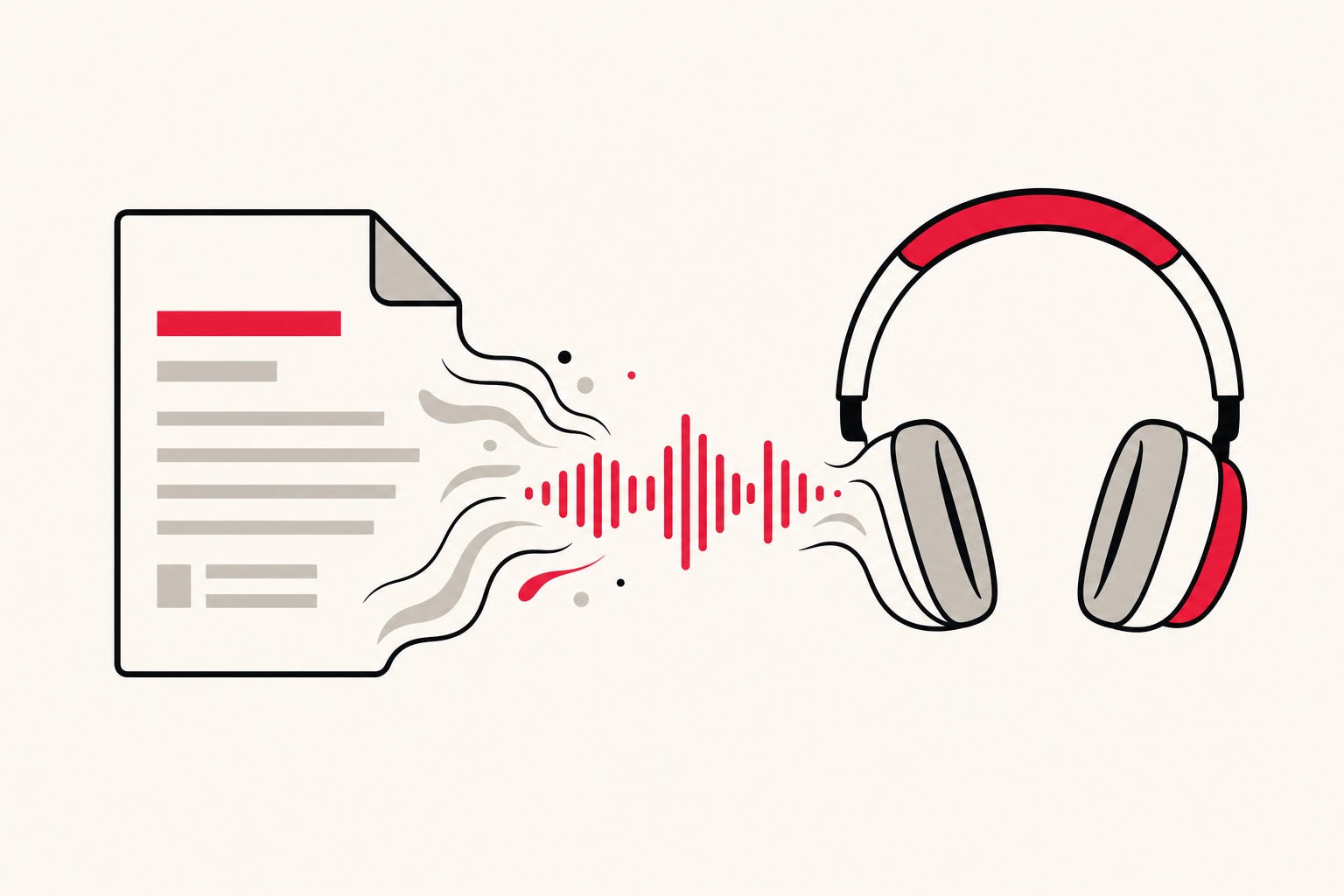
Short answer: open your .docx in Word or Google Docs, copy the text, and paste it into FreeTextoSpeech. If the document runs past 5,000 characters, paste it in chunks, generate a WAV for each, and stitch them together. Pick a voice, hit generate, download. The whole thing takes a few minutes once you know the moves, and I will walk through every one below.
Why turn a Word document into audio
Most of the writing we do still lives in .docx files. Reports, essays, meeting notes, chapters of a book, study material. All of it sits there waiting to be read on a screen. Sometimes you do not want to read it on a screen. You want to hear it.
I built FreeTextoSpeech because I kept hitting this exact wall myself. I had long drafts I needed to proofread, and reading my own writing silently makes my brain skip over mistakes. Hearing it out loud catches them. Here are the cases where converting a Word doc to audio actually earns its keep:
- Proofreading - your ears catch clumsy sentences and repeated words that your eyes glide over.
- Studying - turn lecture notes or a textbook chapter into audio and review it on a walk. If that is your main use, my guide on turning study notes into audio goes deeper.
- Accessibility - for readers with dyslexia, ADHD, or low vision, hearing the text is often easier than parsing it.
- Multitasking - absorb a report while you cook, commute, or fold laundry.
- Content work - a script written in Word becomes the narration track for a video.
The old objection was that computer voices sounded terrible, so nobody listened for long. That is genuinely no longer true. The neural voices behind modern tools are close enough to human that you forget you are hearing a machine after a minute or two.
Step by step: DOCX to narrated audio
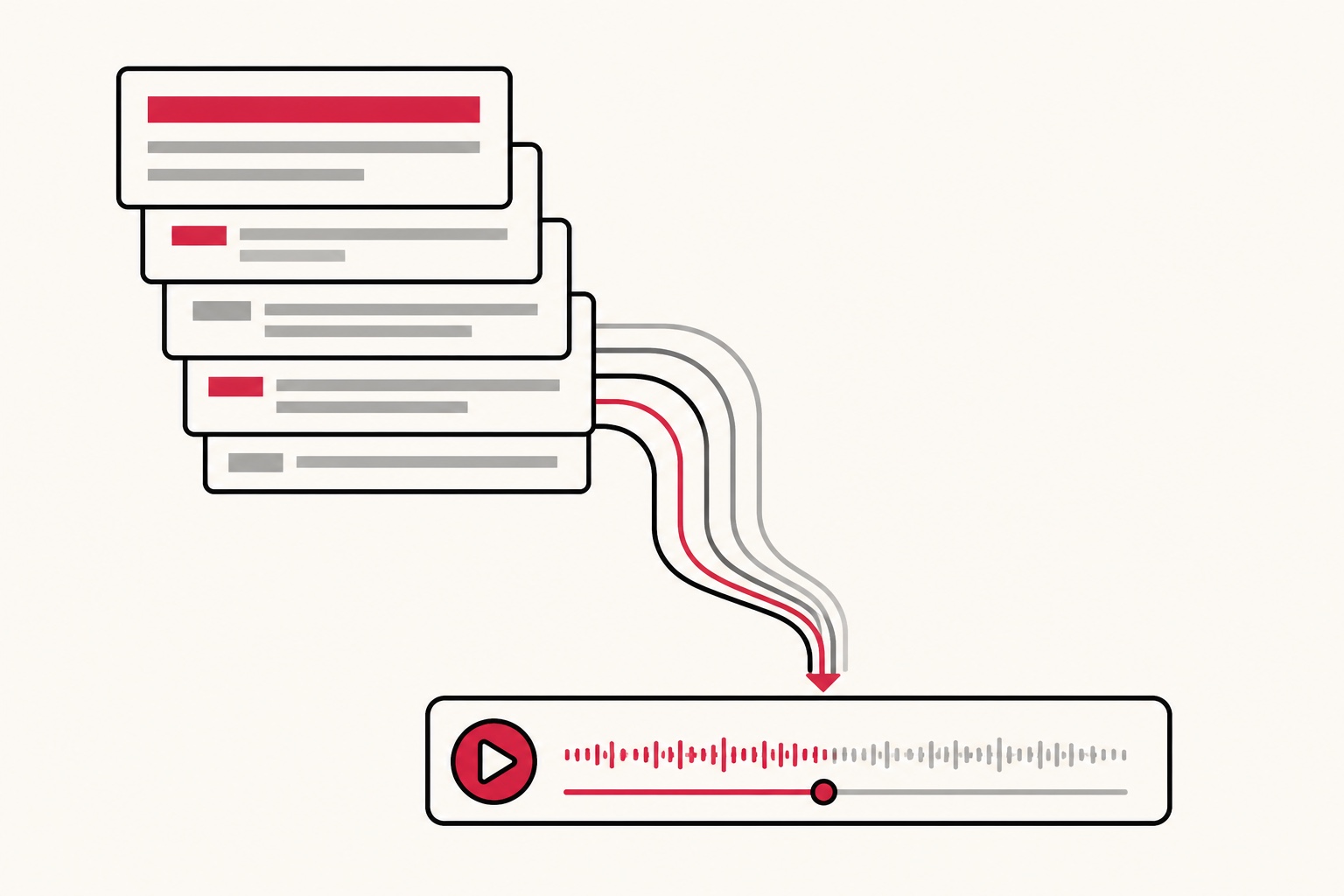
You can upload the .docx directly in the DOCX to speech converter, or move the text over yourself. Copy-paste means you control exactly what gets narrated. No stray headers, no page numbers read aloud. Here is the full workflow.
- Open the document. Word, Google Docs, LibreOffice, Pages - any of them work. If a colleague sent you a .docx and you do not have Word, drag it into Google Drive and open it with Google Docs for free. If what you have is a PDF, skip the copying and use read PDF aloud instead. It pulls the text out and can skip headers and page numbers for you.
- Select and copy the text. Click into the body, press Ctrl+A (Cmd+A on Mac) to select everything, then Ctrl+C to copy. For a specific section, just highlight that part instead.
- Paste it into FreeTextoSpeech. Click the text box on the homepage and paste. Only the words come across. Formatting, fonts, and colors are stripped, which is exactly what you want here.
- Clean up the artifacts. More on this in the next section. Give the pasted text a quick read for anything that will sound wrong.
- Pick a voice. Browse the list, click a name to hear a sample, and settle on one that fits the material.
- Adjust the speed if you want. The slider runs from 0.25x to 4.0x. I keep proofreading audio at 1x and study material a touch faster.
- Generate. The tool processes the text and gives you an audio player.
- Download the audio. MP3 is the default; pick WAV in the format menu next to Download if you plan to edit. Save it to your device, phone, or wherever you listen.
That is the core loop. The two places people trip up are cleaning the text and handling documents that are too long, so let me give each its own section.
Cleaning formatting artifacts before you generate
Word documents carry a lot of baggage that you never notice while reading, because your eye ignores it. A voice does not ignore it. It reads every character you feed it. The thing people get wrong is pasting a whole document and hitting generate without a look, then wondering why the audio says "Page 4 of 12" in the middle of a sentence.
Before you generate, scan the pasted text for these:
- Headers and footers - page numbers, document titles, and running heads often copy along with the body. Delete them.
- Footnote and endnote markers - a stray "1" or "12" hanging off a word will get read as a number. Pull those out.
- Bullet symbols and list markers - most copy cleanly as plain lines, but odd characters sometimes come through. If you see a symbol you do not recognize, delete it.
- Tables - text from a table pastes as a run of words with no structure, which usually sounds like nonsense. Rewrite the key figures as a sentence, or skip the table.
- URLs and file paths - a long link gets read character by character and it is painful. Remove it or replace it with a short phrase like "see the link in the description."
- Double line breaks and stray spaces - these are harmless but tidy them up anyway so pacing stays even.
A note on pauses and SSML
People coming from other tools ask how to insert SSML tags for pauses. You do not need to, and the tool does not take SSML anyway. It reads plain text. Control the rhythm the way a writer already does: with punctuation. A period gives a full stop. A comma gives a short breath. A paragraph break gives a longer pause. If a sentence rushes, add a comma. If you want a beat before a key line, start a new paragraph. That is the whole system, and honestly it is enough for 95 percent of what people make. If you want the delivery to feel more natural, my write-up on making text to speech sound human covers the punctuation tricks in detail.
Picking a voice that fits the document
FreeTextoSpeech runs on the open Kokoro model and gives you 54 voices across 9 languages - US English, UK English, Spanish, French, Hindi, Italian, Japanese, Brazilian Portuguese, and Mandarin Chinese. That is more choice than you need, which is a good problem. Match the voice to the material rather than grabbing the first one.
- For essays and reports - a clear, steady US voice like Sarah or Michael reads formal writing well.
- For warmer, conversational docs - Heart and Bella have a softer feel that suits blog drafts and personal writing.
- For a British tone - Emma, George, or Daniel if the material calls for it.
- For a deeper narration - Adam, Onyx, or Fenrir carry authority for longer pieces. If you specifically want that register, I rounded up the deep male AI voices separately.
Click a voice name to hear a sample before you commit. Two minutes of previewing saves you regenerating a ten-minute file in the wrong voice. And if the document is in another language, switch to a native voice for that language rather than forcing an English one through it - the pronunciation is far better.
Handling long documents
Each request takes up to 5,000 characters, which is roughly 800 to 1,000 words, or about two pages of a typical Word document. Plenty of docs are longer than that. A chapter, a full report, a thesis section. Here is how I handle a long one.
- Split at natural breaks. Do not slice at exactly 5,000 characters mid-sentence. Cut at a chapter, a heading, or a section break so each chunk is self-contained.
- Paste and generate one chunk at a time. Keep the same voice and speed across all of them so the audio sounds consistent.
- Download each WAV and name them in order - part-01, part-02, and so on. You will thank yourself later.
- Stitch them together. Drop all the WAV files into Audacity (free), line them up end to end, and export one file. Any audio editor does this.
Tracking character count is easy: Word shows it under Review then Word Count, or Tools then Word Count in Google Docs. That tells you upfront how many chunks you are dealing with. For a book-length project, the same chunk-and-stitch method scales up, and I laid out the full process in the guide on making an audiobook with AI voices.
MP3 or WAV
The download is an MP3 by default, which keeps the file small and plays on any device. If you plan to stitch several parts together, pick WAV in the format menu next to Download instead. WAV is a 24 kHz uncompressed file, so it is larger, but it stays at full quality while you edit, and you export one MP3 at the end.
Get started
Converting a Word document to audio comes down to four moves: copy the text, clean the artifacts, pick a voice, generate. Long documents just repeat that loop and stitch the pieces at the end. No signup for basic use, no cost, and you can use the audio commercially with no attribution required.
If you have a .docx sitting open right now, copy a page of it and try it. The dedicated DOCX to speech converter walks you through the same flow, or paste straight into FreeTextoSpeech and hear your document read back in under a minute.