Short answer: Leave the speed at 1.0x for most narration, drop to 0.9x for dense or technical writing, and nudge up to 1.1x-1.25x for lighter creator content. On FreeTextoSpeech the slider runs from 0.25x to 4.0x, so you have room to slow a passage down for language practice or speed it up for a quick review pass without the voice falling apart.
I built FreeTextoSpeech, and the question I get most about speed is not "how do I change it" but "what should I actually set it to." People assume there is one correct number. There isn't. The right speed depends on what you are listening for, which voice you picked, and how the text is punctuated. Let me walk through how the slider works and where each setting earns its place.
How the speed slider works
The slider sits right under the voice picker. It moves in small steps from 0.25x on the slow end to 4.0x on the fast end, with 1.0x as the natural pace the voice was trained on. Whatever you set applies to the whole request when you generate, and it bakes into the audio file you download. So the number you choose is the speed people hear. There is no separate playback control hidden somewhere.
A few things worth knowing before you start dragging it around:
- 1.0x is the honest baseline. This is the speaking rate the Kokoro model was built for, so pronunciation and rhythm are cleanest here. Every other setting is a stretch or a compression of that.
- The extremes are situational, not everyday. 0.25x turns speech into a slow crawl that only makes sense for isolating a single tricky word. 4.0x is closer to a fast skim than listening. Most real work lives between 0.75x and 1.5x.
- Speed is per generation, not per sentence. You can't slow down one line and speed up the next inside a single request. If a document has a dense section and a light one, split it into two generations at two speeds.
That last point trips people up. They want the tool to slow down automatically for hard sentences. It doesn't. You are the one deciding, which is actually the point of a slider instead of a black box.
Recommended speeds by use
Here is where I land after a lot of listening. Treat these as starting points, then trust your ears.
0.9x for dense or technical material
When the text is packed with information, a research paper, legal writing, a chapter full of numbers and definitions, drop to 0.9x. It sounds almost identical to normal speech, but that small slowdown gives your brain the extra beat it needs to hold each idea. I use this for anything I am trying to genuinely understand rather than just get through. The voice still sounds natural at 0.9x. Nobody listening would say "why is this slow." They would just find it easier to follow.
1.0x as the default
If you are unsure, stay here. General articles, blog posts, emails read aloud, a script you wrote to sound like normal talking, all of it works at 1.0x. This is also the speed I recommend when you are testing voices, because you are hearing the model at its cleanest. Pick your voice at 1.0x first, then adjust speed after you know the voice is right.
1.1x to 1.25x for light and creator content
For content that is meant to feel energetic, a YouTube intro, a social clip, a listicle, a product walkthrough, a small bump to 1.1x or 1.25x adds momentum. It reads as confident rather than rushed. This range is popular with creators for a reason: it matches the quick-cut editing style people expect online, and it trims a little runtime without anyone noticing the compression. Above 1.5x, though, consonants start to blur and it begins sounding like a robot in a hurry. I would not publish anything faster than 1.5x.
0.75x for language practice
If you are learning a language or trying to catch exact pronunciation, 0.75x is your friend. Slow enough to hear where syllables break, still natural enough that you are learning real rhythm instead of a distorted crawl. Pair it with one of the language-specific voices, since FreeTextoSpeech covers 54 voices across 9 languages including Spanish, French, Hindi, Italian, Japanese, Brazilian Portuguese, and Mandarin. A native-tuned voice at 0.75x is a genuinely good study tool. For deeper practice, generate the same short phrase at both 0.75x and 1.0x and listen back to back.
Here is the quick version in a table:
| Speed | Best for | Feel |
|---|---|---|
| 0.75x | Language practice, catching pronunciation | Deliberate, clear |
| 0.9x | Dense, technical, or study material | Easy to absorb |
| 1.0x | General narration, voice testing | Natural baseline |
| 1.1x-1.25x | Creator content, listicles, intros | Energetic |
| 1.5x+ | Quick review skims only | Rushed |
How speed interacts with voice choice
This is the part people miss. Speed is not a setting you tune in isolation. It works with the voice.
Some voices carry speed better than others. A naturally brisk, bright voice like Adam or Jessica already sounds quick at 1.0x, so pushing it to 1.25x can tip it into rushed. A warmer, slower-feeling voice like Bella or Daniel has more headroom, so 1.25x on those still sounds composed. In my experience the smart move is to pick the voice for the mood you want, then adjust speed to fine-tune, not the other way around.
- Warm or storytelling voices - these take a slowdown to 0.9x beautifully and still hold up at 1.1x. Good for narration and audiobooks.
- Bright or authoritative voices - keep these near 1.0x. They already have pace built in, so a small bump goes a long way.
- Cross-language voices - for anything but your native tongue, slow down slightly. A voice speaking a second language at full speed is harder to follow even when the pronunciation is perfect.
If you are choosing narration for video, the voice and speed pairing for YouTube matters more than either setting alone. A great voice at the wrong speed still sounds off.
How speed interacts with punctuation
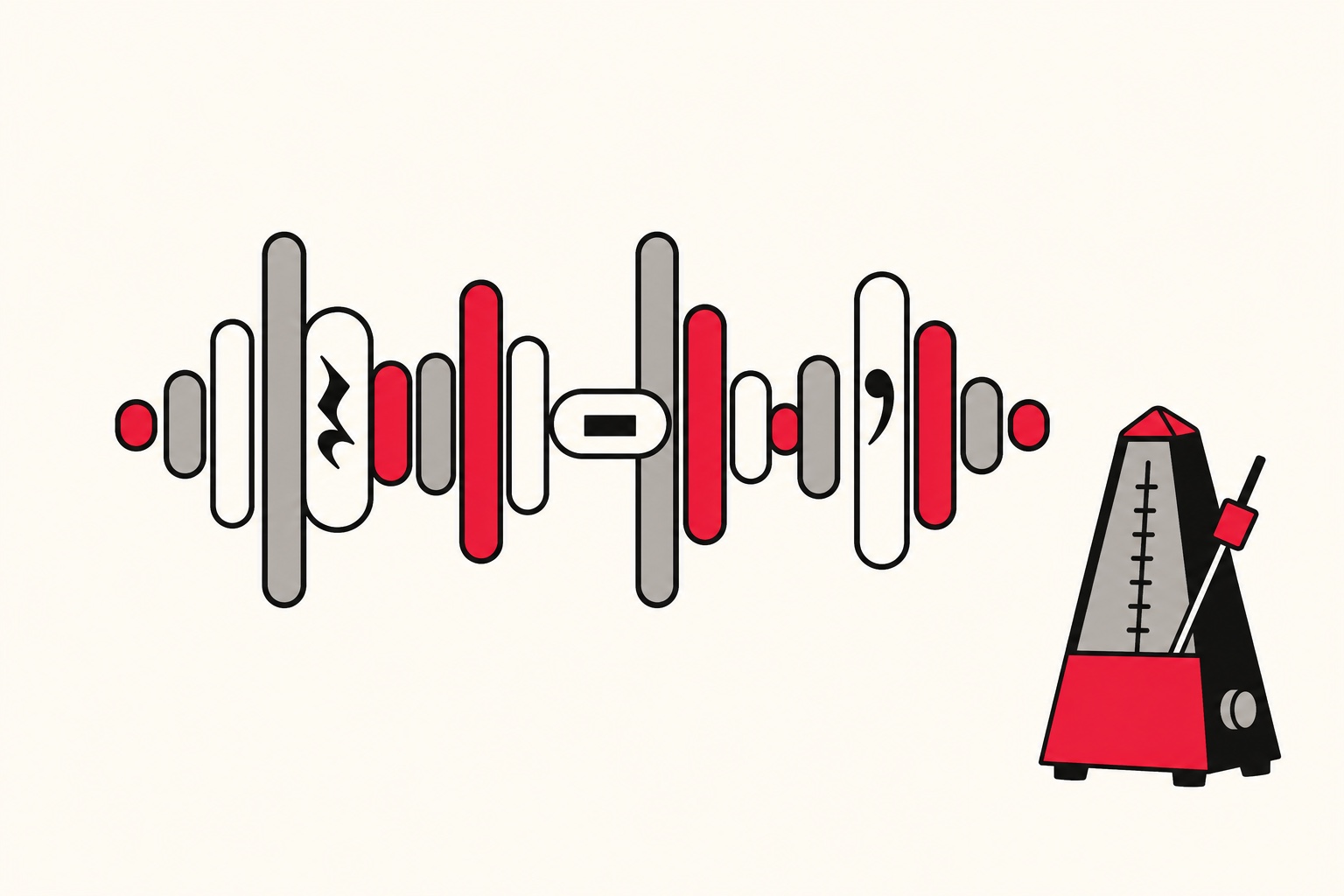
FreeTextoSpeech takes plain text only. There is no SSML, no special tags, and honestly you don't need them. Your punctuation is your pause control, and speed scales those pauses along with the words.
A comma gives a short breath. A period gives a longer stop. A paragraph break gives the longest pause. When you speed the voice up, those pauses shrink too. So at 1.5x, a script that felt well-spaced at 1.0x can start to feel breathless, because the gaps that gave it room got compressed. The fix is not the slider. It is the punctuation.
- Write for the speed you plan to use. If you know a clip is going out at 1.25x, add a few more periods and paragraph breaks so the faster pace still has places to breathe.
- Use commas to shape rhythm, not just grammar. A well-placed comma before a key phrase creates emphasis that survives even at higher speeds.
- Break long sentences. A sentence with three subordinate clauses sounds fine slow and awkward fast. Short sentences are speed-proof.
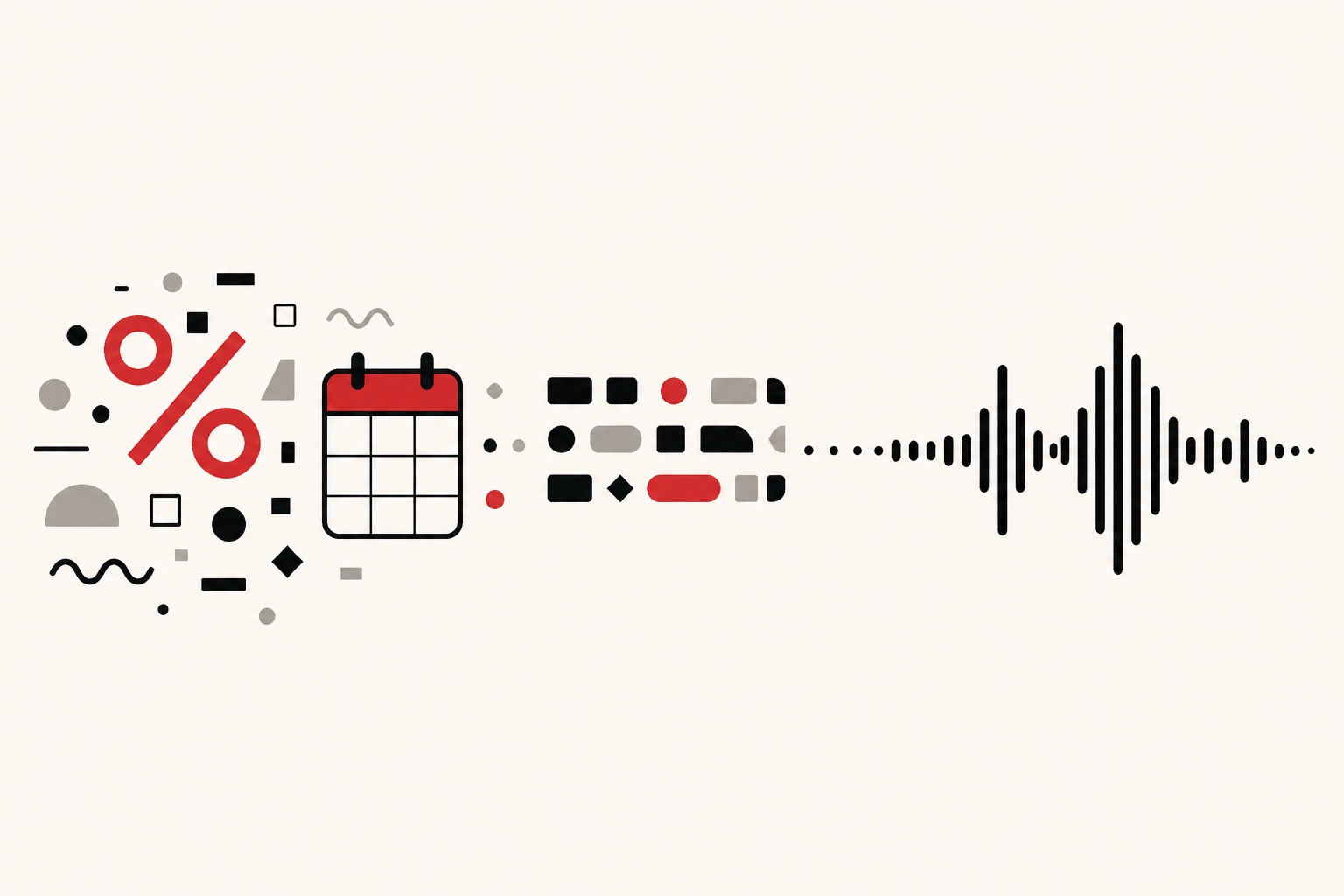
- Spell things out. Numbers, abbreviations, and symbols read more reliably as words. This matters more at speed, where a mispronounced token flies by before you can catch it.
The thing people get wrong is treating speed as a rescue for a badly paced script. It isn't. A rushed script at 0.9x is still a rushed script. Fix the writing first, then set the speed.
A simple workflow
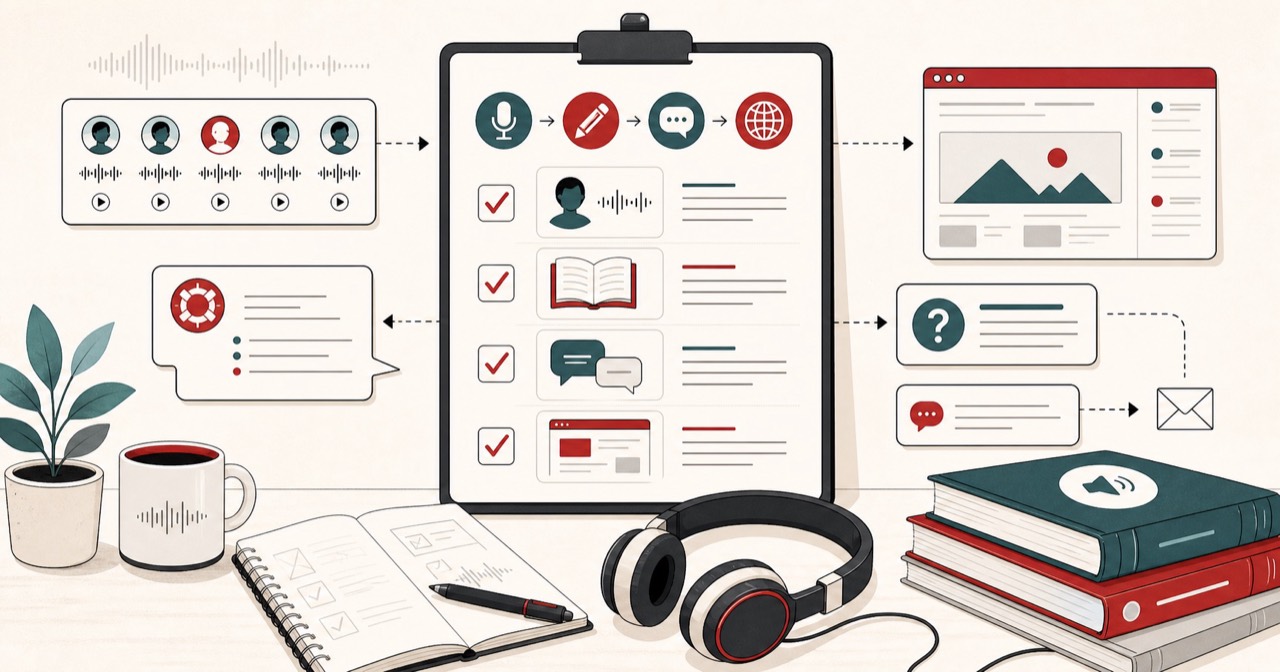
Here is how I actually do it, start to finish:
- Paste your text, up to 5,000 characters per request.
- Pick a voice at 1.0x and listen to a sentence or two.
- Once the voice is right, set the speed for your use: 0.9x for dense, 1.0x default, 1.1x-1.25x for light, 0.75x for practice.
- Generate and listen to the full thing. Adjust punctuation if the pauses feel wrong at that speed.
- Download the MP3 (the default), or pick 24 kHz WAV in the format menu if you plan to edit.
For longer projects like turning a document into audio, the same speed logic applies, and you can see it in action when you turn study notes into audio at 0.9x for review or 1.25x for a quick pass before an exam.
Try it
The best way to find your speed is to test a paragraph you already know well and listen at 0.9x, 1.0x, and 1.25x back to back. You will hear instantly which one fits. Head to the FreeTextoSpeech tool, paste your text, and drag the slider. It is free, no signup for basic use, and the audio is yours to use commercially with no attribution. When you are ready, generate your first clip on FreeTextoSpeech and dial in the speed that matches how you actually listen.