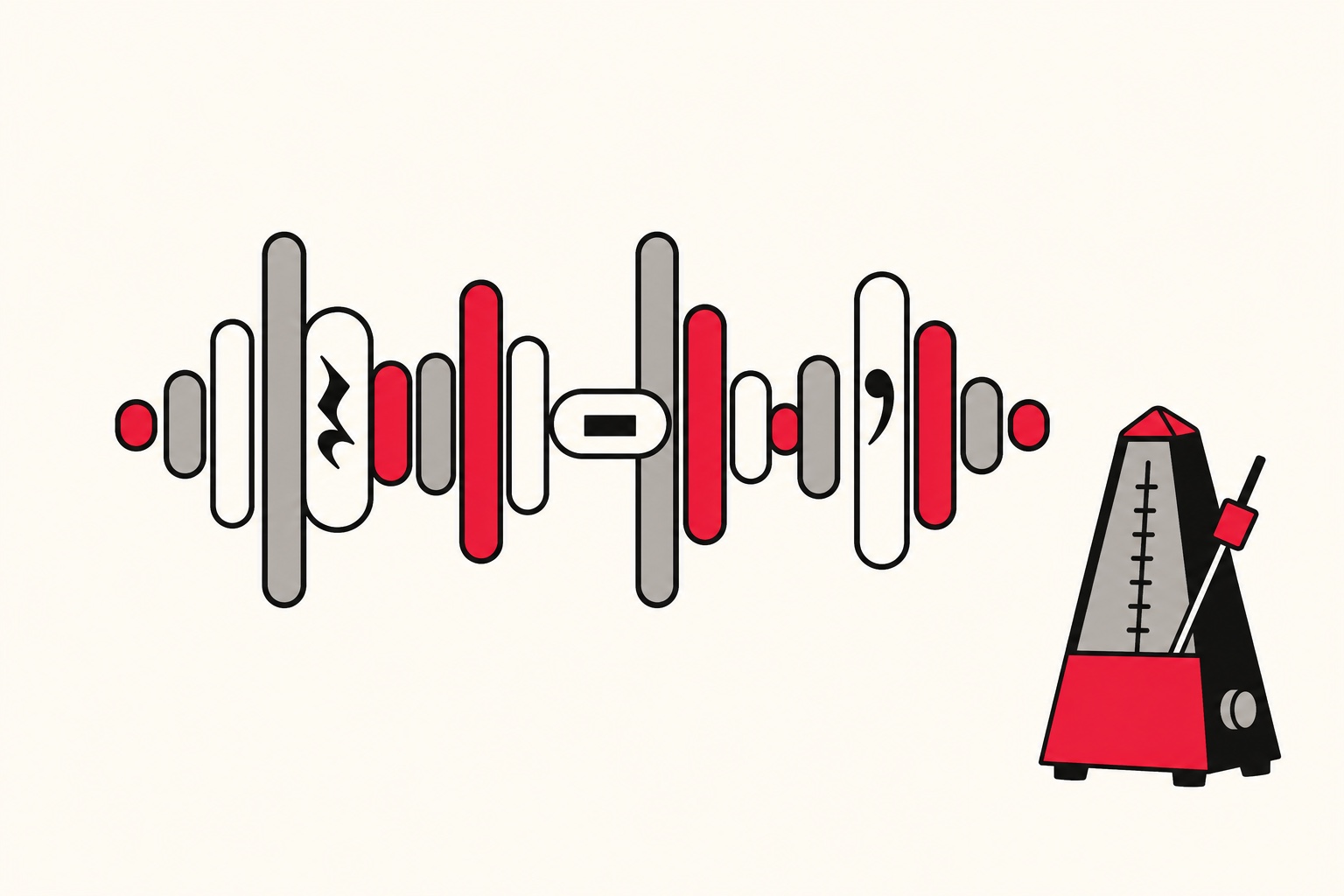
Short answer: you shape an AI voice with punctuation and the speed slider, not code. Commas give short pauses, full stops give longer ones, a blank line between paragraphs gives the longest, and the speed control sets the overall pace. FreeTextoSpeech reads plain text, so that is really all you get to work with, and honestly it is enough. No SSML, no tags.
A lot of people show up expecting they need SSML, the markup that developers use to script speech, to get pacing that sounds natural. You do not. I built FreeTextoSpeech to take plain text, and after listening to a few thousand generations myself, I am convinced ordinary writing habits get you most of the way there with none of the fuss. This guide walks through what each control actually does, so you can decide how a line should sound instead of generating it five times and hoping. By the end you will know which mark to reach for, how the slider changes the feel, and how to fix the two or three things that trip almost everyone up at first.
Why pacing matters so much
Pacing is the whole difference between audio that sounds like it was thought about and audio that sounds like a machine reading a list. A voice that never pauses feels breathless, and a listener picks up on that stress before they have even parsed the words. Put the pauses in the right spots and the same voice sounds like a person who knows what they are saying. Since the tool takes its timing straight from your text, pacing is something you write. You are not at the mercy of the model on this one.
Think about how you would read a bedtime story compared to how you would read a grocery list. The words could be equally plain, but the rhythm is nothing alike. Your listener feels that rhythm first. Good pacing buys you attention. It tells the ear where one idea stops and the next starts, and it hands the brain a half-second to catch up. The same script can come out warm or robotic depending only on where the pauses land, which still surprises people the first time they hear it.
Punctuation is your pause control
- Comma - a short pause. Use it to break up clauses and give a sentence a little room to breathe.
- Full stop - a longer pause. End a thought cleanly instead of chaining three of them together.
- Paragraph break - the longest reset. Good between separate ideas, steps, or scenes.
- Dash or ellipsis - a beat of hesitation, handy for emphasis or a small dramatic pause.
- Question mark - lifts the intonation at the end so questions do not come out flat.
- Colon and semicolon - a medium pause that sets up a list or the related second half of a thought.
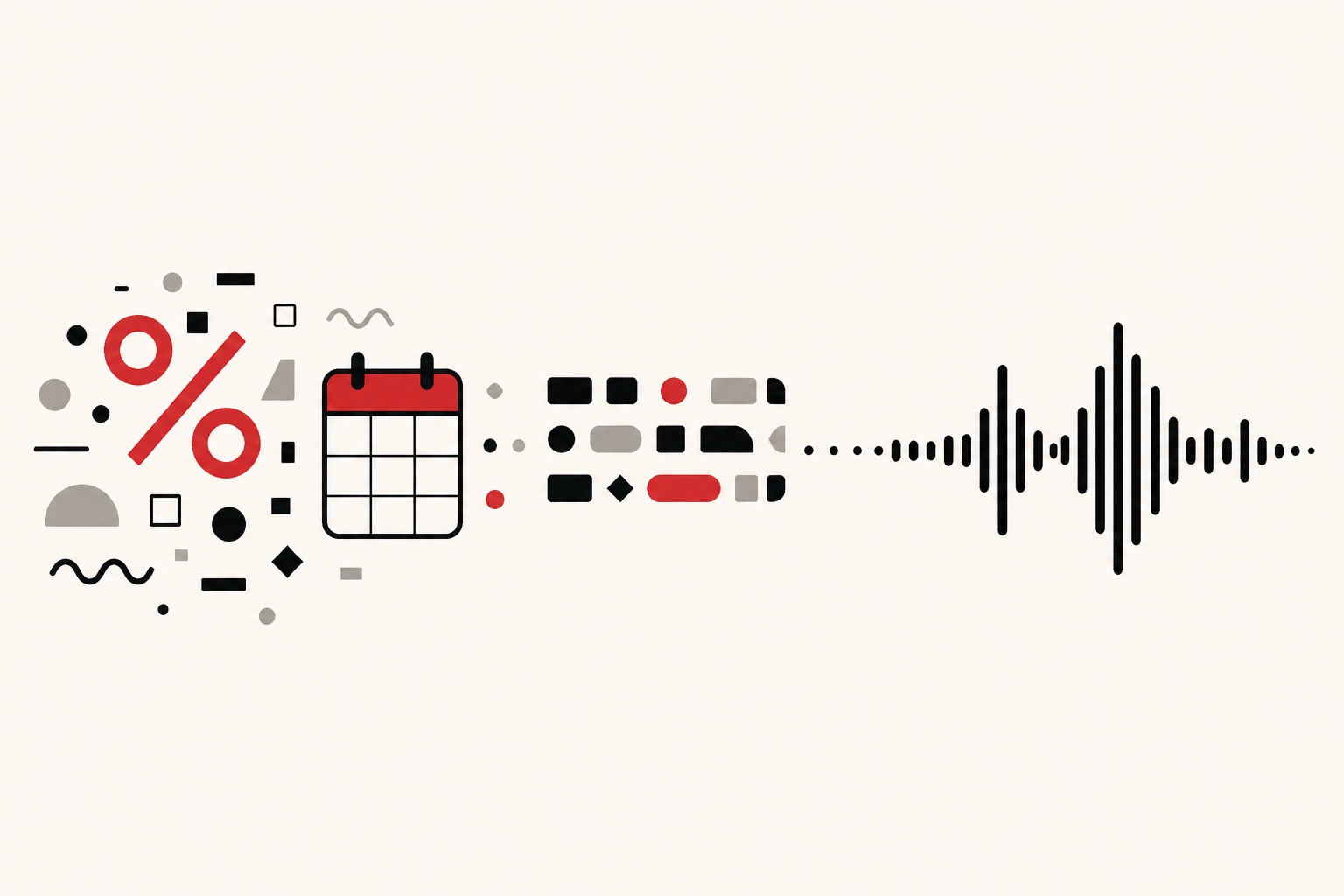
If you want a pause where grammar would not normally put one, just drop in a comma or start a new line. The voice follows your marks, so you can work out the rhythm sentence by sentence. The way I think about it, each mark is a length of silence: comma short, full stop medium, blank line long. Stack them the way a drummer stacks rests and the read starts to breathe on its own.
One warning though. More punctuation is not always better. A sentence crammed with commas can come out choppy and unsure of itself, like the voice keeps second-guessing. Aim for pauses that match how you would actually say the line out loud, not a comma after every other word. This is the setting most people overcorrect on.
Line breaks and structure
Breaking your text into short paragraphs does more than help pacing. It stops the voice from sounding like it is running out of air. For lists and steps, put each item on its own line so the voice lands each one clearly instead of smearing them together. Headings and one-line paragraphs create natural resets, and those resets are what make a long piece easy to follow by ear.
Structure helps you edit too, which I did not expect when I started. When each idea sits in its own short paragraph, you can regenerate just that paragraph if it comes out wrong instead of rerunning the whole thing. That is faster, it burns fewer characters, and it leaves the parts you already liked alone.
You can test any of this in the text to speech tool straight away.
Speed sets the overall pace
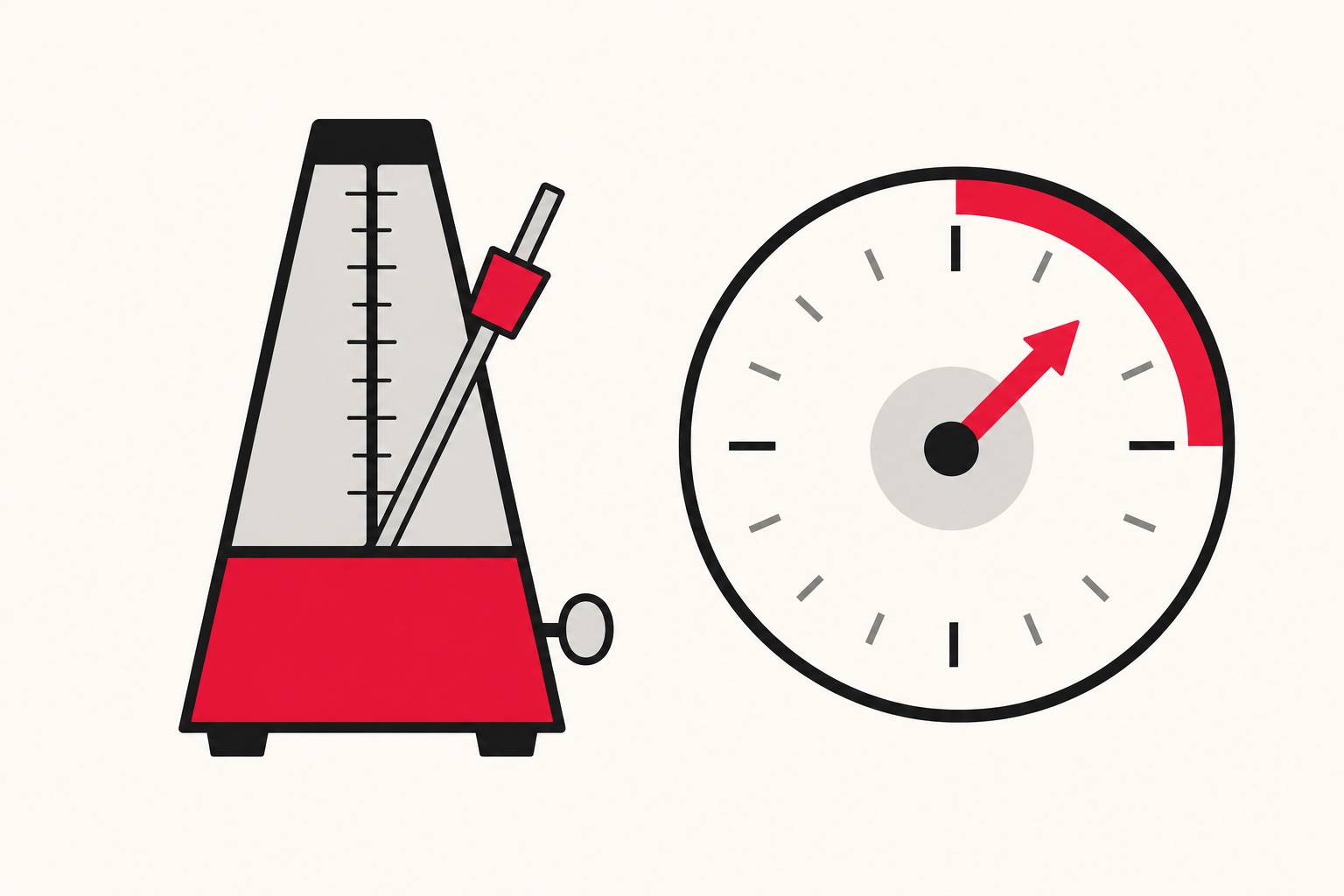
FreeTextoSpeech lets you set the speed anywhere from 0.25x to 4.0x. Leave it at 1.0x as your baseline. Drop to around 0.85x to 0.9x for technical or emotional passages that need a second to land, and nudge up to 1.1x or 1.25x for brisk, energetic stuff. The extremes have their uses. Very slow is great for pronunciation practice, and very fast works when you are skimming a document you already know. And because you can generate section by section, you can mix speeds across one piece by downloading each chunk on its own and joining them later.
Speed and punctuation do different jobs, and the real trick is using them together. Punctuation controls the local rhythm, the small stops inside a sentence. The slider controls the global tempo, how fast the whole thing moves. If a read feels rushed, do not just yank the slider down. Check whether you skipped some full stops first. If it feels slow and heavy, you probably have too many pauses rather than a speed problem. Fix the text, then reach for the slider. I get this wrong myself when I am in a hurry.
Worked example: turning a flat paragraph into a paced one
Flat: "Welcome to the tutorial today we will cover three things setup configuration and your first project so let us get started." That is one breathless sentence, and the voice will rush right through it.
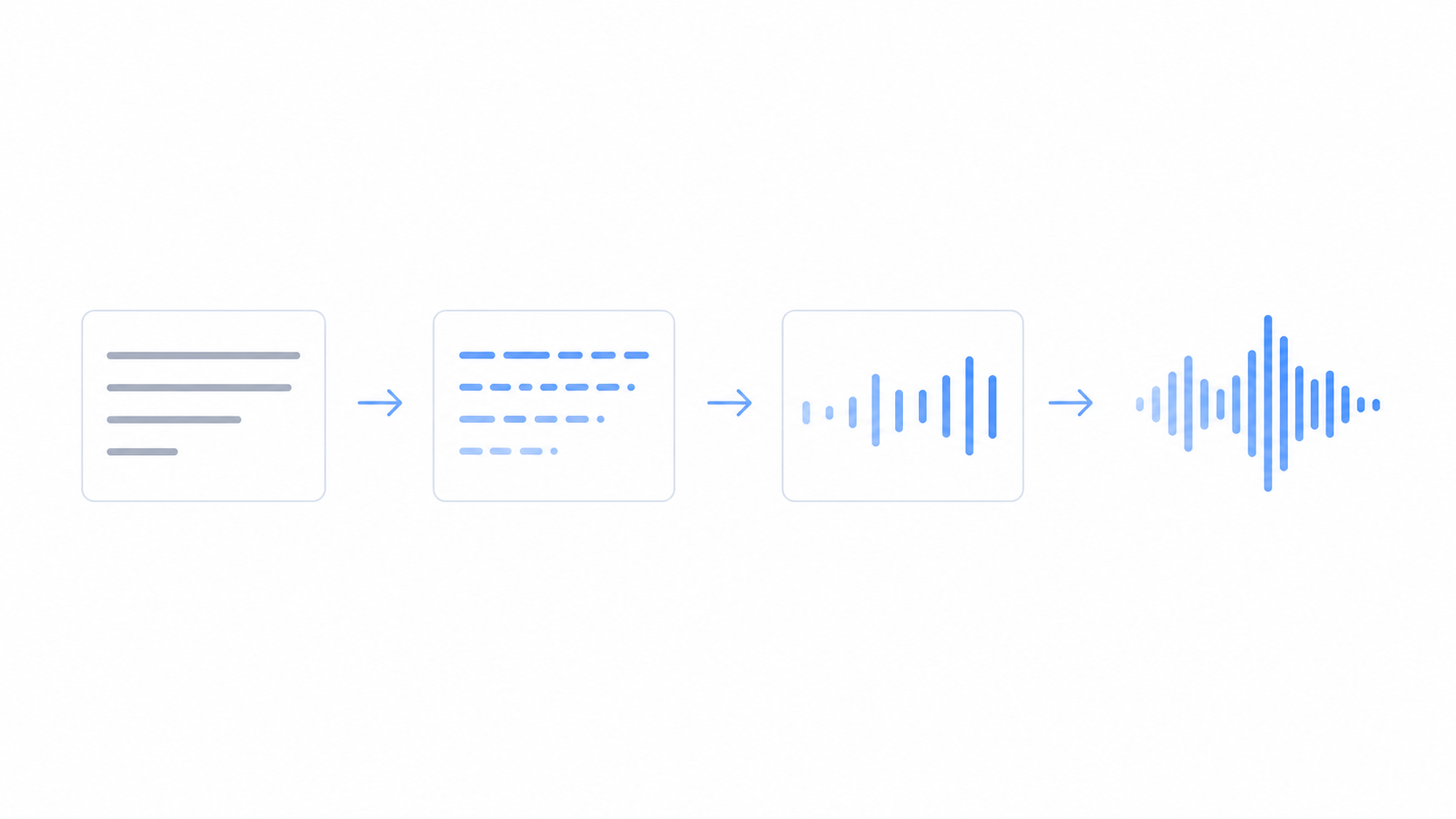
Paced: "Welcome to the tutorial. Today, we will cover three things: setup, configuration, and your first project. So, let us get started." Now the voice pauses after the welcome, lists the three items with small beats between them, and lands the call to action. Same words, and the feel is completely different, done with nothing but punctuation.
Look at what actually changed. A full stop after "tutorial" gives the opener a clean landing. The colon before the list warns the voice that a series is coming. The commas between the three items keep them from mushing into one word. None of that needed markup or special codes. It is just the punctuation you already use every day.
Varying pace within one piece
For a video or an audiobook, you rarely want one speed the whole way through. Here is a simple approach that works: generate the introduction a touch slower so it feels welcoming, the main body at your normal pace, and a quicker, more energetic outro. Since each generation downloads as a separate file, you can set a different speed for each one and stitch them together in your editor. That is how narration that sounds professional gets built, with no markup involved anywhere.
The same chunking habit lets you swap voices for contrast. You might read the narration in one of the calmer US voices like Sarah, then switch to something brighter for a callout, and join the clips. With 54 voices across 9 languages to pick from, pairing a slower narrator with a livelier accent voice is an easy way to keep a long piece from going flat. I do this constantly for anything over a couple of minutes.
Common pacing mistakes
- One giant sentence - if you never end a thought, the voice never rests. Break run-ons into two or three short sentences.
- Fixing pace with speed alone - dragging the slider just hides the symptom. Add full stops and line breaks so the rhythm holds up at any speed.
- Numbers and abbreviations - "Dr." or "St." can get read the wrong way, and a bare "1990" might not come out how you expect. Spell the tricky ones out, like "Doctor" or "nineteen ninety", so you control both the wording and the timing.
- Reaching for SSML - you do not need it here. FreeTextoSpeech takes plain text, so pasting SSML tags would just read the tags out loud, which is not a good time. Punctuation and the speed slider cover the same ground.
- Skipping the ear test - text that looks fine on screen can sound cramped. Always listen back before you call it done.
A quick workflow
- Write or paste your text and read it aloud once, dropping commas in where you naturally pause.
- Split the long sentences and add paragraph breaks between ideas.
- Set the speed, generate one paragraph, and listen.
- Adjust the punctuation or speed, then generate the rest in chunks.
- Download each WAV and stitch the chunks in a free editor like Audacity if you want to mix speeds or voices.
Working in small chunks pays off two ways. You stay well inside the 5,000 character limit per request, which is roughly a thousand words, and you get to hear each section before you move on. If a paragraph sounds off, you only redo that one paragraph. This loop of write, listen, adjust beats trying to nail a long script in a single pass, and it is a lot less frustrating.
A note on file format
FreeTextoSpeech exports MP3 by default, or a 24 kHz WAV if you pick it in the format menu; use WAV while you are still editing. WAV is uncompressed, so it stays clean when you cut, join, or layer clips, which is exactly what you want while you are still fiddling with pacing. If you need an MP3 for a smaller file at the very end, open the WAV in Audacity or a similar tool and export to MP3 from there. Keep the WAV as your working master and only convert the final version. The WAV files are bigger, which is a little annoying if you are emailing them around, but the clean audio is worth it while you edit.
Try it
Open FreeTextoSpeech, paste a paragraph, and play with a comma here and a line break there. You will hear the rhythm shift right away, no markup required. Start with the flat-to-paced example above, generate both versions, and listen to them back to back so the difference is impossible to miss. For the bigger picture on natural delivery, see how to make TTS sound more human, and if you are still picking a voice to go with your pacing, browse the best free text to speech voices.