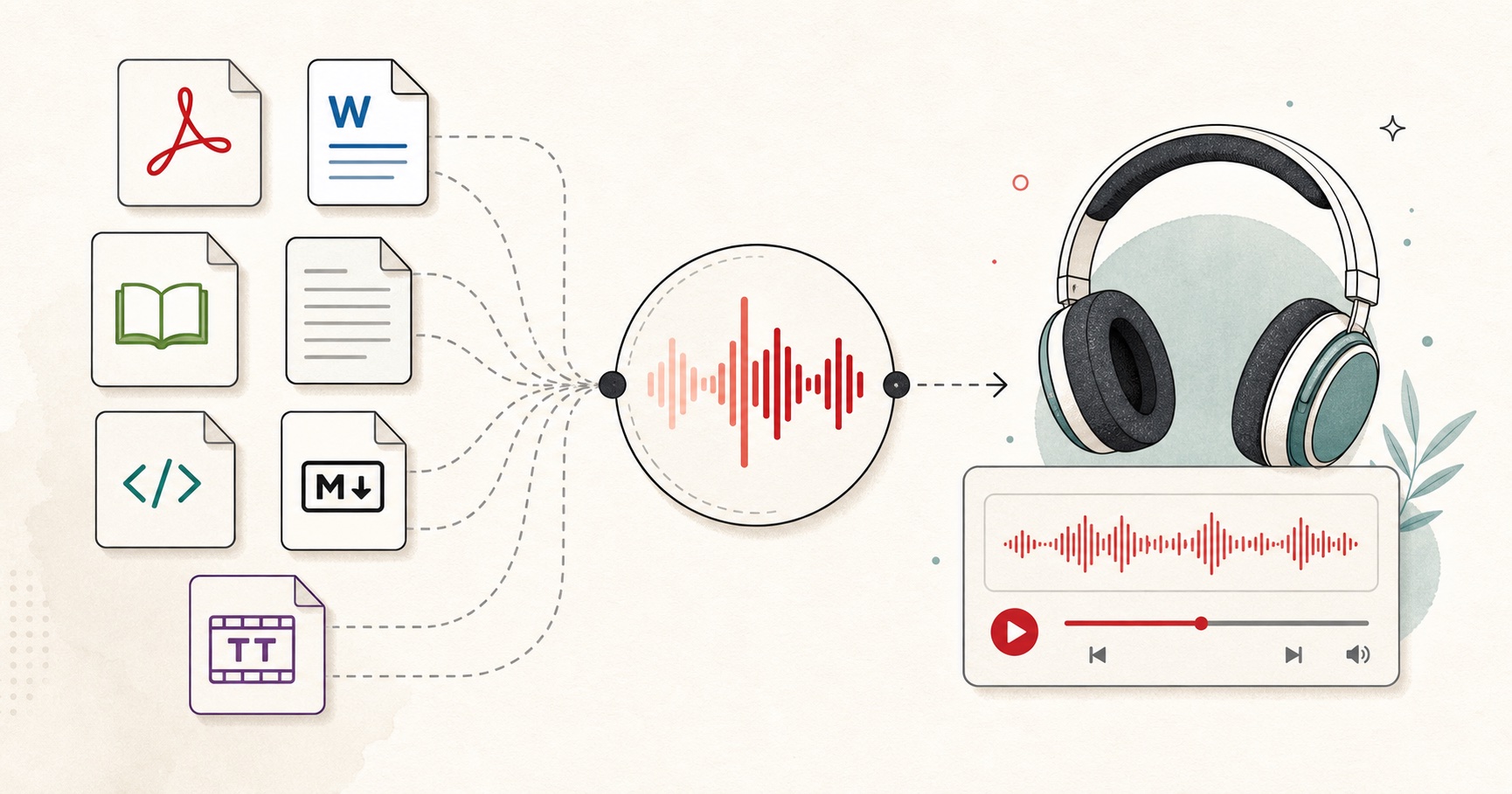
Short answer: extract the text from your PDF (most viewers have a copy option), paste it into FreeTextoSpeech, pick a voice, and download the WAV. For scanned PDFs without selectable text, run them through OCR first — Google Docs and Adobe Acrobat both do this free. Full workflow below.
Why convert PDFs to audio
Audio versions of PDFs are useful for more scenarios than most people realize:
- Studying a long research paper during a walk or commute.
- Reviewing business reports and meeting pre-reads while away from a screen.
- Reading assistance for users with dyslexia, ADHD, or low vision.
- Multitasking — absorbing the contents of an e-book while cooking, cleaning, or driving.
- Language learning — hearing how written text sounds in a target language.
The bottleneck is usually the TTS tool quality, not the conversion. If the voice is robotic, you will not listen for long. Modern neural TTS — FreeTextoSpeech included — removes that bottleneck.
Step 1: Determine if your PDF has selectable text
Open the PDF in any reader and try to select a paragraph with your cursor. If you can highlight the text and copy it, your PDF is text-based and you can proceed directly to Step 2. If your cursor does not select individual words (you can only draw a box around the whole page), the PDF is image-based (scanned) and needs OCR first.
For text-based PDFs
Copy the content you want to convert. You can do this in pieces — one chapter, one section, or one page at a time. FreeTextoSpeech accepts up to 5,000 characters per request, which is roughly a 1,000-word passage.
For scanned PDFs (OCR required)
You have three free options:
- Google Docs. Upload the PDF to Google Drive, right-click → Open with → Google Docs. Google OCRs it automatically into editable text.
- Adobe Acrobat (free Reader). Open the PDF, use Tools → Scan & OCR → Recognize Text → In This File. The result is a searchable PDF you can copy from.
- Tesseract (command line, for power users):
tesseract input.pdf output -l eng.
Once you have machine-readable text, proceed to Step 2.
Step 2: Clean the extracted text
PDF extraction often introduces noise: line breaks mid-sentence, page numbers, headers and footers repeated on every page, footnote markers floating in the middle of paragraphs. Spend 60 seconds cleaning:
- Remove page numbers and running headers. Search-and-replace.
- Rejoin line-broken sentences. Many PDFs break sentences at the end of each line; your TTS tool will pause unnaturally unless you stitch them back.
- Strip footnote markers. Remove superscript numbers and citations if they are going to break the narration flow.
- Fix hyphenated line breaks. “compre-\nhension” becomes “comprehension.”
In most text editors, a regular expression find-replace of -\n → “ (nothing) handles the hyphen case, and ([a-z,])\n([a-z]) → $1 $2 rejoins broken sentences.
Step 3: Paste into FreeTextoSpeech
Open FreeTextoSpeech in your browser. Paste your cleaned text (up to 5,000 characters). Watch the character counter to make sure you are under the limit. If you are over, split into logical chunks — chapter breaks, section breaks, paragraph breaks.
Step 4: Pick a voice that fits the content
Different content types work better with different voices:
- Academic papers and textbooks: Kore, Michael, or Jessica — clear and precise.
- Business reports: Nicole or Adam — polished and authoritative.
- Long-form articles and essays: Sarah, Bella, River — warm and engaging.
- Literature and fiction: Emma (UK) or River — expressive delivery.
Preview a few before committing. A bad voice choice on a 30-minute reading is painful.
Step 5: Adjust speed
Leave speed at 1.0× for the first few chunks to get a feel for the voice. Most listeners eventually settle at 1.1–1.3× for dense material and 0.9× for particularly technical content where comprehension matters more than speed.
Step 6: Generate and download
Click Generate. FreeTextoSpeech produces a WAV file in a few seconds. Download it and give it a useful filename — something like research-paper-chapter-01.wav.
Step 7: Handle multi-chunk documents
For anything longer than 5,000 characters you will generate multiple WAVs. You have two options:
Option A: Listen to each WAV separately
Easiest. Load all your WAVs into a playlist in your preferred player (Apple Music, VLC, foobar2000, Audiobookshelf, a podcast app). Play them in order.
Option B: Stitch them into one file
If you want a single continuous file, use Audacity (free):
- File → Import → Audio → select all your WAVs in order.
- They appear on separate tracks. Drag each track’s audio to the end of the previous one (there is a helper for this in Audacity: Tracks → Align Tracks → Align End to End).
- Export as a single WAV or MP3.
Total stitching time: usually under 5 minutes for a 50-page document.
Step 8: Listen on the go
Copy your WAV files to your phone (AirDrop, USB, Dropbox, Google Drive — whatever works). Open them in any audio player. For longer books, apps like Audiobookshelf or Smart AudioBook Player give you per-chapter navigation, bookmarking, and speed control.
Special cases
Multilingual PDFs
If your PDF is in Spanish, French, Hindi, Italian, Japanese, Portuguese, or Mandarin Chinese, FreeTextoSpeech has native voices for each. Paste the text and select the matching language voice.
Math and equations
PDFs with heavy math do not translate well — the TTS reads “x squared plus 2 x plus 1” for the written “x² + 2x + 1” only if the extracted text contains the spelled-out version. Most PDF extractors leave math as symbols that get skipped or mispronounced. For STEM textbooks, you will get better results from a dedicated accessibility tool that parses math markup.
Protected or DRM-locked PDFs
If the PDF has copy restrictions, you cannot extract text. Your options are limited: ask the publisher for an accessible format (you have a right to one if you have a documented disability), or use a screen-reader tool that has permission to bypass local DRM for accessibility purposes.
Summary workflow
- Extract text from the PDF (copy or OCR).
- Clean the extracted text.
- Paste into FreeTextoSpeech.
- Pick a voice that fits the content.
- Generate and download the WAV.
- Repeat for each chunk if the document is long.
- Listen on your device of choice.
Total time for a 5,000-word article: about 5 minutes end-to-end. Total cost: zero.
Ready to turn your backlog of PDFs into a listening queue? Open FreeTextoSpeech and start.